

Pick your AI video editor by the footage you have, not by the longest feature list. Descript suits talking-head and screen-recording footage, CapCut suits phone-first vertical clips, and OpusClip suits turning long recordings into shorts. Test your pick on one real clip before paying, because many free plans cap exports and add watermarks.
That holds if you already have the footage and want to cut and polish it rather than generate new video from a prompt. No editor makes the cutting and pacing decisions for you, so plan time to check speech joins and vertical framing by hand.
If these videos sit inside a SaaS content programme and you want the listicles and comparison pages around them to earn traffic, see how our SaaS content marketing work runs. It is a short read and it shows what we would build first.
📋 Get Listed / Advertise
We update this guide monthly. Want your tool featured? Contact: [email protected].
Best AI Video Editors At A Glance
Use Descript for speech-led footage, CapCut for phone-first vertical clips and OpusClip for long recordings cut into shorts, with Adobe Premiere Pro and Filmora as the two timeline editors for readers who want a conventional edit.
| Footage Type | Tool | AI Jobs From Vendor Pages | Cheapest Paid Plan | Free-Plan Limit |
|---|---|---|---|---|
| Talking heads, webinars, screen recordings with voiceover | Descript | Text-based editing, filler-word removal, clips, captions from the transcript | Hobbyist, $16 a month billed annually ($24 billed monthly) | 1 media hour a month, 720p export with a watermark |
| Phone-first vertical clips | CapCut | Auto captions, background removal, auto reframe, voice enhancement, noise reduction | Pro, $19.99 a month with 1,200 monthly AI credits | The pricing page lists no AI features on Free. Export resolution and watermark are not stated |
| Long recordings cut into shorts | OpusClip | Clip extraction, text and timeline editing, filler and silence removal | Starter, $15 a month (monthly billing only) with 150 credits | 60 credits a month, 1080p maximum, watermark, 3-day export limit |
| Pro timelines | Adobe Premiere Pro | Generative credits inside a full timeline editor | Premiere for individuals, US$22.99 a month (annual plan billed monthly) with 25 monthly generative credits | Not stated |
| Beginners on a desktop editor | Filmora | 20+ AI features paid by credits | Advanced, US$59.99 a year (auto-renewing) with 1,000 Filmora AI Credits a month | 15 free AI Mate uses a day. Export limits and watermark rules are not stated |
Every price in the table comes from the tool's own pricing page, and the tool sections below link each one. If a cell says "Not stated", the vendor's page did not say, so test it yourself.
1. Descript: Best For Talking-Head And Screen-Recording Edits
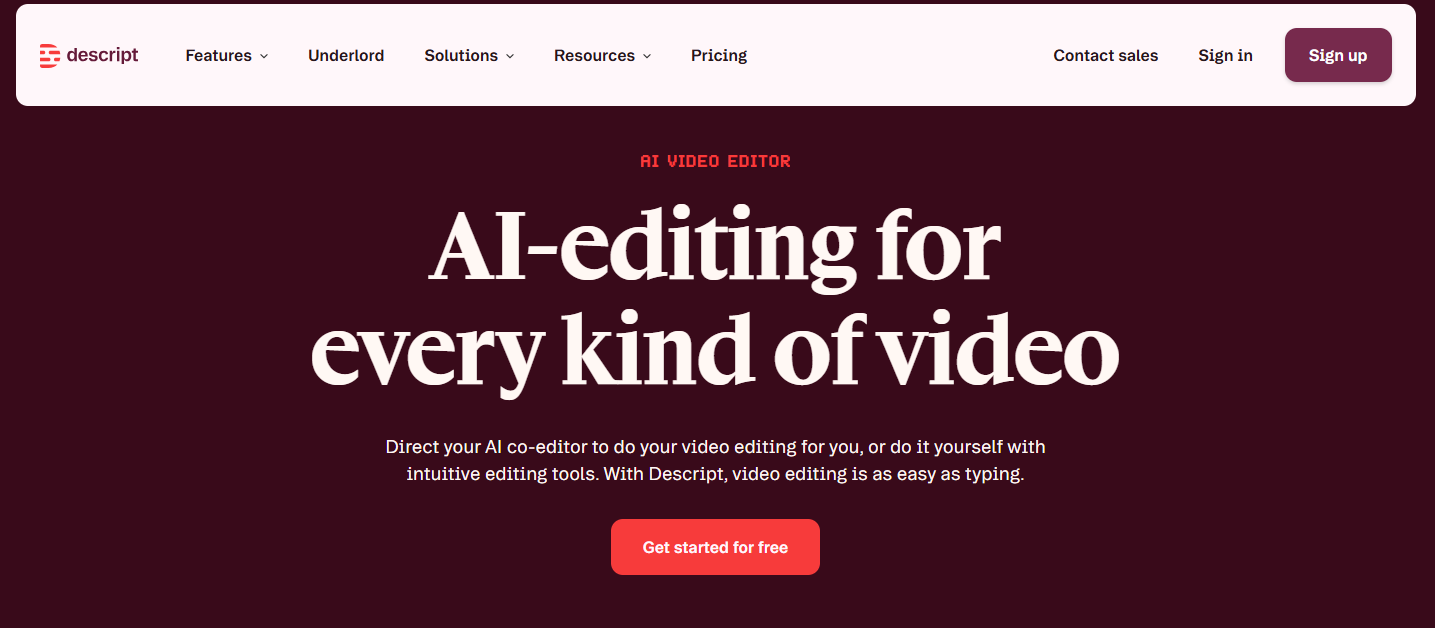
Descript is the editor to try first for speech-led footage such as talking heads, webinars and screen recordings with voiceover. You edit the transcript and the media follows, and the cheapest paid plan is Hobbyist at $16 a month billed annually, or $24 a month billed monthly.
What it does: Descript treats your recording as text. Delete a sentence in the transcript and the matching media goes with it. It also removes filler words, creates clips and generates captions from the transcript that you can edit afterwards.
Who it is for: Anyone whose footage is mostly someone talking. That means founders recording product walkthroughs, marketers cutting webinars and teams narrating screen recordings. If the words carry the video, a transcript editor is the fastest way to cut it.
| Plan | Price | Billing Basis | What It Includes |
|---|---|---|---|
| Free | $0 | None | 1 media hour a month, 100 AI credits one time, 720p export with a watermark |
| Hobbyist | $16 a month ($24 billed monthly) | Per person, billed annually | 10 media hours a month, 400 AI credits a month, 1080p watermark-free export, filler-word removal and clips |
| Creator | $24 a month ($35 billed monthly) | Annual, billed as a team of 3 | 30 media hours a month, 800 AI credits a month, 4K watermark-free export |
| Business | $50 a month ($65 billed monthly) | Annual, billed as a team of 5 | 40 media hours a month, 1,500 AI credits a month |
| Enterprise | Pricing on request | Custom | Custom |
These figures are read from Descript's pricing page.
Strengths:
- Editing from the transcript is the quickest route to a clean cut when the footage is speech.
- Filler-word removal and clip creation start on Hobbyist, the cheapest paid plan.
- Captions are generated from the transcript and you can edit them afterwards.
- Watermark-free export begins at Hobbyist, at 1080p.
Trade-offs:
- The Free plan is small, with 1 media hour a month and a watermarked 720p export.
- Creator is billed as a team of 3 and Business as a team of 5, which changes the sums for a solo editor.
- AI credits meter the AI features, 400 a month on Hobbyist and 800 on Creator.
- Plan limits for the retake, eye contact, green screen and studio lighting tools are not stated.
Key capabilities:
- Text-based editing, where the media follows the transcript.
- Filler-word removal and clip creation on Hobbyist and higher.
- Captions generated from the transcript and editable afterwards.
- Tools for retakes, eye contact, green screen and studio lighting, as Descript's features page documents them.
Good fit:
- Podcasters, webinar hosts and founders with talking-head footage.
- Teams editing screen recordings with voiceover.
- Anyone who would rather read and delete than scrub a timeline.
Not a fit:
- Footage with little speech, because a transcript gives you little to edit.
- Anyone who needs a conventional multi-track timeline as the main workspace.
The limitation that matters most is the Free plan, which gives 1 media hour a month with a watermarked 720p export, and filler-word removal and clips only start at Hobbyist.
2. CapCut: Best For Phone-First Vertical Clips
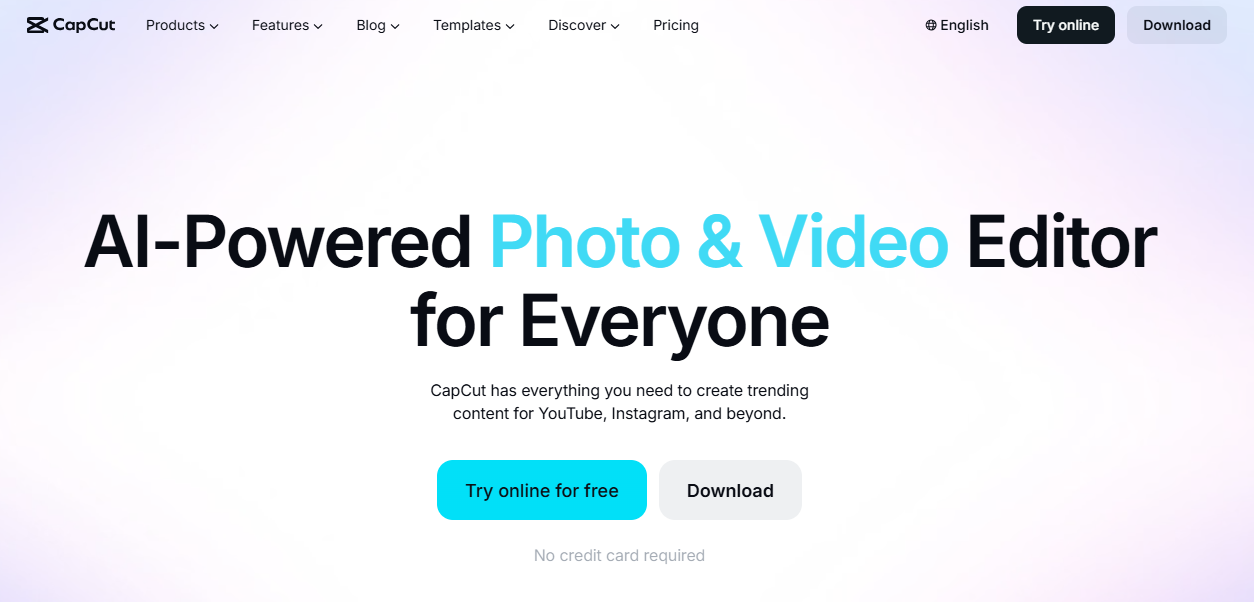
CapCut fits phone-first vertical clips. CapCut's tools page documents auto captions, background removal, auto reframe, voice enhancement and noise reduction, and the Pro plan costs $19.99 a month with 1,200 monthly AI credits.
What it does: CapCut covers the jobs a short vertical edit needs. It captions speech automatically, removes a background, reframes a clip for a new aspect ratio and cleans up audio with voice enhancement and noise reduction.
Who it is for: People who shoot on a phone and publish short vertical video. Social managers, creators and small-team marketers who want captions and reframing in one place will get the most from it.
| Plan | Price | Billing Basis | What It Includes |
|---|---|---|---|
| Free | $0 | None | Basic editing. The pricing page lists no AI features |
| Pro | $19.99 a month | Per month | 1,200 monthly AI credits |
| Ultra | $79 a month | Per month | 8,645 monthly AI credits |
| Teams | $12.49 per seat a month | Per seat, per month | 1,200 AI credits per seat, 1 TB storage and a brand kit |
The prices above are from CapCut's pricing page. AI credits gate the AI features, and the page lists none of them on the Free plan.
Strengths:
- The tools match the vertical-clip job, from captions to reframing.
- Voice enhancement and noise reduction help with phone audio.
- Teams adds a brand kit and per-seat credits at $12.49 per seat a month.
- The tools page states no usage limits for its listed tools.
Trade-offs:
- AI credits gate the AI features, so a heavy month can run the allowance down.
- The pricing page lists no AI features on the Free plan.
- Free-plan export resolution and watermark are not stated on the pricing page.
- Ultra costs $79 a month, a big jump from Pro at $19.99.
Key capabilities:
- Auto captions.
- Background removal.
- Auto reframe for new aspect ratios.
- Voice enhancement and noise reduction.
Good fit:
- Creators and social managers publishing short vertical video from phone footage.
- Small teams that want one brand kit across seats, on Teams.
Not a fit:
- Anyone who needs AI features on a free plan, because the pricing page lists none.
- Long, speech-heavy recordings that you need to cut from a transcript.
The limitation that matters most is that export resolution and the free-plan watermark are not stated on the pricing page, so test both before you commit.
3. OpusClip: Best For Pulling Short Clips From Long Recordings
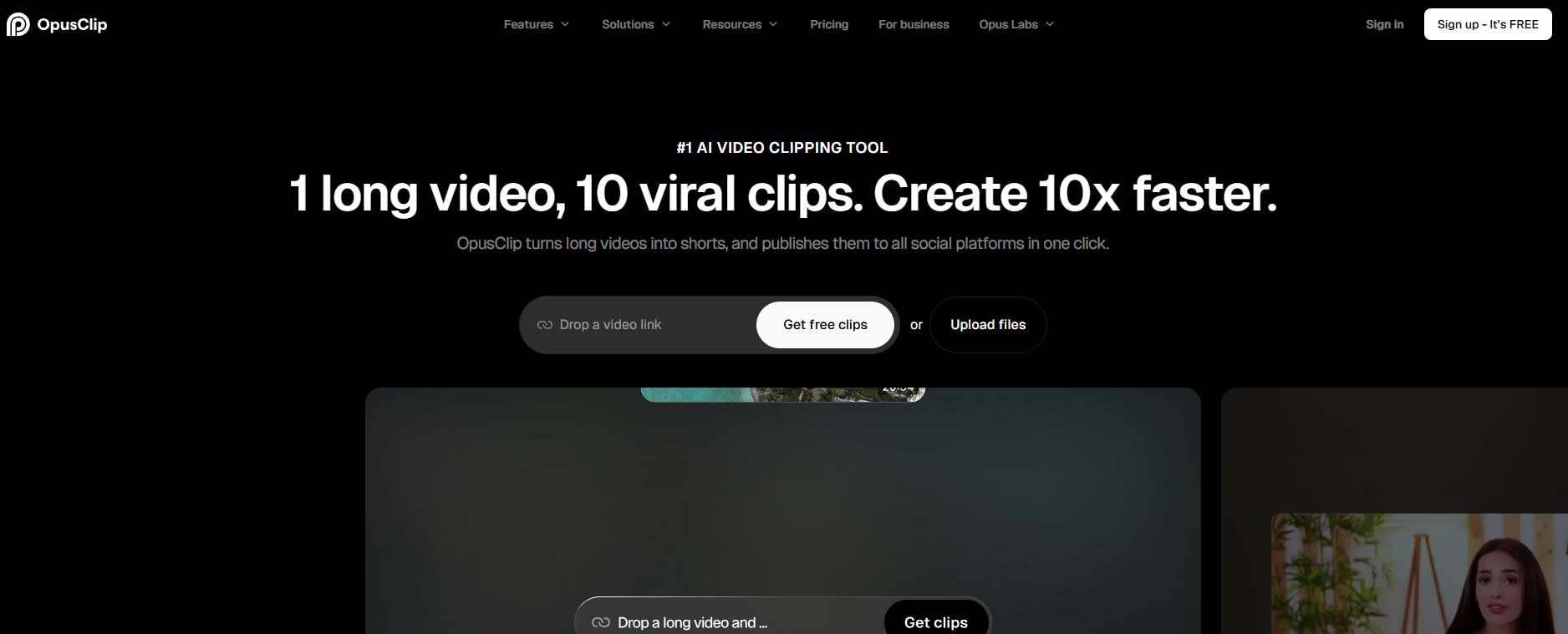
OpusClip is for long recordings you want cut into shorts. The Starter plan costs $15 a month, billed monthly only, with 150 credits plus text and timeline editing and filler and silence removal.
What it does: OpusClip takes a long source and extracts short clips from it. On Starter and above you can also edit by text and on a timeline, and remove filler words and silences. AI video B-roll and dubbing sit on Pro only.
Who it is for: People feeding Shorts, Reels and TikTok from podcasts, webinars and streams. If one hour of recording should become several short posts, this is the job it does.
| Plan | Price | Billing Basis | What It Includes |
|---|---|---|---|
| Free | $0 | None | 60 credits a month, AI captions, 1080p maximum, watermark, 3-day export limit |
| Starter | $15 a month | Monthly only | 150 credits, text and timeline editing, filler and silence removal, 30-day export limit |
| Pro | $29 a month, or $14.50 a month annually | Monthly or annual | 300 credits, AI video B-roll, video dubbing, AI sound effects, highest-resolution export with no export limit, 100 GB storage, export to Premiere and DaVinci |
| Business | Custom | Custom | Custom |
Each figure is from OpusClip's pricing page.
Strengths:
- Clip extraction is the headline job, so a long source turns into short posts quickly.
- Filler and silence removal start at Starter, $15 a month.
- Pro exports at the highest resolution with no export limit.
- Pro exports to Premiere and DaVinci, so a clip can finish in a full timeline.
Trade-offs:
- Credits are the meter, so long sources burn the allowance.
- The Free plan has a watermark, a 1080p cap and a 3-day export limit.
- Starter is monthly only, with a 30-day export limit.
- AI video B-roll and dubbing need Pro.
Key capabilities:
- Clip extraction from long recordings.
- Text and timeline editing on Starter and above.
- Filler and silence removal on Starter and above.
- AI video B-roll, dubbing and AI sound effects on Pro.
Good fit:
- Podcasters and webinar teams turning recordings into Shorts, Reels and TikTok posts.
- Teams that publish from the same long source every week.
Not a fit:
- Short phone clips that need no extraction, because you would pay for a job you do not have.
- Anyone who wants a transcript-first editor as the main workspace.
The limitation that matters most is that credits are the meter, so a long source burns the allowance fast and you should size your plan against your recording length.
4. Adobe Premiere Pro: Best For Pro Timelines With AI Assist
Adobe Premiere Pro is the pick if you already work in a timeline. The individual plan is US$22.99 a month on an annual plan billed monthly, and it comes with 25 monthly generative credits.
What it does: Premiere is the full timeline editor. The pricing facts we can stand behind are the plans and the generative credits attached to them, so this profile stays on those.
Who it is for: Editors who already know a timeline and want generative credits inside it. If you cut in layers and tracks every day, Premiere keeps you there.
| Plan | Price | Billing Basis | What It Includes |
|---|---|---|---|
| Premiere for individuals | US$22.99 a month | Annual plan billed monthly | 25 monthly generative credits |
| Creative Cloud Pro for individuals | US$34.99 a month promotional (regularly US$69.99) | Per month | 4,000 monthly generative credits |
| Premiere for teams | US$37.99 a month | Per licence | Not stated |
| Creative Cloud Pro for teams | US$99.99 a month | Per licence | Not stated |
Prices come from Adobe's Premiere plans page.
Strengths:
- A full timeline editor for readers who already work in one.
- Generative credits sit inside the plan, 25 a month on Premiere for individuals.
- Creative Cloud Pro raises the allowance to 4,000 monthly generative credits.
- Team plans are priced per licence.
Trade-offs:
- Generation is credit-based, so the allowance caps how much you can use.
- The pricing page does not say which tasks use credits.
- The Creative Cloud Pro price is promotional at US$34.99 and regularly US$69.99.
- It asks more of a beginner than a transcript editor or a social-first tool does.
Key capabilities:
- Monthly generative credits, 25 on Premiere for individuals and 4,000 on Creative Cloud Pro.
- Individual and team licences.
Good fit:
- Editors who already know a timeline.
- Teams that license Adobe tools per seat.
Not a fit:
- Beginners who want the AI to carry the edit.
- Anyone who needs a clear list of which tasks use credits before buying, because the pricing page does not give one.
The limitation that matters most is that generation runs on credits and the pricing page does not say which tasks use them, so ask what a typical edit costs before you plan around the allowance.
5. Filmora: Best For Beginners On A Desktop Editor
Filmora suits a beginner who wants a desktop timeline. The Advanced plan is US$59.99 a year on auto-renewing billing, and it includes 1,000 Filmora AI Credits a month.
What it does: Filmora is a desktop editor with a conventional timeline and AI help on top. The Advanced plan includes 20+ AI features and 500 AI Mate conversations.
Who it is for: Beginners who want to learn a timeline on a desktop editor. Filmora has a free edition and a yearly price of US$59.99 on Advanced.
| Plan | Price | Billing Basis | What It Includes |
|---|---|---|---|
| Free edition | $0 | None | 15 free AI Mate uses a day, other AI features paid by credits |
| Basic | Pricing on request | Not stated | Not stated |
| Perpetual | Pricing on request | Not stated | Not stated |
| Advanced | US$59.99 a year | Auto-renewing annual | 1,000 Filmora AI Credits a month, 20+ AI features, 500 AI Mate conversations |
Figures are read from Filmora's pricing page.
Strengths:
- The Advanced plan works out to about $5 a month at US$59.99 a year.
- A free edition lets you try the AI help before paying.
- 1,000 monthly credits and 20+ AI features come with Advanced.
- A conventional desktop timeline with AI features on top.
Trade-offs:
- Basic and Perpetual prices are not shown on the page.
- The plan auto-renews each year.
- Other AI features on the free edition are paid by credits.
- Export limits and watermark rules are not published on the pricing page.
Key capabilities:
- 20+ AI features on Advanced.
- 1,000 Filmora AI Credits a month.
- 500 AI Mate conversations on Advanced, and 15 free AI Mate uses a day on the free edition.
Good fit:
- Beginners learning a desktop timeline.
- Anyone who prefers a low yearly price to a monthly one.
Not a fit:
- Social managers who work only on a phone.
- Anyone who needs to know export limits and watermark rules before downloading, because the page does not publish them.
The limitation that matters most is that export limits and watermark rules are not published on the pricing page, so run your test clip through the free edition first.
📋 Get Listed / Advertise
We update this guide monthly. Want your tool featured? Contact: [email protected].
Match The Editor To Your Footage
Start with Descript for speech-led footage, CapCut for phone-first vertical clips and OpusClip for long recordings, and rule a tool out the moment its plan blocks the job you came for.
| Footage Type | Start With | Wrong-Tool Signal |
|---|---|---|
| Speech-led footage such as talking heads and screen recordings with voiceover | Descript | The footage has little speech, or you need clips and filler-word removal but sit on the Free plan, where those start at Hobbyist |
| Phone-first vertical clips | CapCut | You need AI features on the Free plan, where the pricing page lists none, or your AI credits run out before the month ends |
| Long recordings cut into shorts | OpusClip | Credits run out on long sources, or the free export is capped at 1080p with a watermark |
The reasoning is simple. Speech-led footage is a text problem, so a transcript editor wins. Phone clips are a format problem, so a social-first editor with captions and reframing wins. A long recording is a selection problem, so a clipper that also edits wins.
The two timeline editors answer a different question. Pick Adobe Premiere Pro if you already work in a timeline and want generative credits inside it. Pick Filmora if you are a beginner who wants a desktop timeline with AI help.
Before you commit to any of them, watch for three signals that a tool is wrong for the job.
- Credits run out: A long source or a heavy month burns the allowance, which is the meter on OpusClip, CapCut, Descript and the rest.
- Captions missing on your plan: CapCut's pricing page lists no AI features on Free, so a caption job on that plan is a dead end.
- Free export capped: Many free plans cap export and add a watermark, which is fine for a test and wrong for a published video.
Start with the bottleneck, which is cutting, captions or format. Fix that first and the rest of the choice gets easy.
A finished video still needs a page that search engines and AI answers can find. The GEO + SEO Growth Programme covers that ongoing work, so read what it includes before you plan the next batch of footage.
How To Test An AI Video Editor On One Real Clip
Run one clip, one deliverable and the same job in every tool you are considering. Nemovideo's comparison of six talking-head editors tested each one on a single fixed recording, a 90-second 16:9 English clip turned into a roughly one-minute vertical deliverable, and the method works for you too.
- Pick one 90-second horizontal clip of your real footage, the kind you publish most often, so the test reflects your work and not a demo file.
- Set the deliverable before you open any tool, which is a video of about one minute in vertical format.
- Run the same job in each shortlisted tool, for example cut the clip, add captions and reframe it for vertical.
- Check the captions line by line, because a wrong word on screen is the first thing a viewer notices.
- Check the cuts and the speech joins by playing each one at normal speed, since a cut can sound clean in a transcript and jump on the timeline.
- Check the vertical framing on a phone screen, and look for a face or a screen recording that drifts out of frame.
- Check the watermark and the export resolution on the file you downloaded, not on the preview, because many free tiers cap export at 720p and add watermarks, according to ToolJunction's 2026 roundup.
- Write down the minutes spent, the credits used and every manual fix, one line per tool, then compare the lists.
Stop the moment a tool fails a check you cannot live with, such as a watermark on a deliverable you plan to publish. Drop it from the shortlist and move on. Pay only for the tool that finishes the job with the fewest manual fixes.
What Free Plans And Entry Plans Actually Limit
Many free AI video editor plans cap export at 720p and add watermarks, according to ToolJunction's 2026 roundup. The vendors in this list show the same pattern, and each one limits something different.
| Tool | Allowance | Export | Watermark |
|---|---|---|---|
| Descript | 1 media hour a month, 100 AI credits one time | 720p | Yes |
| OpusClip | 60 credits a month | 1080p maximum, 3-day export limit | Yes |
| CapCut | The pricing page lists no AI features on Free | Not stated | Not stated |
| Filmora | 15 free AI Mate uses a day, other AI features paid by credits | Not stated | Not stated |
The Descript and OpusClip rows come from Descript's pricing page and OpusClip's pricing page. CapCut's AI credits start on the Pro plan, so a free CapCut account will not run its AI features.
The CapCut and Filmora pricing pages we read do not list free-plan watermark or export rules. Test both with the one-clip method above before you decide that either is free in a way that suits you.
Entry plans lift the first cap and leave the others. Descript Hobbyist removes the watermark at 1080p but still limits you to 10 media hours and 400 AI credits a month. OpusClip Starter adds editing and filler and silence removal but keeps a 30-day export limit.
What Is An AI Video Editor?
An AI video editor is software that edits footage you already have, with automatic cuts and silence removal, text-based editing, captions, reframing for vertical formats, and background or object removal. Tools that generate new video from prompts or avatars are a different category, and this list leaves them out.
If you want avatars, dubbing or lip sync, read our guide to AI avatar and dubbing tools. If voice is the job, see AI video software with voice cloning. The editors here do not centre on either.
How We Chose These Five Editors
Prices in this list come from each vendor's own pricing page and can change, so check the page before you buy. Four rules decided who made the cut.
- Edits footage you already have: Generators and avatar tools are out of scope.
- Has a readable pricing page: The research fetched a vendor pricing page for every tool listed.
- Covers one of the three footage types: Speech-led, phone-first vertical or long recordings, with two timeline editors added for readers who want a conventional edit.
- Stays inside the five-tool limit: A list of twelve helps nobody.
VEED is the best-known tool left out, because its pricing page returned no plan details when read. Tools whose pricing or feature pages could not be read were left out for the same reason.
Common criteria for choosing an AI video editor are worth knowing too, and you can apply them to any tool.
- How accessible it is to non-specialists.
- How much it generates versus how much it polishes.
- Which enhancement options it has, captions for example.
- The quality of the export.
- Whether hosting and sharing are included.
If you also write the text that sits beside your video, our guide to AI content generator tools for SaaS is the written-content counterpart of this list.
Buying Guide: Credits, Seats, And Billing Terms
Every tool here meters AI use with credits, so the real price depends on how much you edit. Descript, CapCut, OpusClip, Filmora and Premiere all attach a monthly credit allowance to their paid plans, and seat rules change the sums again. CapCut Teams is priced per seat, Descript Creator is billed as a team of 3 and Business as a team of 5 on Descript's pricing page, and Premiere for teams is priced per licence.
Here is a worked example with your own numbers. Say you edit 12 hours of footage a month.
- Hobbyist allowance: 10 media hours a month, so 12 hours leaves you 2 hours short.
- Creator allowance: 30 media hours a month, so 12 hours uses 40% of it (12 divided by 30).
- Hobbyist annual versus monthly: $16 a month billed annually is $192 a year (16 times 12), against $288 a year at $24 a month billed monthly (24 times 12), a $96 difference.
Billing terms matter as much as the headline price. OpusClip Pro is $14.50 a month annually or $29 monthly, which is $174 against $348 over twelve months. Starter is monthly only. Filmora Advanced is US$59.99 a year, auto-renewing, so check the renewal date.
Marketers pricing a video tool are usually pricing a wider stack. If that is you, our guide to AI marketing tools for content marketing shows what else belongs in it.
What AI Video Editors Still Leave To You
The editor still makes the cutting and argument decisions. Editing the transcript changes the linked media, but speech joins and vertical framing still need a manual check, and captions need review before you publish.
Run three checks on every video.
- Joins: Play each cut at normal speed and listen for a jump in the speech.
- Framing: Watch the vertical version on a phone and look for a face or a screen that drifts out of view.
- Captions: Read them against the audio and fix every wrong word.
Define the video type first, test with a free trial and check free-tier limits before choosing. If your edit mixes in clips made by AI, our guide on how to make AI videos look real covers the realism checks.
Publishing the transcript and captions alongside the video gives search and AI answers text to read, which is the idea behind generative engine optimization. Getting the page the video sits on to rank is the next step, and our guide to AI SEO tools and agile workflow covers it.
FAQs
What Is The Best Free AI Video Editor?
Is There A Free AI Video Editor Without A Watermark?
Can AI Generate Subtitles For My Video?
Can An AI Video Editor Remove The Background From A Video?
Can An AI Video Editor Lower My Video Quality?
What Is The Best AI Video Editor For Beginners?
Can I Record My Screen And Camera And Still Use AI Editing?
Do AI Video Editors Keep My Brand Fonts And Colours Consistent?
How Do I Make Short Clips From A Long Video With AI?
If you would rather hand the content around your video work to a team that has done it before, book a thirty-minute call. One of the founders takes it, and you leave knowing what we would fix first.