

Pick the clip generator by your source video, and ignore the longest feature list. Opus Clip suits long podcasts and interviews, Vizard suits teams that edit clips by text, Klap suits talking-head YouTube videos, HeyGen suits multilingual clips, and StreamYard suits recorded live streams. Test one on a real episode before paying.
This holds when your source is a long recording with one or two speakers and you want captioned vertical clips without opening a full editor.
These matches are our editorial judgement from vendor pages and published limits, not a lab test, so run one of your own videos through a free tier before you commit.
If you publish a lot of video and want the written content around it to pull its weight too, our SaaS content marketing team builds listicles and comparison pages for exactly this.
📋 Get Listed / Advertise
We update this guide monthly. Want your tool featured? Contact: [email protected].
Best AI Clip Generators At A Glance
Most AI clip generators do the same basic job. They find the moments worth keeping in a long video, caption them and crop them for vertical screens. Feature lists end up looking alike, which is why picking by feature count wastes your time. Picking by source video does not.
| Tool | Best For | Starting Price |
|---|---|---|
| Opus Clip | Podcasts and long interviews | Pricing on request |
| Vizard | Editing clips by text | Pricing on request |
| Klap | Talking-head YouTube videos | From $14 per month |
| HeyGen | Multilingual clips | From $24 per month |
| StreamYard | Recorded live streams | Pricing on request |
Opus Clip is the only tool with a free plan confirmed on its own page. For the others, check the live page for free-tier terms.
For long podcasts and interviews, choose Opus Clip, because the vendor page pairs ClipAnything and ReframeAnything with brand templates and a team workspace that suit a show published on a regular schedule.
The same logic runs down the rest of the table. Vizard fits when you want to fix a clip by editing its words. Klap fits a single speaker talking to camera. HeyGen fits when clips need translation. StreamYard fits when the recording already lives in StreamYard.
Two tools state a price on their own pages. Klap lists paid plans from $14 per month, and HeyGen lists plans from $24 per month for its AI clip generator. Opus Clip, Vizard and StreamYard show Pricing on request in the table, so check each live pricing page before you budget.
Clip counts are vendor claims too. Vizard says 30+ clips come from one long video, and Klap says 10+. Neither number tells you how many of those clips are usable. That depends on your video, which is why the one-video test later in this guide matters more than any count.
1. Opus Clip: Best For Podcasts And Long Interviews
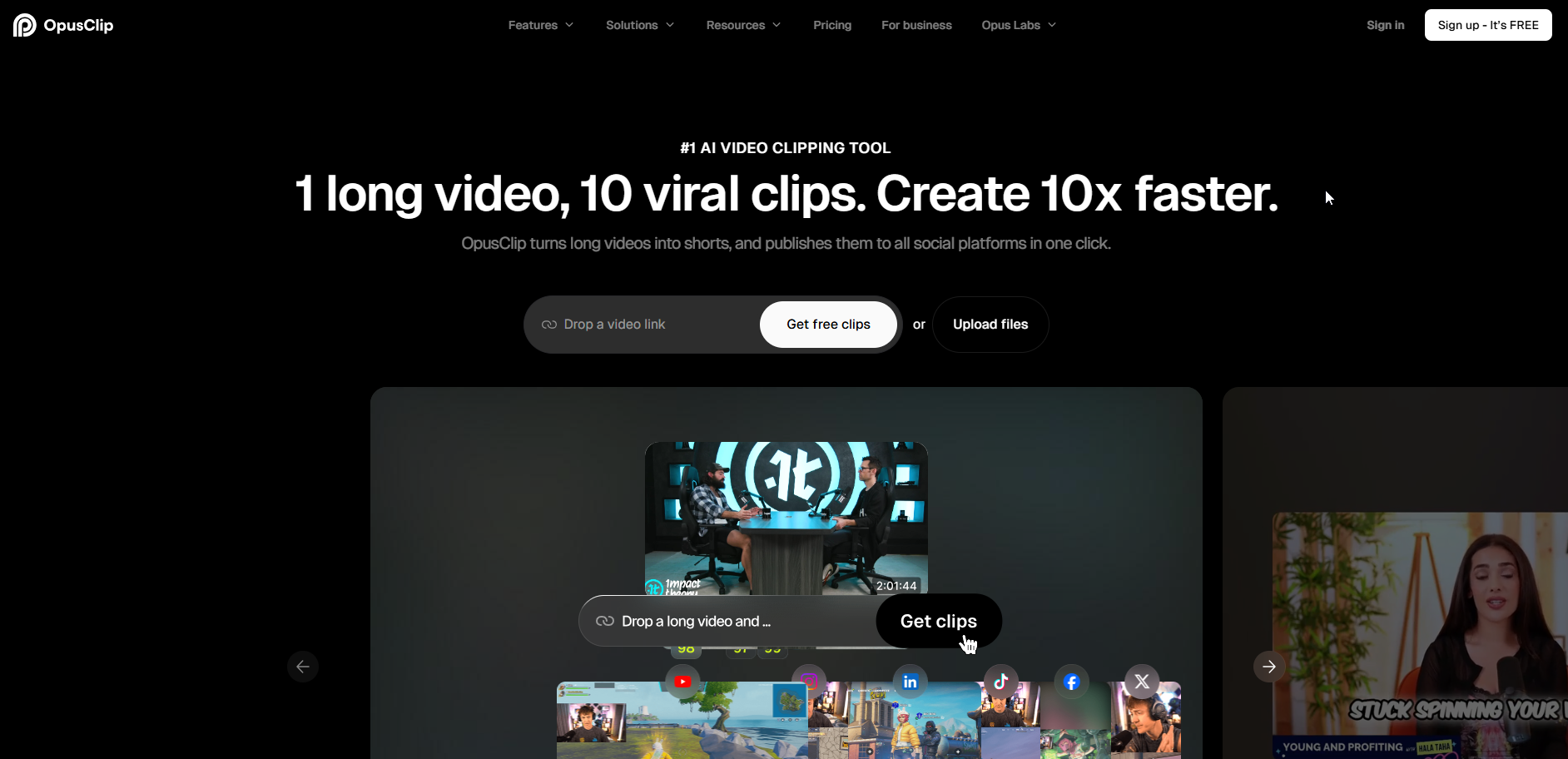
Opus Clip suits podcasters and interview hosts who want a long recording cut into short clips without a full editing suite, and Opus Clip offers a free plan, so the first test costs nothing.
What it does: Opus Clip is an AI clip generator. Its own page describes ClipAnything and ReframeAnything, along with brand templates, a team workspace and workflow integration. The vendor page is where each feature is defined, so read it before you rely on a feature that matters to you.
Who it is for: Podcasters, interviewers and small teams with long recordings and one brand to keep consistent. Brand templates and a team workspace point at people who publish on a schedule under one name, which is a different job from cutting a single one-off video. Podcasters who also produce their audio with AI can read our guide to AI voice generators for podcasting.
| Plan | Price | Billing Basis | What It Includes |
|---|---|---|---|
| Free plan | Free | No charge | A free plan listed on the vendor site, with limits stated there |
| Paid plans | Pricing on request | Pricing on request | Plan details on the vendor site |
Free tier: Opus Clip lists a free plan on the Opus Clip site. Check the page for the current clip limits before you plan around it.
Strengths:
- Free plan: You can run a real episode through it before spending anything.
- Brand templates: Clips from every episode can share one look, per the vendor page.
- Team workspace: More than one person can work on the same show, per the vendor page.
- Workflow integration: The vendor page lists it, which matters if clips feed a publishing routine.
Trade-offs:
- No paid price here: The paid tiers say Pricing on request, so budgeting means a visit to the live pricing page.
- A sales page is not a test: Whether clips land well on your voice and pacing only shows up on your own episode.
- Feature names need reading: ClipAnything and ReframeAnything are brand names, and the vendor page is the place to confirm what each does.
Key capabilities:
- ClipAnything and ReframeAnything, as named on the vendor page.
- Brand templates for a consistent look across clips.
- A team workspace for shared work.
- Workflow integration.
- A free plan to start with.
Good fit:
- Podcasters and interview hosts with long recordings.
- Small teams that publish regularly and want consistent branding.
- Anyone who wants to test for free before choosing.
Not a fit:
- Anyone who needs a price for every paid tier before testing.
- Teams whose main need is translated clips, where HeyGen is the better starting point.
Biggest limitation: Opus Clip shows no paid price, so the free plan is the only cost-certain way to test it.
2. Vizard: Best For Editing Clips By Text
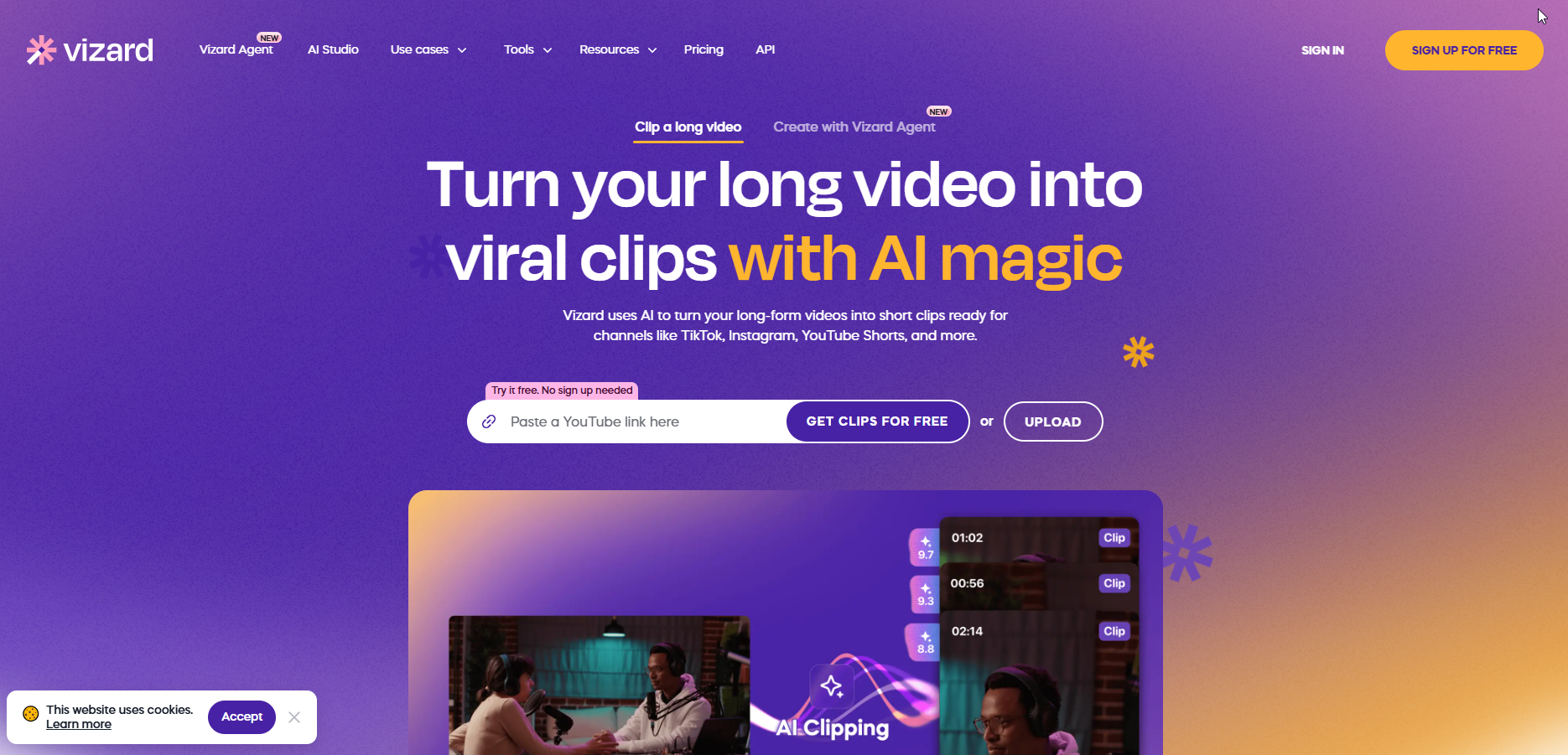
Vizard suits teams that want to fix a clip by changing its words, and Vizard says it turns a long video into 30+ clips in one click.
What it does: Vizard turns a long video into a set of clips and then lets you change them. Per the vendor page, you can edit by text, translate captions, change the aspect ratio and trim on a timeline. It also lists brand templates, link sharing and a Teams plan.
Who it is for: Marketing teams and agencies where one person generates clips and another reviews them. Link sharing and a Teams plan are built for that handoff, and editing by text means a reviewer who is not a video editor can still correct a clip.
| Plan | Price | Billing Basis | What It Includes |
|---|---|---|---|
| All plans | Pricing on request | Pricing on request | Plan details on the vendor site |
| Teams plan | Pricing on request | Pricing on request | Team collaboration, per the vendor site |
Free tier: Check the Vizard site for current free-tier or trial terms before you plan around one.
Strengths:
- Edit by text: A reviewer can change a clip by editing its words rather than scrubbing a timeline.
- Timeline editing: When text editing is too coarse, the vendor page lists a timeline as well.
- Caption translation: Captions can be translated, per the vendor page.
- Aspect-ratio change: One clip can be reformatted for another platform.
Trade-offs:
- Thirty clips is thirty reviews: A one-click output of 30+ clips gives you plenty to check, and every one of them needs a look.
- No price here: Plan prices say Pricing on request, so check the live page.
- Team features cost time to set up: A Teams plan only pays off if more than one person actually uses it.
Key capabilities:
- Long video into 30+ clips in one click, per the vendor page.
- Edit by text.
- Caption translation.
- Aspect-ratio change.
- Timeline editing.
- Brand templates and link sharing.
- A Teams plan.
Good fit:
- Teams where a non-editor corrects clips.
- Agencies that share clips with clients through a link.
- Anyone who expects to adjust wording or timing on most clips.
Not a fit:
- Solo creators who only want a few finished clips with no review step.
- Anyone who needs a published price before they start.
Biggest limitation: Output of 30+ clips from one video is a volume claim, and the review time it creates is the cost you only discover on your own footage.
3. Klap: Best For Talking-Head YouTube Videos
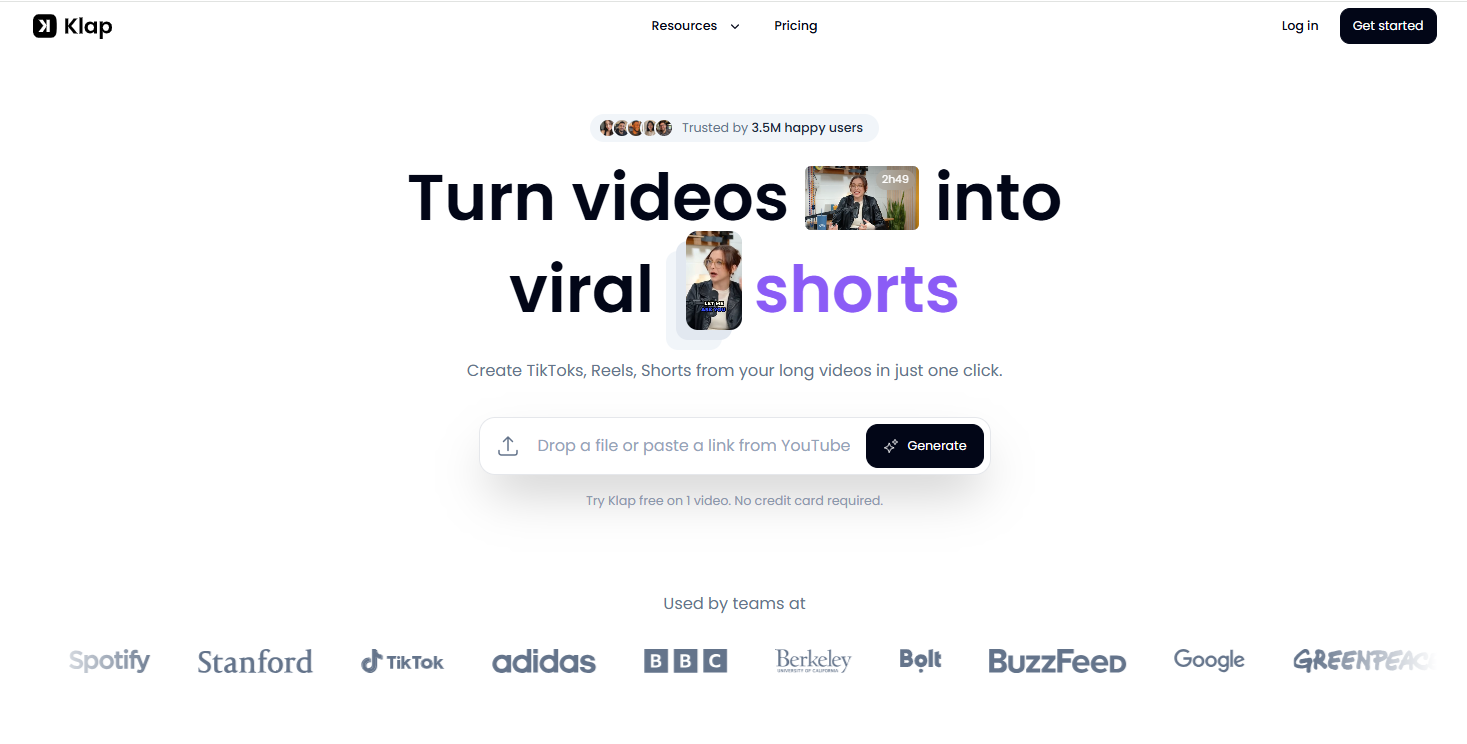
Klap suits creators who publish talking-head YouTube videos, and Klap lists paid plans from $14 per month, which makes it one of only two tools here with a price stated on its own page.
What it does: Klap says it generates 10+ clips from a long video and shows a Virality Score on every clip. The score is a quick way to sort a batch, though it is the tool's prediction and nothing more. A high score does not prove a clip will perform, and a low score does not prove it will flop.
Who it is for: Creators and small channels with one person talking to camera. In our judgement a single speaker in the middle of the frame is the easiest case for a vertical crop, since the subject stays in the same place. If your videos cut between several speakers or screen shares, test harder before paying.
| Plan | Price | Billing Basis | What It Includes |
|---|---|---|---|
| Paid plans | From $14 per month | Per month, as listed | 10+ clips from a long video and a Virality Score on every clip |
Free tier: Check the Klap pricing page for current free-tier or trial terms.
Strengths:
- Stated starting price: Paid plans from $14 per month, per the vendor page, make the budget easy to plan.
- Virality Score: Every clip carries a score, which speeds up a first sort of a large batch.
- Clip volume: 10+ clips from one long video, per the vendor page, is enough for a week of posts.
Trade-offs:
- The score is a prediction: Sorting by it can bury a clip that is actually the best fit for your audience.
- Starting price only: The vendor page gives a from-price, so check which plan covers your monthly volume.
- Fewer clips than some rivals claim: Vizard says 30+, which may matter if you publish daily.
Key capabilities:
- 10+ clips from a long video, per the vendor page.
- A Virality Score on every clip.
- Paid plans from $14 per month.
Good fit:
- YouTube creators with one speaker on screen.
- Budget-conscious channels that want a stated starting price.
- Anyone who wants a quick ranking to review first.
Not a fit:
- Teams that need shared workspaces, where Vizard or Opus Clip list team features.
- Multi-speaker panels and screen-share-heavy webinars, where StreamYard or Opus Clip are better starting points.
Biggest limitation: The Virality Score tells you what the tool likes, and you still have to decide what your audience will watch.
4. HeyGen: Best For Multilingual Clips
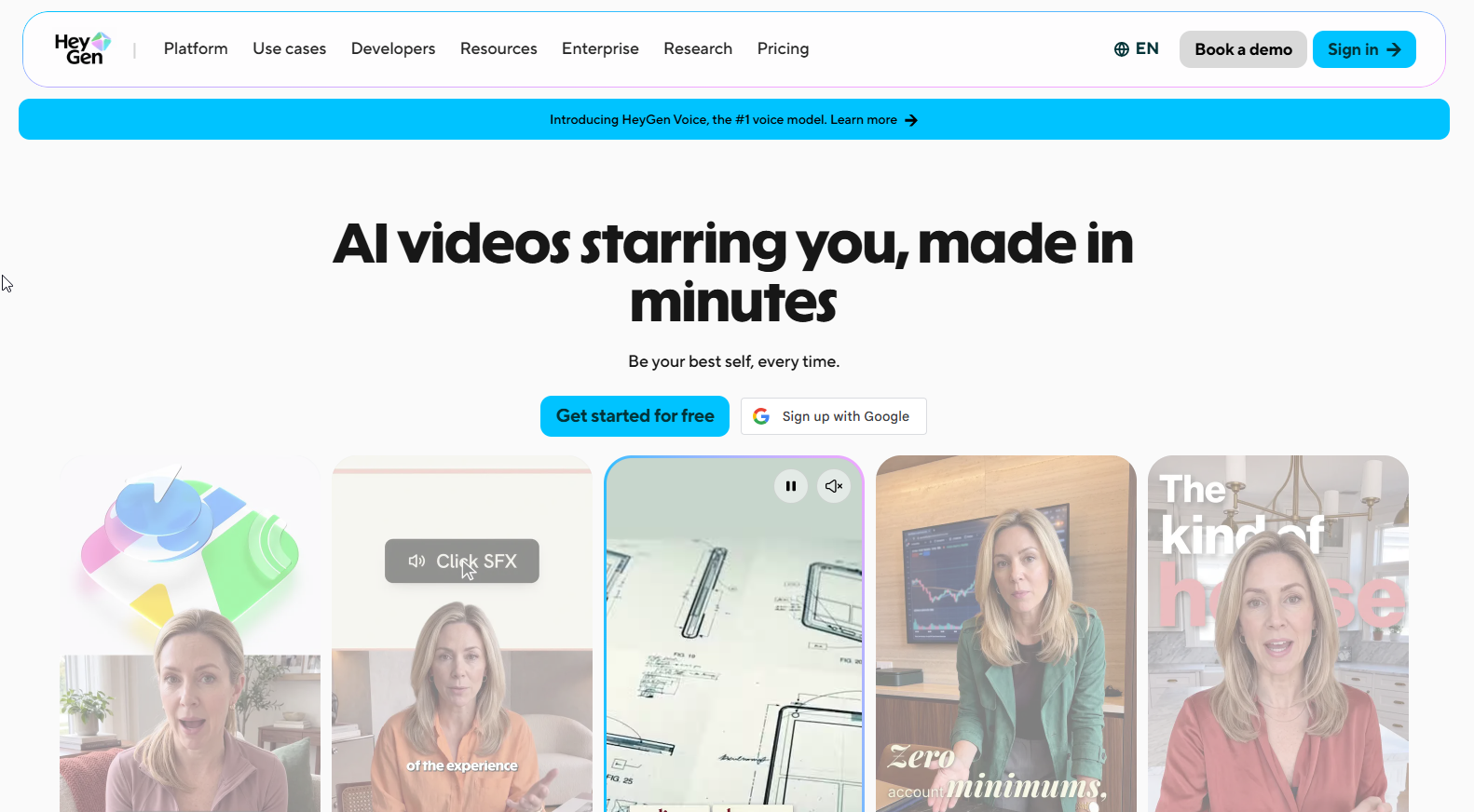
HeyGen suits creators and marketers who need clips in more than one language, and HeyGen lists plans from $24 per month for its AI clip generator.
What it does: HeyGen's AI clip generator page presents translation among its features. That is the reason it sits in this guide. The page does not give the detail this guide would need to describe dubbing or lip-sync, so this guide makes no claim about either. Check the vendor page for the languages and translation behaviour you need.
Who it is for: Teams that publish the same video for audiences in more than one language. If your clips only ever go out in one language, HeyGen is a more expensive way to get what other tools here offer. Readers who need dubbing and lip-sync detail should start with our guide to AI video translators, and teams planning a wider localisation push can read about AI avatar tools for multilingual marketing.
| Plan | Price | Billing Basis | What It Includes |
|---|---|---|---|
| Plans for the AI clip generator | From $24 per month | Per month, as listed | AI clip generator with translation among its features |
Free tier: Check the HeyGen clip generator page for current free-tier or trial terms.
Strengths:
- Translation in the feature set: The vendor page lists translation next to clip generation, so one tool covers both steps.
- Stated starting price: Plans from $24 per month, per the vendor page.
- Fit for localisation: A team already working in several languages avoids a second subscription.
Trade-offs:
- Highest starting price here: At $24 per month, it costs more than the $14 Klap starting price.
- Thin detail: The page names translation without the specifics this guide would need to say more.
- Overbuilt for one language: A single-language channel pays for a feature it never uses.
Key capabilities:
- An AI clip generator.
- Translation, as listed on the vendor page.
- Plans from $24 per month.
Good fit:
- Marketers publishing clips to audiences in several languages.
- Teams that want clipping and translation in one place.
Not a fit:
- Single-language channels watching their budget.
- Anyone who needs written proof of dubbing quality before buying, because this guide cannot supply it.
Biggest limitation: HeyGen's page names translation but gives no detail on how it works, so test it on a clip in your own target language first.
5. StreamYard: Best For Recorded Live Streams
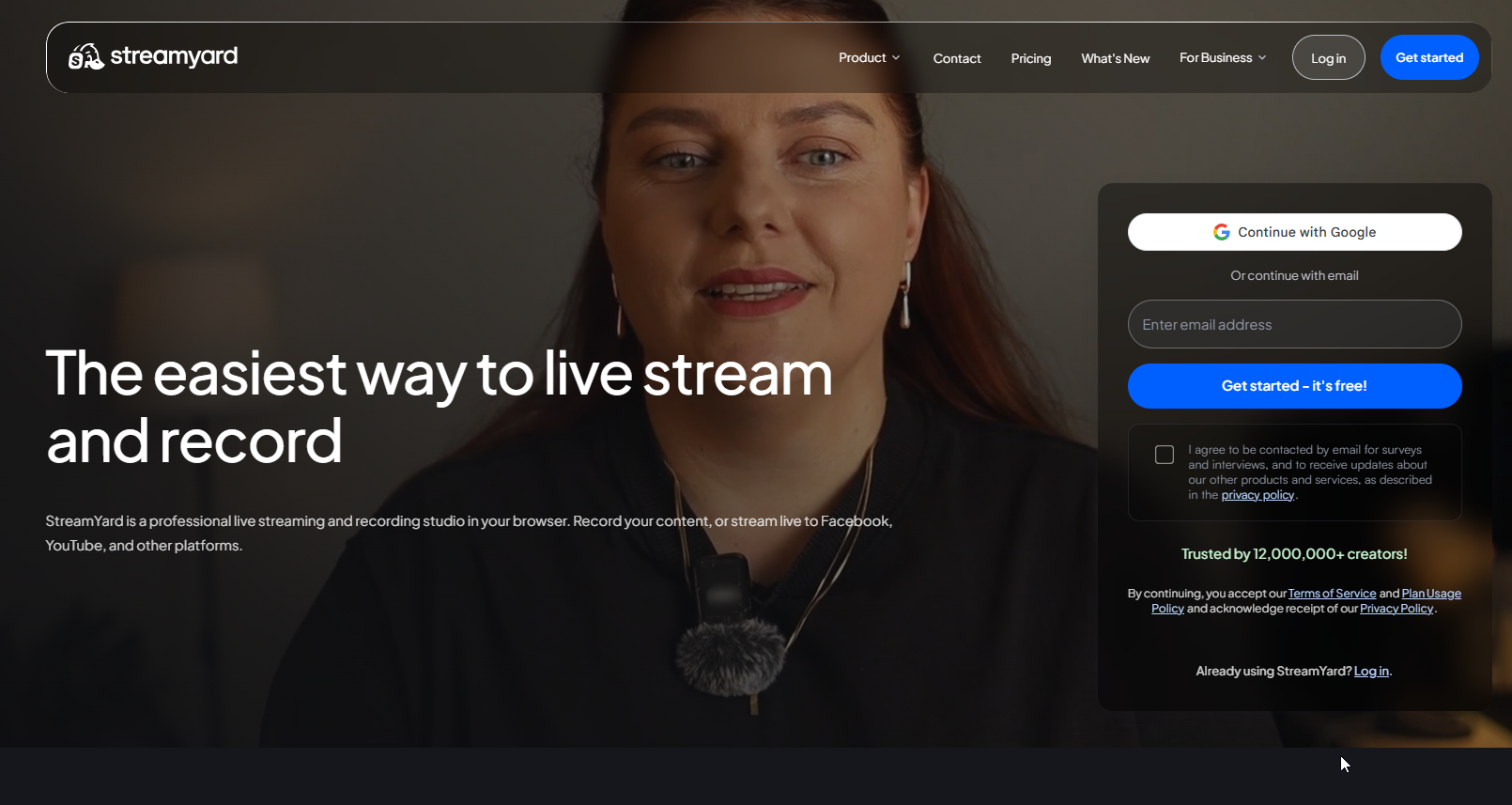
StreamYard suits teams whose webinars and live streams are already recorded in StreamYard, and its built-in AI Clips analyses up to six hours of recording in one run.
What it does: Per StreamYard's own guide, AI Clips outputs vertical, captioned clips reframed on the current speaker, and the clips are editable before download. Reframing on the current speaker is a sensible default for panels and interviews, where the camera has to follow whoever is talking.
Who it is for: Hosts of webinars, live shows and long interviews who stream or record with StreamYard already. The six-hour analysis window means an all-day event can go through in a single run. Anyone recording elsewhere should read the guide first to see how recordings get into the tool.
| Plan | Price | Billing Basis | What It Includes |
|---|---|---|---|
| Plans with AI Clips | Pricing on request | Pricing on request | Built-in AI Clips, per the StreamYard guide |
Free tier: Check the StreamYard guide and the live pricing page for current free-tier or trial terms.
Strengths:
- Six-hour analysis: Up to six hours of recording in one run covers most webinars and many full-day events.
- Speaker-aware reframing: Clips are reframed on the current speaker, per the guide.
- Editable before download: You can correct a clip before it leaves the tool.
- Captions included: Clips come out vertical and captioned.
Trade-offs:
- Built in: AI Clips makes the most sense if you already record in StreamYard.
- No price here: The pricing line says Pricing on request, so check the live page.
- Less obvious for pre-recorded solo videos: The guide is written around streams and recordings.
Key capabilities:
- AI Clips analysing up to six hours in one run.
- Vertical, captioned clips.
- Reframing on the current speaker.
- Editing before download.
Good fit:
- Webinar and live stream hosts already using StreamYard.
- Long panel recordings with several speakers.
Not a fit:
- Creators who record solo videos elsewhere and want a stand-alone clipper.
- Anyone who needs a published price before testing.
Biggest limitation: AI Clips is part of StreamYard, so its value drops sharply if your recordings are not made there.
📋 Get Listed / Advertise
We update this guide monthly. Want your tool featured? Contact: [email protected].
What An AI Clip Generator Does And How It Picks Moments
An AI clip generator is software that turns one long video into several short clips. It does four jobs automatically.
- Moment detection: It finds attention-grabbing moments in the source video.
- Captions: It adds captions automatically.
- Reframing: It crops the footage for different platforms.
- Pacing: It adjusts the pace of the clip.
Doing the same work by hand means scrubbing a timeline, choosing in and out points, typing or fixing captions and cropping each clip yourself. The AI version hands you a first pass, and you decide what survives.
How does the tool choose which moments to keep? The vendors do not publish the exact signals they use, so judge a tool by its output on your own footage rather than by its marketing. That is what the one-video test later in this guide is for.
The workflow is the same in every tool here.
- Upload: Add the long recording, or point the tool at a stream you already recorded.
- Generate: Let the tool find moments and produce a batch of captioned, reframed clips.
- Review: Watch every clip, check the first and last seconds, and cut the ones that do not stand alone.
- Export: Download or publish the clips you kept, in the format each platform needs.
How We Judged These Clip Generators
Picks in this guide rest on vendor pages and published limits. No lab test was run, and no clip was scored by a panel. That makes the picks an editorial judgement, and it is why every recommendation ends with a prompt to test on your own video.
Here is what each tool was checked against.
- Source-video fit: Does the tool suit podcasts, interviews, webinars, streams, talking-head video or multilingual content, and is the reason stated on its own pages.
- Clip quality control: Does the tool give you a way to sort, rank or review a batch, because a clip generator that hands you thirty clips with no help sorting them just moves the work.
- Captions: Does the tool add captions automatically, because timed text lets a clip work without sound.
- Reframing: Does the tool reframe widescreen footage for vertical screens, ideally following the speaker.
- Editing after generation: Can you change a clip once the AI has made it, by text, by timeline or before download, because the first pass is never final.
- Free tier: Is there a free plan or trial listed, because a free test is the cheapest way to check the other seven criteria.
- Price: Is a price stated on the vendor's own page, and where it is not, the guide says Pricing on request.
- Publishing: Can clips be shared or scheduled from the tool, because a clip that sits in a download folder does not get posted.
Two limits on this method are worth stating. First, a vendor page describes the product the vendor wants to sell. It tells you what a tool says it can do, which is useful for ruling tools out and weaker for ruling them in. Second, prices and features change. The tables here are accurate to the pages they link, so confirm anything that affects a purchase on the live page before you pay.
Where a vendor page was silent on a point, this guide says to check the vendor page. A gap in the table means the evidence was missing, and a blank should never be read as a missing feature.
Captions, Reframing And Publishing: What To Check
Automated captioning transcribes the audio and places timed text on the video, so clips work without sound. That matters because a clip that only makes sense with the sound on loses the viewer who scrolls past with the phone muted.
Vertical short-form video is formatted at 9:16, which is a tall, narrow frame. A widescreen recording has to be cropped to fit it, and the crop decides whether the speaker stays in shot. Reframing that follows the speaker beats a fixed centre crop for anything with more than one person on screen.
Run this checklist on your free-tier test clip.
- Caption accuracy: Check names, product terms and numbers, because automatic captions most often miss the words that matter most to you.
- Caption editing: Find out whether you can fix a caption in the tool, or whether you must re-export from somewhere else.
- Caption translation: If you publish in more than one language, test a real clip in your target language.
- Reframing quality: Watch for a speaker drifting out of frame, a cut that lands mid-gesture or a face cropped at the forehead.
- Publishing and scheduling: Check whether the tool posts to the platforms you use, or whether you export files and upload them yourself.
If captions are your main concern, our guide to AI subtitle generators compares dedicated caption tools in more depth.
Captions and transcripts also give a video a text layer. Search and AI systems read text far more easily than they read footage, which is the same logic behind answer engine optimization. A clip with accurate captions and a written summary on the page around it is easier to find and quote than a silent file.
What AI Clip Generators Cost And What Free Tiers Allow
Clip tool pricing is typically metered by minutes processed or clips generated. That means the headline monthly price only tells you part of the story. A plan that looks cheap can run out fast if you feed it two-hour recordings every week, and a plan that looks expensive can be the better deal if it covers your volume.
Three of the five tools state something concrete on their own pages.
- Klap: Klap lists paid plans from $14 per month.
- HeyGen: HeyGen lists plans from $24 per month for its AI clip generator.
- Opus Clip: Opus Clip offers a free plan, which is the only free option confirmed here.
| Tool | Price Stated On Vendor Page | Free Option |
|---|---|---|
| Opus Clip | Pricing on request | Free plan |
| Vizard | Pricing on request | Check vendor page |
| Klap | From $14 per month | Check vendor page |
| HeyGen | From $24 per month | Check vendor page |
| StreamYard | Pricing on request | Check vendor page |
Do free plans put a watermark on clips? The vendor pages do not say, and the answer differs from tool to tool. Export one clip from the free tier and look before you plan a workflow around it.
On speed, Dacast claims a full clip set from a 30-minute source takes 10 to 15 minutes. That is a publisher's own claim with no independent measurement behind it, so use it as a rough planning guide and time your own run before you count on it.
The cheapest way to buy is to test on a free tier, count how many clips from one video you would actually publish, and only then pay. If the answer is two clips a month, a free plan may be enough. If the answer is twenty, volume limits matter more than the headline price.
How To Choose By Source Video And Budget
Here is the rule. Choose by what you record, then by what you can spend. Ignore the tool with the longest feature list, because the extra features are rarely the ones you will use.
| Source Video | Recommended Tool | Reason |
|---|---|---|
| Long podcast or interview | Opus Clip | Brand templates and a team workspace suit a show published on a schedule, and a free plan lets you test first. |
| Webinar or live stream recorded in StreamYard | StreamYard | AI Clips analyses up to six hours in one run and reframes on the current speaker. |
| Talking-head YouTube video | Klap | One speaker is the easy case for a vertical crop, and paid plans start from $14 per month. |
| Clips that need wording fixed by a reviewer | Vizard | Edit by text and timeline editing let a non-editor correct a clip. |
| Clips for audiences in several languages | HeyGen | Translation is listed among its features, with plans from $24 per month. |
| Zero budget, first test | Opus Clip | The free plan costs nothing to try. |
On budget, the order is simple. Start with a free test. Move to a paid plan only when the volume of clips you publish justifies it. At that point Klap's stated $14 per month is the most affordable price confirmed here, and HeyGen's $24 per month is worth it only when translation is a real need.
If the clips need more than clipping, such as restyling, music or multi-camera cutting, read our guide to the best AI video editors. Clipping and editing are different jobs, and one tool rarely does both well.
Some readers want clips to support their AI search visibility. Clips help when they send people to pages that explain your product, and generative engine optimization covers how those pages get found and quoted by AI answers.
Clips earn attention, but the pages that explain your product are what search and AI answers quote. If you want that side handled, the GEO + SEO Growth Programme covers tracking, content and AI search visibility.
Where AI Clipping Goes Wrong
AI picks need a human check. The tool chooses moments by pattern, and a pattern does not know your argument, your joke or the sentence your guest was halfway through. The failures are predictable. A clip starts mid-sentence, ends before the point lands, or opens on a weak line with no reason for the viewer to stay.
Run this one-video test before you commit to any tool.
- Pick one real episode, webinar or video you already published.
- Generate clips on a free tier.
- Watch the first three seconds and the last three seconds of every clip.
- Reject any clip that needs the surrounding minute to make sense.
- Count what is left, and compare that number with the number of clips the tool produced.
The count that survives is the number that matters. If a tool hands you thirty clips and six survive, you have six clips and a lot of reviewing. If another hands you ten and seven survive, it saved you time even though it produced fewer.
- Weak hook: The first line gives the viewer no reason to keep watching.
- Lost context: The clip refers to something said earlier and makes no sense alone.
- Cut-off ending: The clip stops before the speaker finishes the thought.
- Awkward reframe: The crop cuts the speaker's face or follows the wrong person.
Do you still need an editor? You need a reviewer, and the tool does not replace one.
AI Clipping Versus Manual Clipping
Klap claims manual clipping takes roughly 23 to 35 minutes per clip, against 1 to 2 minutes with AI, in Klap's own blog post. That is a vendor's figure for its own product, with no independent measurement behind it, so use it to size the gap rather than to promise a result.
The better move is to run the sum with your own numbers. Count the clips you publish in a month, estimate your manual minutes per clip, then time the tool and add your review time.
- Formula: Minutes saved = clips × (manual minutes per clip − AI minutes per clip − review minutes per clip).
- Clips per month (example): 10
- Manual minutes per clip (example): 30
- AI minutes per clip (example): 2
- Review minutes per clip (example): 3
- Result: 10 × (30 − 2 − 3) = 250 minutes saved per month.
The example numbers are placeholders, not measurements. Replace each with what you actually see on your own video. If your review minutes grow large, the saving shrinks fast, which is the same point the one-video test makes.
AI clipping also pairs with written output. A clip points people at the topic, and a page explains it. For teams that publish both, our guide to AI content tools for SaaS covers the written side.
FAQs
What Is An AI Clip Generator?
Is There A Free AI Clip Generator?
Do Free Plans Put A Watermark On Clips?
Can I Re-Trim A Clip After The AI Generates It?
Which Languages Do AI Clip Generators Support?
What Video Formats And Lengths Do Clip Generators Accept?
Can I Use Generated Clips In Paid Social Campaigns?
Can An AI Clip Generator Create A Clip From A Text Prompt Instead Of A Video?
Do I Still Need An Editor If I Use An AI Clip Generator?
If you would rather talk this through than test five tools alone, book a thirty-minute call. One of the founders takes it, and you leave knowing what to fix first.