

For most video creators, the right AI subtitle generator is decided by where the video will be published, not by an overall ranking. Choose Happy Scribe when YouTube or a course platform needs SRT or VTT files, and choose Vozo for short clips that go out in several languages or Choppity when you want to test captions on short clips for free.
That holds when you publish to one main destination. If you publish to several, pick the tool for the destination that matters most and export the rest from it.
Every accuracy figure vendors publish was measured on their own test audio, so run any shortlisted tool on your hardest file before you pay.
If you publish video for a SaaS brand and want the captions and transcripts to work as search content too, our SaaS content marketing team builds that programme. Tell us what you publish and we will say where to start.
📋 Get Listed / Advertise
We update this guide monthly. Want your tool featured? Contact: [email protected].
Best AI Subtitle Generators At A Glance
Five tools, one row each. The rows match the profiles below in the same order, and every price comes from the vendor's own pricing page, linked in each profile.
| Tool | Best For | Entry Paid Price | Free Option | Export Formats Named By The Vendor |
|---|---|---|---|---|
| Happy Scribe | SRT and VTT files for YouTube and course video | Basic at $17 a month, or $8.50 a month billed annually | 10-minute trial | SRT and VTT on all paid plans, 15+ formats on Pro and Business |
| Kapwing | Captions inside a full video editor | Pro at $16 a month on monthly billing | Free plan with a watermark, 720p and videos up to 4 minutes | SRT and VTT file download, transcript download |
| Vozo | Short-form clips in several languages | Creator at $29 a month, billed monthly | Free plan with 20 AI points and 20-minute videos | SRT and VTT |
| Maestra | Multilingual and team workflows | Pay As You Go at $12 per 60 credits, or Basic at $39 a month | No free plan listed | Confirm with the vendor |
| Choppity | Free captions on short clips | Starter at $24 a month, or $16.80 a month billed yearly | Free tier with the captions generator and 2GB storage | Confirm with the vendor |
1. Happy Scribe: Best For SRT And VTT Files On YouTube And Course Video
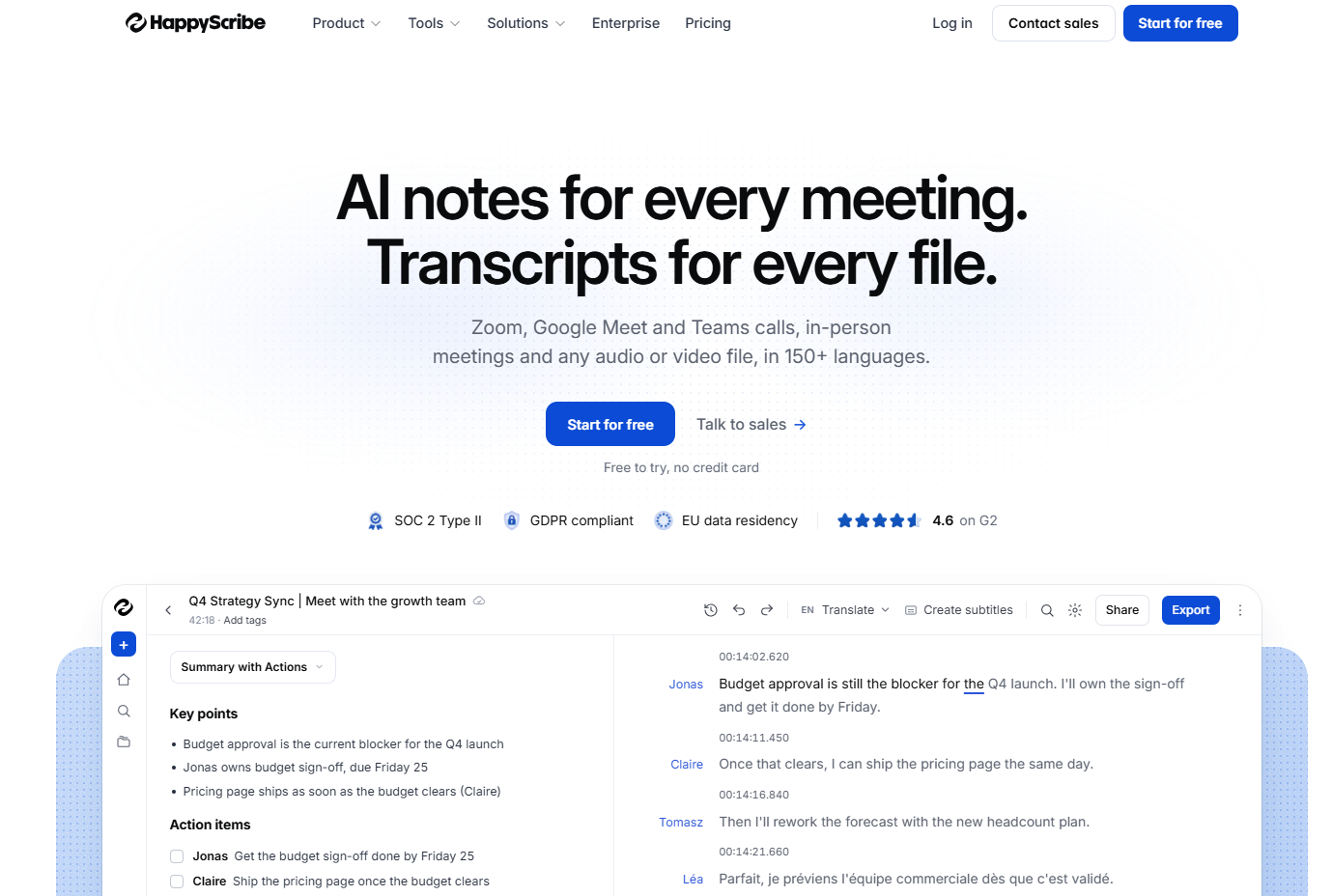
Happy Scribe is the pick when the destination wants a caption file. Happy Scribe's pricing page lists SRT and VTT export on every paid plan, with 15+ formats on Pro and Business, including STL, XML, FCPXML and EDL. That is the whole pitch. You generate the transcript, fix it, and export the file your platform asks for.
It suits creators and small teams who publish long-form video to YouTube or a course platform and want a clean sidecar file rather than text baked into the picture. If you also want a captioned video, Pro adds MP4 burned-in export without a watermark.
| Plan | Price | Billing Basis | What It Includes |
|---|---|---|---|
| Free | Free | Trial | 10-minute trial |
| Basic | $17 a month | Monthly, or $8.50 a month billed annually | 120 AI minutes a month, 1 seat |
| Pro | $29 a month | Monthly, or $19 a month billed annually | 600 AI minutes a month, 3 seats |
| Business | $89 a month | Monthly, or $59 a month billed annually | 6,000 AI minutes a month, 5 seats |
| Enterprise | By contact | Custom | Not published |
- Free tier: A 10-minute trial, which is enough to test accuracy on a short clip and not much more.
Strengths:
- SRT and VTT export comes with every paid plan, so even the cheapest plan gives you the two files most platforms ask for.
- Pro and Business add 15+ formats, which helps when captions move on to an editing suite.
- Happy Scribe lists automatic subtitle translation into 80+ languages on all plans.
- Pro includes a burned-in MP4 export without a watermark.
Trade-offs:
- The free plan is a trial, not a working free tier.
- Basic caps you at 120 AI minutes a month and 1 seat, which is tight for anyone publishing long episodes every week.
- Monthly billing on Basic costs double the annual rate, so the saving needs a year's commitment.
Key capabilities:
- SRT and VTT export on all paid plans.
- 15+ formats including STL, XML, FCPXML and EDL on Pro and Business.
- Burned-in MP4 export without a watermark on Pro.
- Subtitle translation into 80+ languages.
Good fit:
- YouTube channels that upload caption files.
- Course creators who need SRT or VTT for their platform.
- Editors who want formats such as FCPXML or EDL.
Not a fit:
- Anyone who wants a real free plan.
- Short-form creators who care most about on-screen caption style, where Vozo and Choppity are the better starting points.
Biggest limitation: The free plan is a 10-minute trial, so you can test ten minutes of audio, not a full episode, before you pay.
2. Kapwing: Best For Captions Inside A Full Video Editor
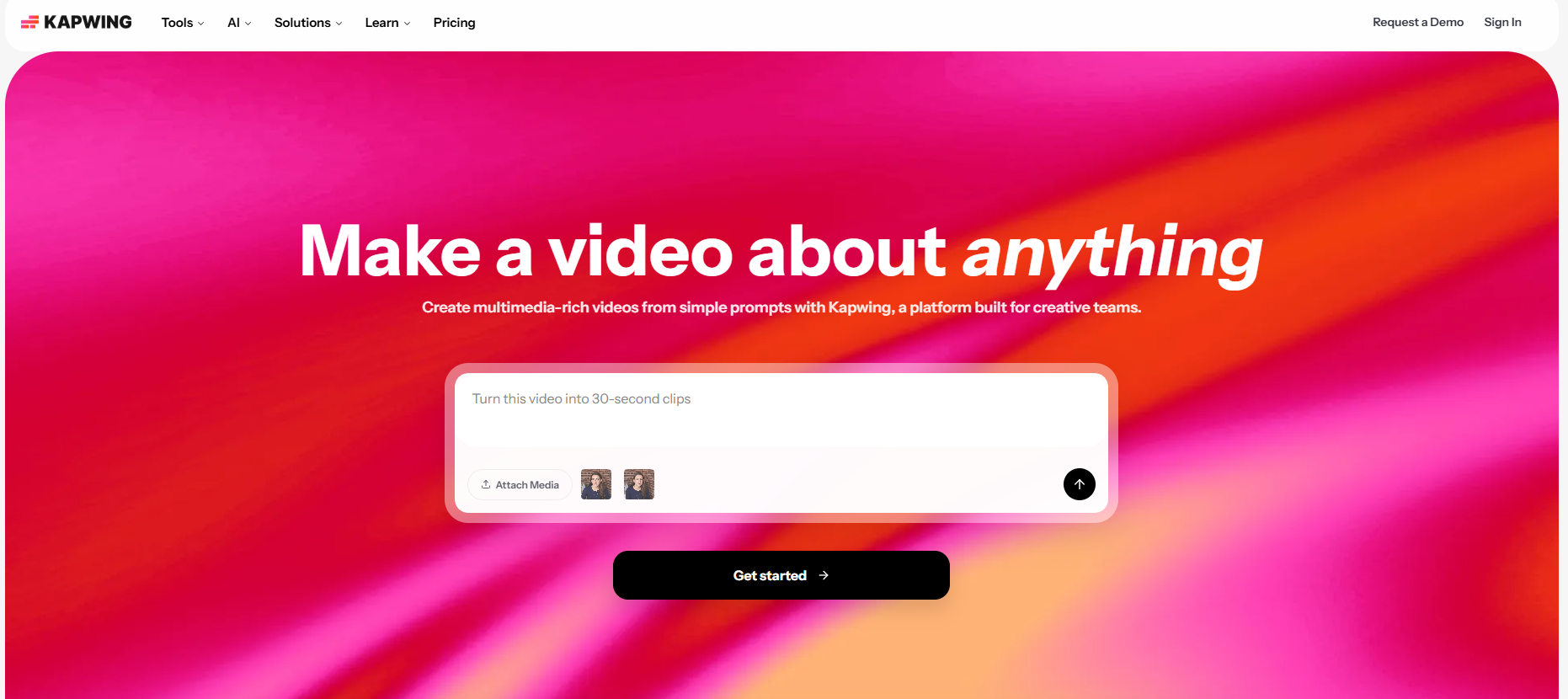
Kapwing is the pick when the captions live inside the edit. Kapwing's pricing page puts auto-subtitling of up to 1,000 minutes a month on the $16 Pro plan, billed monthly. You cut the video, generate the subtitles and fix them in the same browser editor, which removes the export-and-reimport loop that dedicated transcription tools create.
It suits social and marketing teams who edit short videos every week and want one place for the cut, the captions and the finished file. If the editor is the real decision, compare it with the best AI video editors before you commit.
| Plan | Price | Billing Basis | What It Includes |
|---|---|---|---|
| Free | Free | n/a | 10 credits, 720p, videos up to 4 minutes, watermark |
| Pro | $16 a month | Monthly, with an annual toggle showing a 33% saving | 1,000 credits a month, 4K, videos up to 120 minutes, auto-subtitling up to 1,000 minutes a month |
| Business | $50 a month | Monthly | 4,000 credits, auto-subtitling up to 4,000 minutes a month |
| Enterprise | Custom | Custom | Not published |
- Free tier: 10 credits, 720p, videos up to 4 minutes and a watermark.
Strengths:
- Subtitles are generated and edited in the same editor where the video is cut.
- The auto-subtitling allowance is generous, at up to 1,000 minutes a month on Pro and 4,000 on Business.
- Kapwing lists auto-translation into 60+ languages, up to 500 minutes a month on Pro and 2,000 on Business.
- The pricing page lists SRT and VTT file download and transcript download.
Trade-offs:
- The free plan carries a watermark, 720p output and a 4-minute cap, so it is a test bench and nothing more.
- Credits, subtitling minutes and translation minutes are all metered, so heavy users track three allowances at once.
- You pay for an editor even if all you wanted was a caption file.
Key capabilities:
- Auto-subtitling inside the editor.
- Auto-translation into 60+ languages with monthly minute limits.
- SRT and VTT file download.
- Transcript download.
- 4K output and videos up to 120 minutes on Pro.
Good fit:
- Marketing teams cutting social video who want captions in the same workflow.
- Solo creators who prefer one tool over a transcription service plus an editor.
Not a fit:
- Anyone who only needs a caption file for long videos at the lowest cost, where Happy Scribe is simpler.
- Buyers who need a wide range of export formats beyond SRT and VTT.
Biggest limitation: Confirm which plans export burned-in video before you buy. This guide claims only what Kapwing lists, which is SRT and VTT download and transcript download.
3. Vozo: Best For Short-Form Clips In Several Languages
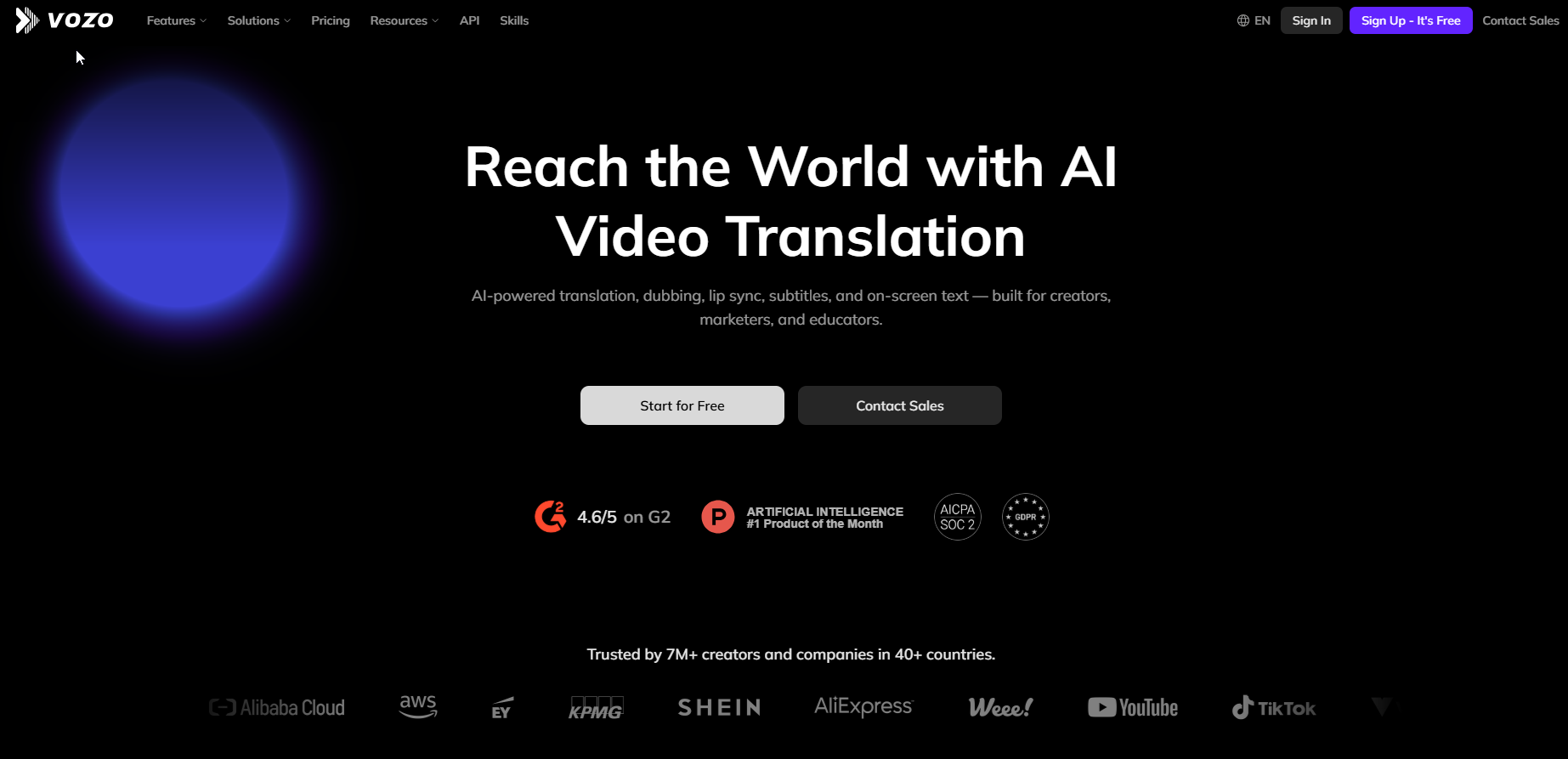
Vozo is the pick for short clips that go out in several languages. Vozo's pricing page puts the Creator plan at $29 a month with unlimited AI translation, and Vozo's subtitle generator page names SRT and VTT as output formats. How good its caption styling looks is something to judge on your own clip.
It suits short-form creators and small brand teams who publish clips in more than one language and want unlimited translation on a flat monthly plan. Creators who need footage to caption in the first place can look at AI video generators for marketing teams.
| Plan | Price | Billing Basis | What It Includes |
|---|---|---|---|
| Free | Free | n/a | 20 AI points, 20-minute videos |
| Creator | $29 a month | Monthly, cancel anytime, USD | 150 AI points, 60 minutes per video, watermark removal, unlimited AI translation |
| Studio | $99 a month | Monthly, cancel anytime, USD | 600 AI points, 120 minutes per video, 3 seats, bulk upload |
| Enterprise | Custom | Custom | Not published |
- Free tier: 20 AI points and videos up to 20 minutes.
Strengths:
- Unlimited AI translation is included from the $29 Creator plan.
- The Free plan allows 20-minute videos, enough to test a short clip.
- SRT and VTT are named as output formats.
- Creator removes the watermark, and Studio adds 3 seats and bulk upload.
Trade-offs:
- Usage runs on points, so you cannot turn a plan into a number of videos without testing it.
- The Free plan is limited to 20 AI points and 20-minute videos.
- The vendor's own accuracy and language-count claims have no published method behind them, so this guide does not repeat them.
Key capabilities:
- Free plan with 20-minute videos.
- Unlimited AI translation on Creator.
- SRT and VTT output.
- Watermark removal on Creator.
- Bulk upload on Studio.
Good fit:
- Short-form creators who publish clips in more than one language.
- Small brand teams publishing the same clip in several languages.
Not a fit:
- Teams that need a wide set of caption file formats, where Happy Scribe is stronger.
- Buyers who want predictable per-minute pricing rather than a points balance.
Biggest limitation: Vozo meters usage in points, and the pricing page lists 150 on Creator. Test a real clip and watch the balance drop.
4. Maestra: Best For Multilingual And Team Workflows
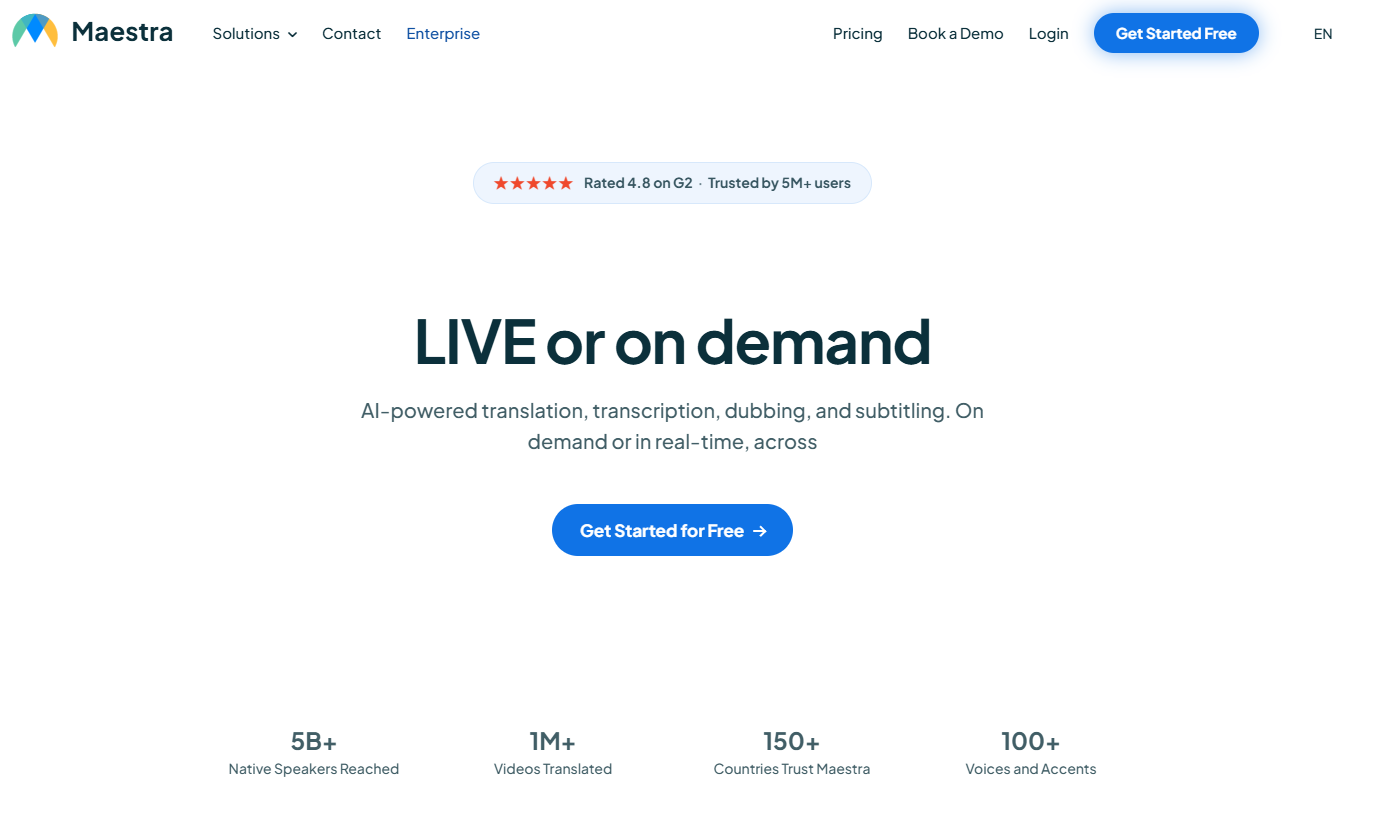
Maestra is the pick when subtitles are one part of a multilingual, team-based workflow. Maestra's pricing page starts at $12 per 60 credits on Pay As You Go, which buys 60 minutes of subtitles, and the subscription plans add translation tiers, API access and teams.
It suits agencies and in-house teams that localise video, share work between editors and want a way to keep product names consistent across languages. Teams localising video as well as subtitles may also want a look at AI avatar tools for multilingual marketing.
| Plan | Price | Billing Basis | What It Includes |
|---|---|---|---|
| Pay As You Go | $12 per 60 credits | Pay per purchase | 60 minutes of subtitles |
| Basic | $39 a month | Monthly, and yearly billing saves 20% | 360 minutes, subtitle import |
| Premium | $79 a month | Monthly, and yearly billing saves 20% | 900 minutes, API access, teams, OpenAI translation |
| Business | $159 a month | Monthly, and yearly billing saves 20% | 1,800 minutes, DeepL translation, glossary, embed player |
| Enterprise | Custom | Custom | Not published |
- Free tier: No free plan is listed, and Pay As You Go is the cheapest way in.
Strengths:
- Translation comes in tiers, with OpenAI translation from Premium and DeepL translation from Business.
- Business adds a glossary, which is how you stop a tool mangling your product names.
- API access and teams arrive on Premium.
- Pay As You Go lets you buy one batch of minutes without a subscription.
Trade-offs:
- Translation is metered, so a heavy multilingual workload eats into the plan.
- The cheapest monthly plan is $39, the highest subscription entry price in this list.
- No free plan is listed, so testing costs money.
Key capabilities:
- Subtitles from $12 per 60 credits.
- OpenAI translation on Premium, DeepL translation on Business.
- Glossary on Business.
- API access and teams on Premium.
- Subtitle import on Basic.
Good fit:
- Agencies and in-house teams localising video into several languages.
- Teams that want API access or a shared workspace.
- Buyers with an occasional batch of video and no wish for a subscription.
Not a fit:
- Solo creators who want a free plan to try.
- Anyone who needs a specific subtitle file format confirmed before buying.
Biggest limitation: Translation is metered, so a heavy multilingual workload eats into the plan. Confirm which subtitle file formats you get before you buy.
5. Choppity: Best For Free Captions On Short Clips
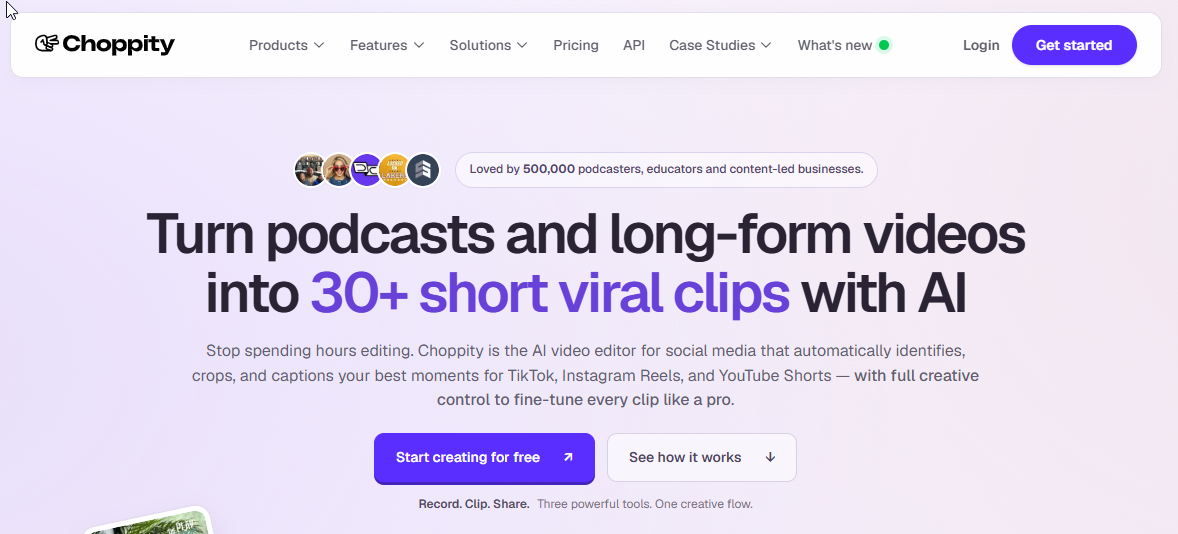
Choppity is the pick when you want to try captions on short clips without paying. Choppity's pricing page includes the captions generator and transcription on the Free tier, and Starter costs $24 a month, or $16.80 a month billed yearly.
It suits solo creators and small teams cutting short clips who want to see real captions on their own footage before they open a wallet. If the clips are AI-generated, read how to make AI video look less fake before you caption them.
| Plan | Price | Billing Basis | What It Includes |
|---|---|---|---|
| Free | Free | n/a | Captions generator, transcription, 2GB storage |
| Starter | $24 a month | Monthly, or $16.80 a month billed yearly | 1 seat, 40GB, 1080p and 4K exports |
| Creator | $32 a month | Monthly, or $22.40 a month billed yearly | 1 seat, 100GB, custom fonts, API access |
| Team | $48 a month | Monthly, or $33.60 a month billed yearly | 200GB, member invites, team billing |
| Enterprise | Custom | Custom | Not published |
- Free tier: The captions generator and transcription, with 2GB of storage.
Strengths:
- The captions generator is on the Free tier, so you can test before you pay.
- Creator adds custom fonts, which matters when captions are part of the brand.
- Yearly billing saves 30% across the paid plans.
- API access arrives on Creator.
Trade-offs:
- Free storage is 2GB, which fills up quickly with video.
- Starter and Creator are single-seat plans.
- Confirm subtitle file formats with the vendor before you rely on it.
Key capabilities:
- Captions generator from the Free tier.
- Transcription from the Free tier.
- Custom fonts on Creator.
- API access on Creator.
- 1080p and 4K exports from Starter.
Good fit:
- Creators cutting short clips who want free captions to start.
- Small teams who may grow into the Team plan with member invites.
Not a fit:
- Anyone who needs a confirmed SRT or VTT file for YouTube or a course platform, where Happy Scribe is the safer start.
- Buyers who need export formats confirmed before they pay.
Biggest limitation: This guide confirms no subtitle file formats for Choppity, so if you need an SRT file, check with the vendor before you pay.
📋 Get Listed / Advertise
We update this guide monthly. Want your tool featured? Contact: [email protected].
How To Choose By Where Your Video Is Published
The rule is simple. Match the tool to the place the video ends up, because that decides whether you need a file, styled on-screen text or translation. Pick one destination as the main one, choose for it, and export the rest.
- YouTube or a course platform that takes a caption file: If the video goes to YouTube or a course platform, choose Happy Scribe, because Happy Scribe's pricing page lists SRT and VTT export on every paid plan.
- Short-form social in several languages: If the video goes to short-form social in more than one language, choose Vozo, because Vozo's pricing page includes unlimited AI translation on Creator.
- A multilingual or team workflow: If the video goes out in several languages from several editors, choose Maestra, because Maestra's pricing page lists translation tiers, API access and teams on Premium.
- Editing and captioning in one place: If the captions need to live in the same editor as the cut, choose Kapwing, because Kapwing's pricing page includes auto-subtitling of up to 1,000 minutes a month on Pro.
- A free first try: If you want captions on a short clip before paying anything, choose Choppity, because Choppity's pricing page includes the captions generator on the Free tier.
Podcasters sit in two camps. Full episodes uploaded to YouTube belong with the caption-file crowd, and short clips for social belong with the short-clip crowd. If you also produce the audio with AI, our guide to AI voice generators for podcasting covers that side.
Notice what is missing from this rule. There is no "most accurate" pick, because the published accuracy numbers cannot be compared, and the section on accuracy below explains why.
If captions are one piece of a wider plan to get your videos and pages found in search and in AI answers, the GEO + SEO Growth Programme covers the rest. We start with what is already ranking and fix the gaps in order.
How To Add AI Subtitles To A Video In Four Steps
The method is the same in every tool on this list. The steps are short, and each one has a place where it goes wrong.
- Upload the cleanest file you have. Use the original export, not a compressed copy from a social app. Check the length against your plan before you start, because free tiers cap it and a long video will stop at the limit.
- Choose the spoken language before you generate. Set the language the speaker uses, not the language you want to publish in. A wrong setting gives you a transcript full of nonsense, so check the first ten seconds before moving on.
- Review and edit the transcript line by line. Names, product terms and numbers are where the tool slips, and AssemblyAI's guide says errors concentrate on exactly those. Read with the audio playing, and do not move on until every proper noun is right.
- Export in the format your platform needs. Choose SRT or VTT for a caption file, or a burned-in video where the platform takes only a finished video. Check the line breaks on screen before you publish, because a caption that splits a name across two lines reads badly.
Do the review in step 3 properly and the rest takes care of itself. Skip it and the tool's first pass goes straight to your audience.
SRT, VTT Or Burned-In Captions: Which One Your Platform Needs
YouTube's help page says basic SRT and SBV caption files are accepted as plain UTF-8 with no style markup, while WebVTT files support caption positioning, with styling limited to bold, italic and underline. That is the platform that matters most for most video teams, so it is the best place to start.
SRT is the most widely compatible subtitle format, and VTT supports styling. A burned-in caption is rendered into the video file, so no separate subtitle file is uploaded. Each choice solves a different problem.
| Option | Styling | Separate File Needed | Best Use |
|---|---|---|---|
| SRT | None on YouTube, plain UTF-8 text | Yes | Simple captions that need to work almost everywhere |
| SBV | None on YouTube, plain UTF-8 text | Yes | Basic captions uploaded to YouTube |
| WebVTT | Positioning plus bold, italic and underline on YouTube | Yes | Captions where placement or emphasis matters |
| Burned-in | Whatever you render into the picture | No, rendered into the video file | Platforms that take only a finished video |
The decision follows from the table. If your platform takes a caption file and you want the widest compatibility, export SRT. If you need captions positioned away from a lower-third graphic, or a word emphasised, export WebVTT. If the platform takes only a finished video, burn the captions in and check them on a phone before you post.
On the tools in this guide, Happy Scribe's pricing page lists SRT and VTT on all paid plans and MP4 burned-in export on Pro, and Kapwing's pricing page lists SRT and VTT file download. Confirm export formats with Maestra and Choppity before you commit to either for a YouTube workflow.
One practical note. A burned-in caption cannot be edited later without going back to the project, so keep the SRT or VTT file as well. It costs nothing and saves a re-export when a name turns out to be spelled wrong.
What Accuracy Claims Do And Do Not Tell You
Published accuracy numbers cannot be compared across vendors. AssemblyAI's guide says headline 99% accuracy claims are measured on clean read speech, while noisy audio, accents and specialist terms perform worse, and the errors fall on names, products and numbers. A vendor's test audio is not your audio.
That is why this guide features no vendor percentages. Several vendors in this list publish an accuracy figure, none shows the method behind it, and a number with no method tells you nothing you can use. Your hardest file will.
The test takes ten minutes.
- Pick the hardest 60 seconds you have, with an accent, crosstalk or a stack of product names.
- Run the same clip through every shortlisted tool, using the free tier or trial where there is one.
- Count the lines you would have to fix, not the words.
- Note whether the fixes are names, numbers or whole phrases, because a tool that mangles product names costs more time than one that drops the odd filler word.
- Pick the tool with the fewest fixes, then look at price.
Maestra lists no free plan, so Maestra's pay-as-you-go option at $12 per 60 credits is the cheapest way to run the same test there.
Test on the content you will actually publish. A tool that handles a clean studio read perfectly can still fail on a founder talking fast over café noise, and that second file is the one you will be fixing at midnight.
Caption Formatting Rules That Keep Subtitles Readable
AssemblyAI's guidance is about 42 characters per caption line for widescreen 16 by 9 video and around 30 for vertical video. Vertical video needs shorter lines because there is less width to work with.
- Look in your tool's caption style or subtitle settings for a line-length or caption-width control, if it has one, and set it to the figure for your video shape.
- Test with your longest sentence, because that is the line that breaks.
- Split lines at natural phrase boundaries, and never in the middle of a name.
- Keep captions to two lines at most so viewers can read them before they change.
Do this once per project and save the style. It stops every later video from needing the same manual fixes.
Free Tiers And What Paid Plans Cost
Every tool here has a way in, and none of them is the same. Billing basis matters, so each price below says whether it is monthly or annual.
- Happy Scribe's pricing page shows a 10-minute free trial and a Basic plan at $17 a month, or $8.50 a month billed annually.
- Kapwing's free plan adds a watermark, caps output at 720p and limits videos to 4 minutes, and Pro is $16 a month on monthly billing.
- Vozo's pricing page gives the Free plan 20 AI points and 20-minute videos, and Creator is $29 a month, billed monthly.
- Maestra's pricing page lists no free plan, with Pay As You Go at $12 per 60 credits and Basic at $39 a month.
- Choppity's pricing page includes the captions generator on Free, and Starter is $24 a month, or $16.80 a month billed yearly.
| Tool | Free Option | First Paid Price | Billing Basis |
|---|---|---|---|
| Happy Scribe | 10-minute trial | $17 a month | Monthly, or $8.50 a month billed annually |
| Kapwing | Free plan with watermark, 720p, 4-minute videos | $16 a month | Monthly |
| Vozo | Free plan with 20 AI points, 20-minute videos | $29 a month | Monthly |
| Maestra | None listed | $12 per 60 credits, or $39 a month | Pay per purchase, or monthly |
| Choppity | Captions generator and transcription | $24 a month | Monthly, or $16.80 a month billed yearly |
A free tier tells you whether the tool works on your audio. It does not give you a client deliverable. A watermark, a 4-minute cap or a 10-minute trial rules out most paid work, so use the free tier to test accuracy and pay when the test passes.
Prices and plan limits change often, so the vendor's current pricing page is the reliable check. If you are weighing these costs as part of a wider content stack, our guide to AI marketing tools for content marketing shows what else sits alongside a captioning tool. And if the harder question is whether your video content gets found at all, a GEO and SEO growth programme is a separate job from picking a subtitle tool.
Translation And Multilingual Support Compared
Only what vendors publish on their own pages is compared here. Language counts and tiers differ, and where a vendor publishes nothing, the table says so.
| Tool | Translation Published By The Vendor |
|---|---|
| Happy Scribe | Automatic subtitle translation into 80+ languages on all plans |
| Kapwing | Auto-translation into 60+ languages, up to 500 minutes a month on Pro and 2,000 on Business |
| Vozo | Unlimited AI translation on Creator |
| Maestra | OpenAI translation from Premium, DeepL translation with a glossary from Business, metered |
| Choppity | Confirm with the vendor |
The figures come from Happy Scribe, Kapwing, Vozo and Maestra, each on its own pricing page. A language count says how many languages are offered, and nothing about how good any one of them is.
Have a native speaker read translated subtitles before you publish. That is a recommendation, not a figure, and it is the cheapest insurance in this whole process. A tool can translate a product name literally and make a viewer wince.
If you want dubbing as well as subtitles, read our guide to AI video translators with lip-sync. If the audio side matters more, AI video software with voice cloning is the audio counterpart to translated subtitles.
How We Picked These Five
An AI subtitle generator listens to the audio, writes the speech out as text and times each line to the video. Choosing one works best as a checklist covering language coverage, accuracy on your own content, export formats, speaker labels, styling, translation and price, rather than one overall ranking. These are the criteria behind the five.
- Pricing page: The vendor's pricing page had to be readable, because every price in this guide comes from it.
- Subtitles as a core feature: Subtitles or captions had to be a main job of the tool, not a side feature.
- A free way in: A free tier or trial lets you test accuracy on your own file before paying.
- Published detail: The vendor had to publish some export or editing detail we could check.
- A spread of destinations: The five had to cover different places a video gets published.
We read each vendor's pricing page and used only what it states. Prices and plan limits change often, so check the page before you buy. Tools whose pricing was unclear or conflicting, or whose fit we could not confirm, were left out.
If video is one channel in a wider content plan, our SaaS content marketing programme is where the transcripts and captions turn into search content.
FAQs
What Is An AI Subtitle Generator?
Is AI Subtitle Generation Free?
Can I Edit Subtitles Before Exporting Them?
Which Subtitle File Does YouTube Accept?
Can I Add Subtitles To A Video I Already Have?
Do AI Captions Work For TikTok And Reels?
How Long Does It Take To Generate Subtitles?
Are AI Captions As Good As Human Captions?
Can An AI Subtitle Generator Tell Speakers Apart?
Do Captions Help Videos Get Found In Search?
If you would rather hand the video-content side of growth to a team that has done it before, book a thirty-minute call. One of the founders takes it, and you leave knowing what we would fix first.