

Clipchamp is the best CapCut alternative for most creators, because its free plan exports 1080p without a watermark. Pick InShot if you edit on an iPhone, DaVinci Resolve if you want desktop control at no cost, VEED for subtitles in a browser, and Adobe Express when export length is your limit.
That holds when your reason for leaving CapCut is watermarks or paywalls. If you edit only on a phone, start with InShot.
Pricing and free-plan limits change often, and CapCut's own US status is unresolved, so check the vendor page before you pay.
If you build a video tool and want comparison pages like this one to include you, our SaaS content team writes and maintains them. See how the SaaS Content Marketing service works.
📋 Get Listed / Advertise
We update this guide monthly. Want your tool featured? Contact: [email protected].
CapCut Alternatives At A Glance
Most CapCut alternative lists rank tools by popularity. That tells you nothing about why you are leaving. This table is built the other way round. Find your reason in the second column, then read the matching tool.
| Tool | Best For | Reason It Solves | Platform | Free-Plan Limit | Entry Paid Price |
|---|---|---|---|---|---|
| Clipchamp | Watermark-free free exports | Watermark | Not stated | No watermark, exports up to 1080p | Premium is included with Microsoft 365 Personal and Family |
| InShot | Editing on an iPhone | Platform | iPhone (iOS 15+), iPad, Mac (macOS 13+, M1+), visionOS | Not stated | Pro, $4.99 monthly (App Store listing) |
| DaVinci Resolve | Desktop control at no cost | Price | Mac, Windows, Linux | Free version, up to 4K UHD at 60fps | Studio, $236 (Blackmagic Design page) |
| VEED | Auto subtitles in a browser | Subtitles and AI | Browser | Watermarked exports, 10 minutes of subtitles per month | Creator, $25 monthly (VEED pricing page) |
| Adobe Express | Longer videos | Export length | Not stated | Video up to 30 minutes | Premium, $9.99 monthly (Adobe pricing page) |
Every price above comes from the vendor's own page, and anything the page does not state reads "Not stated". The tool sections below carry the detail, and the free-plan limits table further down lines up watermark, resolution and length side by side.
1. Clipchamp: Best For Watermark-Free Free Exports
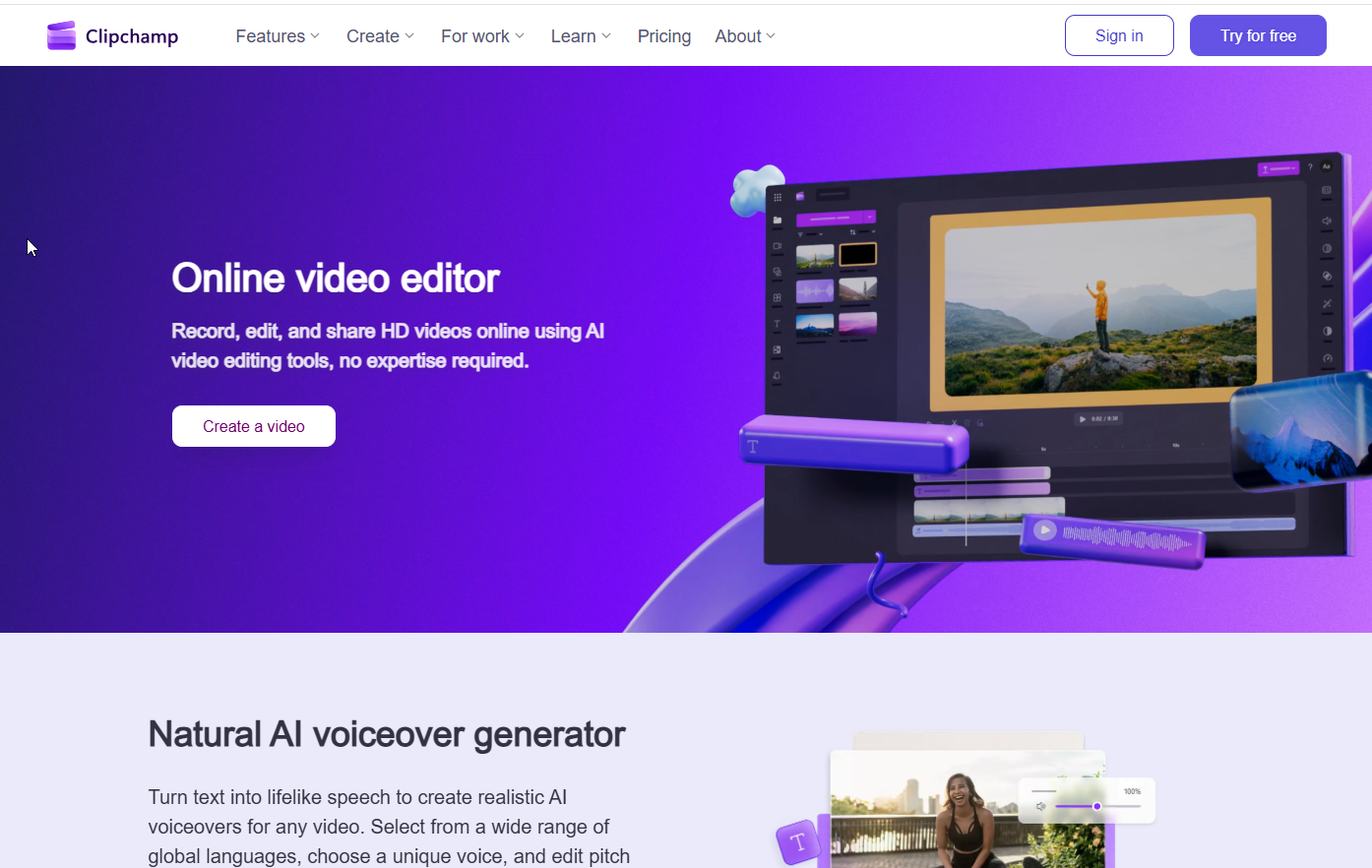
Clipchamp is the pick when a watermark is why you are leaving CapCut. Its free plan exports without a watermark at up to 1080p, and 4K export sits on Premium.
What it does: Clipchamp is a video editor with a free plan that bundles free stock, effects, and AI video, audio and subtitle tools. Premium adds premium stock, effects and a brand kit on top.
Who it is for: Creators who want a clean export without paying. If a watermark on a free export is the thing that pushed you out of CapCut, this is the first tool to test.
| Plan | Price | Billing Basis | What It Includes |
|---|---|---|---|
| Free | $0 | Not applicable | Watermark-free exports up to 1080p, free stock and effects, AI video, audio and subtitle tools |
| Premium | Included with Microsoft 365 Personal and Family | Bundled with the Microsoft 365 plan | Exports up to 4K, premium stock, effects and brand kit |
Clipchamp's pricing page lists the free plan at $0. Premium is included with Microsoft 365 Personal and Family.
Strengths:
- The free plan exports without a watermark.
- Free exports reach 1080p.
- AI video, audio and subtitle tools sit on the free plan, so you are not forced to pay to try them.
- Premium is bundled with Microsoft 365 Personal and Family, so you may already own it.
Trade-offs:
- Premium comes through Microsoft 365 Personal or Family, so you cost it by checking that route.
- 4K export is locked to Premium.
- Supported platforms are not stated on the vendor page.
Key capabilities:
- Watermark-free free exports up to 1080p
- Free stock and effects
- AI video, audio and subtitle tools
- Premium brand kit
Good fit:
- Creators who want a watermark-free free export at 1080p
- People who already pay for Microsoft 365 Personal or Family
- Small teams that want a brand kit on the paid tier
Not a fit:
- Anyone who needs 4K output without paying
- Anyone who needs a confirmed platform list before they test, since the pricing page does not give one
The limitation that matters most is that 4K export needs Premium, which comes through Microsoft 365 Personal or Family.
2. InShot: Best For Editing On An IPhone
InShot suits you if your whole workflow lives on an iPhone. Its App Store listing shows iPhone (iOS 15 or later), iPad, Mac (macOS 13 or later, M1 or newer) and visionOS support, with Pro at $4.99 monthly, $19.99 yearly or $49.99 lifetime.
What it does: InShot is a free app with in-app purchases, sold as an AI video editor. The listing is the developer's own App Store page, and it is the only vendor page used here.
Who it is for: Phone-first creators who cut short clips on an iPhone and want a lifetime option rather than a subscription. The Android question is a real one. Android is not on this listing, so confirm before you assume.
| Plan | Price | Billing Basis | What It Includes |
|---|---|---|---|
| Free | $0 | In-app purchases available | Not stated on the vendor page |
| Pro Monthly | $4.99 | Monthly | Not stated on the vendor page |
| Pro Yearly | $19.99 | Yearly, with a free trial | Not stated on the vendor page |
| Pro Lifetime | $49.99 | One-time | Not stated on the vendor page |
The three Pro prices come straight from InShot's App Store listing. Whether the free version adds a watermark is not stated there, so this guide does not claim either way.
Strengths:
- Three clear Pro options, including a $49.99 lifetime price that removes the subscription question.
- The yearly plan carries a free trial, so you can test before paying.
- Runs on iPhone, iPad, Mac and visionOS.
- The free app costs nothing to install, which makes a first test cheap.
Trade-offs:
- Android is not on the App Store listing.
- The listing does not describe what Pro unlocks beyond its prices.
- The free-plan watermark position is not stated.
Key capabilities:
- iPhone editing, with iPad and Mac support
- AI video editor positioning on the listing
- Pro prices at monthly, yearly and lifetime levels
Good fit:
- iPhone-first creators who edit on the go
- People who prefer a one-off payment to a subscription
- Anyone who wants to try a free app before committing
Not a fit:
- Android users, since the listing does not show Android
- Anyone who needs a documented free-plan export limit before they start
The limitation that matters most is how little the listing says about what the free version exports, so test one clip before you plan a workflow around it.
3. DaVinci Resolve: Best For Desktop Control At No Cost
DaVinci Resolve is the answer when price is why you are leaving. The free version costs $0 and handles up to 4K UHD at up to 60fps on Mac, Windows and Linux, and the paid Studio edition is listed at $236.
What it does: DaVinci Resolve is a desktop editor whose free version includes HDR grading and multi-user collaboration. Studio adds 10-bit, up to 120fps and resolutions beyond 4K.
Who it is for: Creators who edit on a Mac, Windows or Linux computer and want the highest free export resolution in this list. It is the natural Windows PC answer, because it asks for no subscription at all.
| Plan | Price | Billing Basis | What It Includes |
|---|---|---|---|
| Free | $0 | Not stated on the vendor page | Up to 4K UHD, up to 60fps, Mac, Windows and Linux, HDR grading, multi-user collaboration |
| Studio | $236 (shown as was $295) | Not stated on the vendor page | 10-bit, up to 120fps, resolutions beyond 4K |
The prices come from the DaVinci Resolve product page, which shows Studio at $236 against a struck-through $295. Strengths:
- The free version reaches 4K UHD at 60fps, the highest free resolution of the five tools here.
- It runs on Mac, Windows and Linux, so the platform choice is yours.
- HDR grading and multi-user collaboration are in the free version.
- Studio is a single listed price of $236, with no tier ladder to decode.
Trade-offs:
- It is a desktop application, so it does nothing for you on a phone.
- The page does not say anything about a free-version watermark, so this guide does not state a position.
- Billing basis is not stated on the page.
Key capabilities:
- Up to 4K UHD at up to 60fps on the free version
- HDR grading
- Multi-user collaboration
- Studio adds 10-bit, up to 120fps and resolutions beyond 4K
Good fit:
- Desktop editors who want the highest free resolution
- Creators who care about colour work such as HDR grading
- Small teams that want collaboration without paying for it
Not a fit:
- Phone-only editors
- Anyone who wants a quick template-led edit rather than a full desktop tool
The limitation that matters most is that it only runs on a computer, so it cannot replace CapCut on a phone.
4. VEED: Best For Auto Subtitles In A Browser
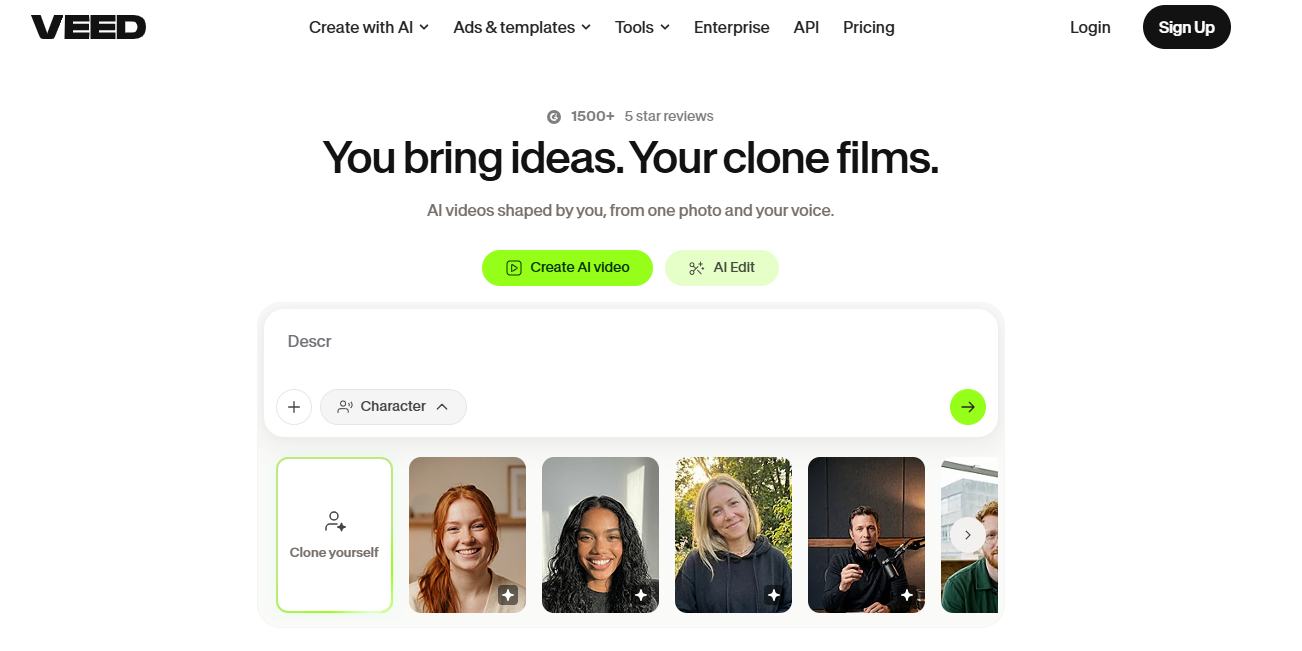
VEED is the subtitle pick, and it carries a watermark on the free plan. VEED's pricing page shows the free plan with watermarked exports, and the lowest tier that removes the watermark is Creator at $25 monthly or $147 yearly.
What it does: VEED is a browser-based editor. The free plan includes 10 minutes per month of subtitles, and Creator lifts that to unlimited auto subtitles.
Who it is for: Creators who live in captions and do not want to install software. If subtitles are your reason for leaving CapCut, VEED is where to look, and our guides to AI subtitle generators and AI clip generators go further on both jobs.
| Plan | Price | Billing Basis | What It Includes |
|---|---|---|---|
| Free | $0 | Not applicable | Watermarked exports, 10 minutes per month of subtitles |
| Creator | $25 monthly, $147 yearly ($12.25 per month) | Monthly or yearly | No watermark, unlimited auto subtitles |
| Pro | $45 monthly, $265 yearly | Monthly or yearly | Not stated on the vendor page |
| Studio | $79 monthly, $465 yearly | Monthly or yearly | Not stated on the vendor page |
All four plans are on VEED's plans page. Export resolution and video length are not published there, so this guide does not give figures for either.
Strengths:
- Runs in a browser, so there is nothing to install.
- Creator removes the watermark and gives unlimited auto subtitles.
- The yearly Creator price works out to $12.25 per month.
- Four plans cover solo creators up to larger teams.
Trade-offs:
- The free plan watermarks exports.
- Free subtitles stop at 10 minutes per month.
- Export resolution and length are not published on the pricing page.
Key capabilities:
- Browser-based editing
- Auto subtitles, unlimited from Creator
- Watermark removal from Creator
- Pro and Studio tiers for heavier use
Good fit:
- Caption-heavy creators who work in a browser
- Anyone happy to pay $12.25 per month on the yearly plan for clean exports
Not a fit:
- Anyone who needs a clean free export, since the free plan carries a watermark
- Anyone who must know export resolution before paying, because the page does not state it
The limitation that matters most is the free-plan watermark, which makes VEED a paid tool for any export you intend to publish.
5. Adobe Express: Best When Video Length Is Your Limit
Adobe Express is the answer when length is your limit. Its pricing page shows video up to 30 minutes on the free plan and up to 2 hours on Premium, which is $9.99 per month.
What it does: Adobe Express offers 5-second AI video generations daily on the free plan. Premium adds 250 generative credits per month alongside the longer video limit.
Who it is for: Creators and small brand teams whose videos run long, or who want template-led work. If brand and template video is your world, our list of AI video generators for marketing teams covers the wider field.
| Plan | Price | Billing Basis | What It Includes |
|---|---|---|---|
| Free | $0 | Not applicable | Video up to 30 minutes, 5-second AI video generations daily |
| Premium | $9.99 | Per month | Video up to 2 hours, 250 generative credits per month |
| Teams | $7.99 per license (first year $4.99) | Per license | Not stated on the vendor page |
The figures come from Adobe's Express pricing page. A free-plan watermark was not found on that page, so this guide does not say whether one exists.
Strengths:
- Free video can run to 30 minutes, the only stated free length limit among the five tools.
- Premium costs $9.99 per month, well under VEED's $25 Creator tier.
- Premium stretches video to 2 hours.
- Teams pricing starts at $4.99 per license for the first year.
Trade-offs:
- The free AI video generations are 5 seconds long.
- Free resolution is not stated on the pricing page.
- Premium credits are capped at 250 generative credits per month.
Key capabilities:
- Video up to 30 minutes free, 2 hours on Premium
- Daily 5-second AI video generations
- 250 generative credits per month on Premium
- Teams licences
Good fit:
- Creators who publish long videos
- Small teams that want a per-seat price
Not a fit:
- Anyone who needs a stated free export resolution
- Anyone who wants more than 5-second AI generations without paying
The limitation that matters most is that the page states no free export resolution, so length is its strength and resolution is a question you have to test yourself.
📋 Get Listed / Advertise
We update this guide monthly. Want your tool featured? Contact: [email protected].
Free-Plan And Export Limits Compared
DaVinci Resolve has the highest stated free export resolution, at up to 4K UHD. Clipchamp is the only free plan stated to export without a watermark, and VEED is the only one stated to add one.
| Tool | Free-Plan Watermark | Free-Plan Resolution | Free-Plan Length |
|---|---|---|---|
| Clipchamp | No watermark | Up to 1080p | Not stated |
| InShot | Not stated on the listing | Not stated | Not stated |
| DaVinci Resolve | Not mentioned on the page | Up to 4K UHD at 60fps | Not stated |
| VEED | Watermarked | Not published | Not published |
| Adobe Express | Not found on the page | Not stated | Up to 30 minutes |
The sources are Clipchamp's pricing page, InShot's App Store listing, DaVinci Resolve's product page, VEED's plans page and Adobe's Express pricing page. No competitor list publishes this table, and every blank in it is a blank on the vendor's own page.
Read it by reason. If you want a clean export and nothing to pay, it is Clipchamp. If you want the most resolution for free, it is DaVinci Resolve. If length is the problem, it is Adobe Express. If you need to dub your finished video into other languages, our guide to AI video translators picks up where an editor stops.
If you run a video or creator-tool product and want pages like this to bring in sign-ups month after month, the GEO + SEO Growth Programme covers the search and AI-answer side. Read what it includes and decide if it fits.
Why Creators Are Leaving CapCut
These are the five reasons worth matching to yourself.
- Availability: US availability is an open question, covered in the next section, and it is enough to make some creators want a second editor ready.
- Watermarks: A watermark on a free export is a problem if you publish the video. Clipchamp is the answer in this list.
- Export or length limits: Short free limits stop long videos. Adobe Express is the one to test for length, and DaVinci Resolve for resolution.
- Price: CapCut says its Pro price varies by region, device and promotions, so there is no single number to compare against. Compare the fixed prices in the tool sections instead.
- AI features: If AI-led editing is what you want next, see our realistic AI videos guide and the VEED and Clipchamp sections above.
Pick the one that hurts most. That is the one that decides your tool.
What We Know About The CapCut US Ban Question
CapCut is a ByteDance product, and it sits inside a live US debate about foreign-controlled apps. Here is what is dated and sourced, and nothing more.
The Protecting Americans from Foreign Adversary Controlled Applications Act was signed on 24 April 2024. The same tracker shows enforcement of the Act paused on 20 January 2025 and later extended by presidential orders.
The Act gives the US government power to ban foreign-controlled apps. CapCut is not named in the Act, but commentators expect it could be covered by future restrictions.
That is the whole confirmed picture. This guide does not confirm whether CapCut is available in the US today, and it does not claim a ban has happened. If availability matters to you, check the official app store listing for your country before you plan around it.
How To Choose: Match Your Reason For Leaving To The Tool
Start with the reason, not the brand. Then check four things on the vendor's page before you pay, which are ease of use, the features you actually need, the platform you edit on, and whether the free plan does what you need today.
| Reason For Leaving | Choose | Why |
|---|---|---|
| Watermark on free exports | Clipchamp | Free plan exports up to 1080p without a watermark |
| Editing on an iPhone | InShot | App Store listing shows iPhone, iPad and Mac support |
| Editing on a Windows PC | DaVinci Resolve | Free version runs on Windows, Mac and Linux |
| Highest free resolution | DaVinci Resolve | Free version reaches 4K UHD at 60fps |
| Subtitles in a browser | VEED | Creator gives unlimited auto subtitles |
| Video length | Adobe Express | Free video up to 30 minutes, Premium up to 2 hours |
| Price | DaVinci Resolve or Clipchamp | Both have a $0 plan stated on the vendor page |
If you are leaving because of a watermark, choose Clipchamp. If you are leaving because you edit on a phone, choose InShot. If you are leaving because of export length, choose Adobe Express. If you are leaving because of price, start with DaVinci Resolve on a computer or Clipchamp's free plan. If you are leaving because you want AI-led editing, read our list of the best AI video editors first.
Audio-led workflows change the picture. If your videos depend on a cloned or recorded voice, see our guide to voice cloning video software. If you publish in several languages, our list of multilingual AI avatar tools covers localised video.
If you build video tools yourself, read how AI assistants choose which tools to recommend, because lists like this one are what they read. The same goes for answer-first page structure, which is why every tool section above opens with its verdict.
How To Move Your Work Out Of CapCut
Exporting finished files and keeping source footage outside any single app is the practical hedge against losing work. This guide makes no claim that CapCut projects import into another editor, so plan to rebuild rather than convert.
- Export Finished Videos: Export every finished video you may need again, at the highest quality the app allows.
- Copy Source Footage Out: Move original clips, audio and images into folders you control, not only inside the app.
- Write Down Your Templates: Note the fonts, colours, caption style and intro and outro lengths you reuse, so you can rebuild them.
- Save Caption Text: Copy your caption and script text into a document you own.
- Test One Short Project: Rebuild one short video in the new editor before you move a whole backlog.
- Move The Rest In Batches: Once the test works, move the remaining projects in small groups.
Do the first two steps today, whichever tool you pick. They cost nothing and they protect you whatever happens next.
FAQs
What Happened To CapCut?
Is CapCut Getting Banned?
What Is The Best Free CapCut Alternative?
Is There A CapCut Alternative Without Watermarks?
What Is The Best CapCut Alternative For IPhone?
What Is The Best CapCut Alternative For A Windows PC?
How Do You Move Projects From CapCut To Another Editor?
Which CapCut Alternative Has The Highest Free Export Resolution?
How Long Can A Video Be On The Free Plan Of Each Alternative?
If you would rather have a team plan the content that gets your product onto lists like this, book a thirty-minute call. One of the founders takes it, and you leave knowing what we would fix first.