

Pick the CRM enrichment tool whose write-back rules you can prove on your own records. Database size matters less. HubSpot native enrichment, Apollo, ZoomInfo, Clay and FullEnrich each give you a way to protect existing field values, so the real test is what happens to your reps' entries.
This holds for a RevOps team enriching records already in Salesforce or HubSpot. If you are building net-new lead lists rather than fixing existing records, a different tool category fits better.
Vendors document write-back differently and several publish no prices, so the shortlist below states what each vendor's own pages say and marks what they leave out.
If you also run the content side for a SaaS product, our SaaS content marketing work covers listicles and comparison pages like this one. The page explains how it runs.
📋 Get Listed / Advertise
We update this guide monthly. Want your tool featured? Contact: [email protected].
CRM Data Enrichment Tools At A Glance
Apollo, ZoomInfo, Clay, HubSpot native enrichment and FullEnrich are compared below on one attribute, which is what each does to a CRM field that already holds a value, alongside the CRMs documented, the sync trigger and the published price.
| Tool | Best For | CRMs The Vendor Documents | Documented Write Behaviour For Existing Fields | Sync Trigger Or Cadence | Published Price |
|---|---|---|---|---|---|
| Apollo | Testing write-back on Salesforce or HubSpot | Salesforce and HubSpot | Each mapped field is set to Auto-fill (empty only) or Overwrite, and manual enrichment overrides both | Pulls every 15 to 30 minutes and pushes updates in real time | Pricing on request |
| ZoomInfo | Scheduled enrichment with per-field rules | Salesforce | Each field is set to Complete if missing (the default for standard fields) or Overwrite | Scheduled jobs from midnight ET, and Instant Enrich on record creation | Pricing on request |
| Clay | Custom update rules on existing records | HubSpot and Salesforce | Update targets the record by ID, and Ignore blank values stops blanks overwriting populated fields | Salesforce re-sync every 24 hours by default | Starter is $149 per month |
| HubSpot Native Enrichment | Fill-blanks-only safety | HubSpot | Automatic enrichment fills blank properties only | Automatic enrichment, and manual bulk batches of 100 | Enrichment is not priced on its own |
| FullEnrich | HubSpot match review before writing | HubSpot | Each mapped field is set to Complete if missing or Override field | Push started by the user after a one-time import | Pro is $55 per month |
1. Apollo: Best For Testing Write-Back On Salesforce Or HubSpot
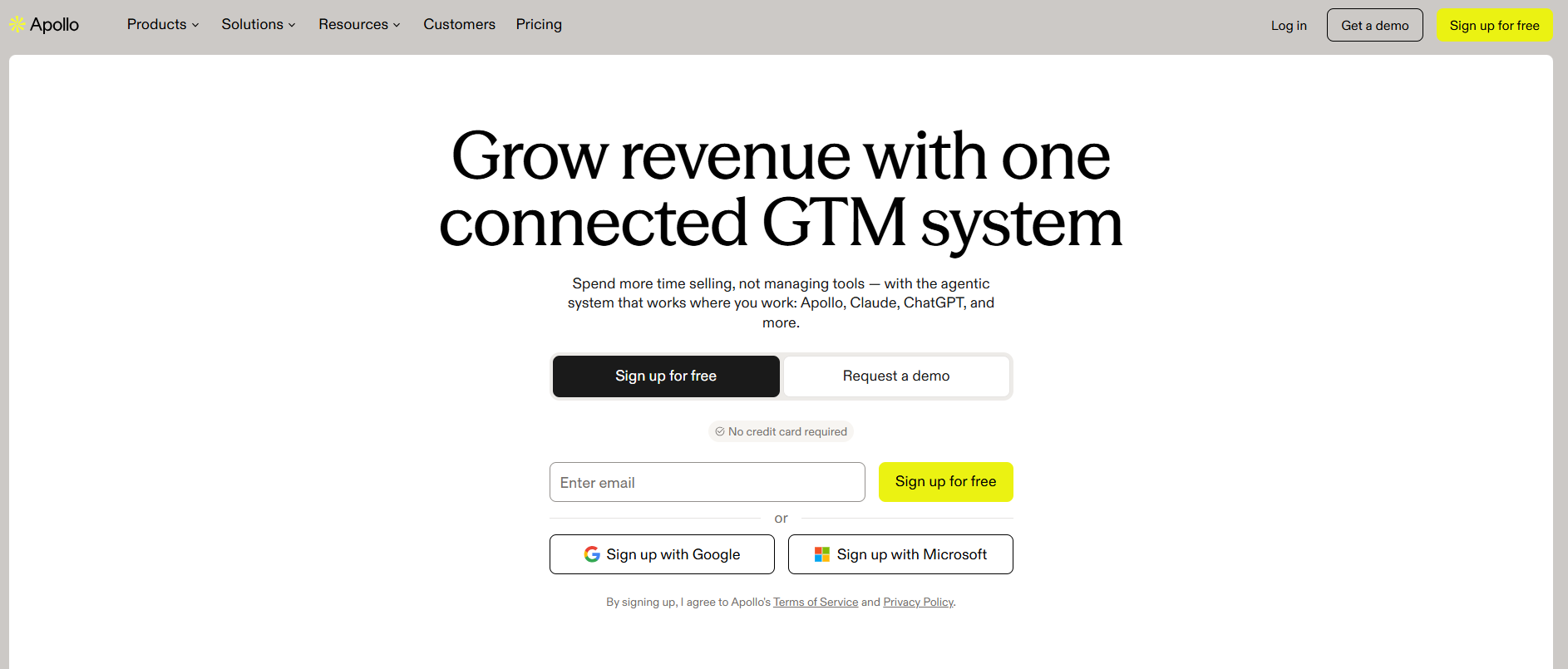
Apollo's help article says admins map CRM fields and set each one to Auto-fill, which updates only when the CRM field is empty, or Overwrite, which updates even when a value exists. Manual enrichment overrides both settings. The free plan allows 100 CRM records per 30 days.
Apollo connects to Salesforce and HubSpot and can write enriched values onto records already in the CRM. The part that matters here is the write rule. It is set per field by an admin, and a manual run bypasses it.
This is the tool for a RevOps lead who wants to try enrichment on a real sample before paying anything. A limit of 100 CRM records per 30 days is small, and that is exactly what makes it a low-risk first test.
Apollo's four plans are listed below, and the table says Pricing on request wherever the vendor shows no figure.
| Plan | Price | Billing Basis | Includes |
|---|---|---|---|
| Free | Free | Not stated | 100 CRM records per 30 days |
| Basic | Pricing on request | Monthly or annual | Not listed |
| Professional | Pricing on request | Monthly or annual | Advanced CRM integrations |
| Custom | Pricing on request | Not stated | Not listed |
Apollo's pricing page names four plans, shows no prices, and describes Professional as including advanced CRM integrations. The same page says credits are pooled across the team and unused credits expire, and that monthly billing is cancellable while annual billing is paid upfront for 12 months.
Strengths:
- Per-field control: Each mapped field gets its own Auto-fill or Overwrite setting, so one risky field does not force a global choice.
- A cheap trial: The free plan's 100 CRM records per 30 days limits your exposure while you learn how the rules behave.
- Optional Salesforce push: Pull is always on and push must be enabled, so you can watch what comes in before anything is written back, as Apollo's Salesforce article describes.
Trade-offs:
- Manual runs ignore the settings: Manual enrichment overrides both Auto-fill and Overwrite, so a hurried manual run can write over a rep's entry.
- No stated default: The help article does not say which setting is the default, so check each field after connecting.
- Duplicates stay your problem: Apollo does not automatically merge or delete duplicates, and the matching keys it uses are not documented.
- No published prices: Every paid plan is Pricing on request.
Key capabilities:
- Per-field rules: Auto-fill or Overwrite for every mapped CRM field.
- Manual enrichment: Up to 1,000 records at a time after a cost confirmation.
- Salesforce sync: After the first sync, Apollo syncs new or updated Salesforce records every 30 minutes, and optional push sends saved records and updates back in real time.
- Conditional writes: On Salesforce, auto-fill happens only if a field is empty and Apollo has information, and overwrite happens only if the value differs and Apollo has information.
Good fit:
- Teams on Salesforce or HubSpot that want a free, small first test.
- Admins who want to set write rules field by field.
- Teams willing to clean and deduplicate Salesforce before connecting, which the vendor advises.
Not a fit:
- Buyers who need a published price before talking to sales.
- Teams that need documented HubSpot duplicate handling, because the vendor documents duplicate behaviour for Salesforce only.
- Anyone who wants a hard guarantee that nothing is overwritten, because manual runs take precedence.
The limitation that matters most is that manual enrichment overrides both settings, so the per-field safety only protects automatic runs.
2. ZoomInfo: Best For Scheduled Enrichment With Per-Field Rules
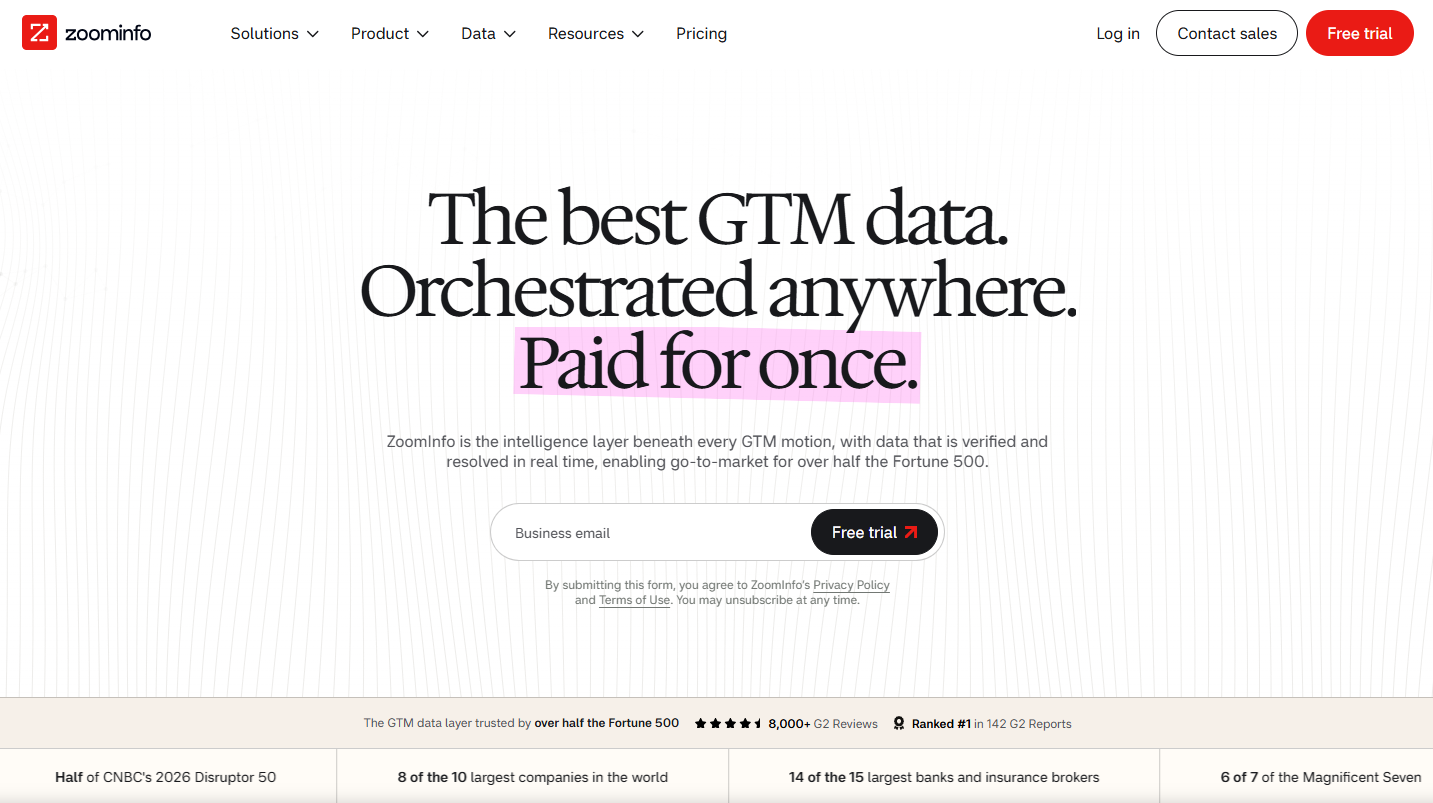
ZoomInfo Enrich for Salesforce gives each field an Update Option, either Complete if missing, which fills blank fields only, or Overwrite. The integration guide says standard Salesforce fields stay on Complete if missing, the default, and recommends Overwrite only for ZoomInfo custom fields.
ZoomInfo's Enrich writes data into Salesforce records on a schedule or when a record is created. The guide describes no sync from Salesforce back into ZoomInfo, so the flow runs one way, into the CRM. Only Salesforce behaviour is covered here, because the Salesforce guide is the one write-back source for this vendor.
It suits a Salesforce team that wants scheduled jobs under rules an admin sets once. It also suits teams that already hold a ZoomInfo Sales licence, since Enrich is a feature of that product.
ZoomInfo's pricing page shows no prices, so every package below reads Pricing on request.
| Package | Price | Billing Basis | Includes |
|---|---|---|---|
| ZoomInfo Professional | Pricing on request | Licences plus monthly credits | Lists CRM integrations with HubSpot, Marketing and Salesforce |
| Marketing Demand | Pricing on request | Licences plus monthly credits | Not listed |
| Copilot Advanced | Pricing on request | Licences plus monthly credits | Not listed |
| Copilot Enterprise | Pricing on request | Licences plus monthly credits | Not listed |
| ABM Lite | Pricing on request | Licences plus monthly credits | Not listed |
| ABM Enterprise | Pricing on request | Licences plus monthly credits | Not listed |
ZoomInfo's pricing page sends every path to contact sales, a demo or a pricing form. It says pricing depends on features, number of licences and credit usage, that each export of a contact or company profile consumes one credit, and that packages include monthly credits with extra credits available to buy.
Strengths:
- Safe default: Standard fields default to Complete if missing, so blank-only writing is where you start.
- Two triggers: Scheduled jobs and Instant Enrich cover both bulk refreshes and new records.
- Free runs on owned records: Setting Enrich to only enrich records you currently own incurs no credit charges.
Trade-offs:
- Admin overhead: Enrich administrators need full Salesforce admin privileges and an Admin Portal seat.
- Sandbox is not free: Sandbox runs still incur bulk credit charges.
- No automatic duplicate resolution: The guide describes a Duplicates tab for review and no automatic fix.
- No price: Nothing on the pricing page lets you budget without a sales call.
Key capabilities:
- Per-field Update Option: Complete if missing or Overwrite, with Person Has Moved set to Overwrite so changes are identified after a job.
- Scheduled jobs: Recurring jobs begin at midnight ET on the scheduled day, and the guide does not list the frequency values.
- Instant Enrich: Event-driven, with a filter checked when a net-new Salesforce record is created.
- Matching: Default match inputs are set per object and cannot be removed, extra inputs can be added, and records below the minimum Accuracy Score are marked No Match.
- Writes: Matched records are updated through the Salesforce Bulk API.
Good fit:
- Salesforce teams that want scheduled enrichment under per-field rules.
- Teams that already license ZoomInfo Sales.
- Admins who can supply the required Salesforce privileges and Admin Portal seat.
Not a fit:
- HubSpot teams, because the Salesforce guide is the only ZoomInfo write-back documentation covered here.
- Buyers who want a price before a sales conversation.
- Teams that expect enrichment to move a contact to a new company, because Enrich does not associate contacts with a new company and the team must update associations.
The limitation that matters most is that duplicate resolution stays manual, so a messy Salesforce org will cost you credits before it helps.
3. Clay: Best For Custom Update Rules On Existing Records
Clay's HubSpot guide says its Update action targets the existing record by its HubSpot record ID, while Create is for net-new records and spawns duplicates if used on existing ones. The Ignore blank values option stops an empty enrichment result overwriting a populated field.
Clay is a build-your-own enrichment tool. You assemble the lookups, then choose what gets written back to HubSpot or Salesforce and under which rules. Lookups read CRM data into Clay and are read-only, while Create and Update push from Clay to HubSpot.
It suits a RevOps person who wants to define the rules rather than accept a vendor default, and who is comfortable testing them.
Clay's plans are below, with the figures the plans page publishes.
| Plan | Price | Billing Basis | Includes |
|---|---|---|---|
| Free | $0 per month | Monthly | 100 credits per month |
| Starter | $149 per month, or $229 per month | Monthly | 2,000 credits, or 3,000 credits at $229 |
| Starter (annual) | $134 per month | Annual | 24,000 credits a year |
| Explorer | From $349 per month, up to $699 | Monthly | 10,000 to 20,000 credits |
| Pro | From $800 per month, up to $2,000 | Monthly | 50,000 to 150,000 credits, and CRM Integrations |
| Enterprise | Not published | Not published | Continuous CRM Enrichment |
Clay's plans page lists these figures, shows a dollar sign without naming a currency code, lists CRM Integrations under Pro, and lists Continuous CRM Enrichment under Enterprise.
Strengths:
- Update by record ID: The write lands on the existing object, so existing records are not recreated.
- Blank protection: Ignore blank values stops an unenriched field overwriting a populated one.
- Exclusions: Manually maintained HubSpot properties can be left out of the write.
- Provenance: Clay's Salesforce guide recommends keeping the original Salesforce value beside each enriched value.
Trade-offs:
- You are the safety net: The rules are only as safe as the person configuring them.
- Writes are permanent: Clay describes writes to HubSpot as permanent, so back up before a run.
- Two meters: Each row spends Actions and provider results spend Data Credits.
- Non-blank values replace: A non-blank enrichment result can replace an existing value unless you exclude the field.
Key capabilities:
- Salesforce Update: The Update record action keys on Record ID, and Create is configured to prevent duplicates by default.
- Upsert: Requires an external ID on the object.
- Re-sync: Imports from Salesforce re-sync every 24 hours by default.
- SOQL source: One import can query up to 50,000 records and can auto-update on a schedule.
Good fit:
- RevOps teams that want custom update rules on HubSpot or Salesforce.
- Teams that can document and test their own field mapping.
- Anyone who wants the original value kept beside the enriched one.
Not a fit:
- Teams that want a vendor to make the write-back decisions for them.
- Teams that cannot take a backup before permanent writes.
- Buyers who need Create-style imports and have no way to prevent duplicates.
The limitation that matters most is that Clay gives you the controls without the guardrails, so one wrong mapping writes permanently.
4. HubSpot Native Enrichment: Best For Fill-Blanks-Only Safety
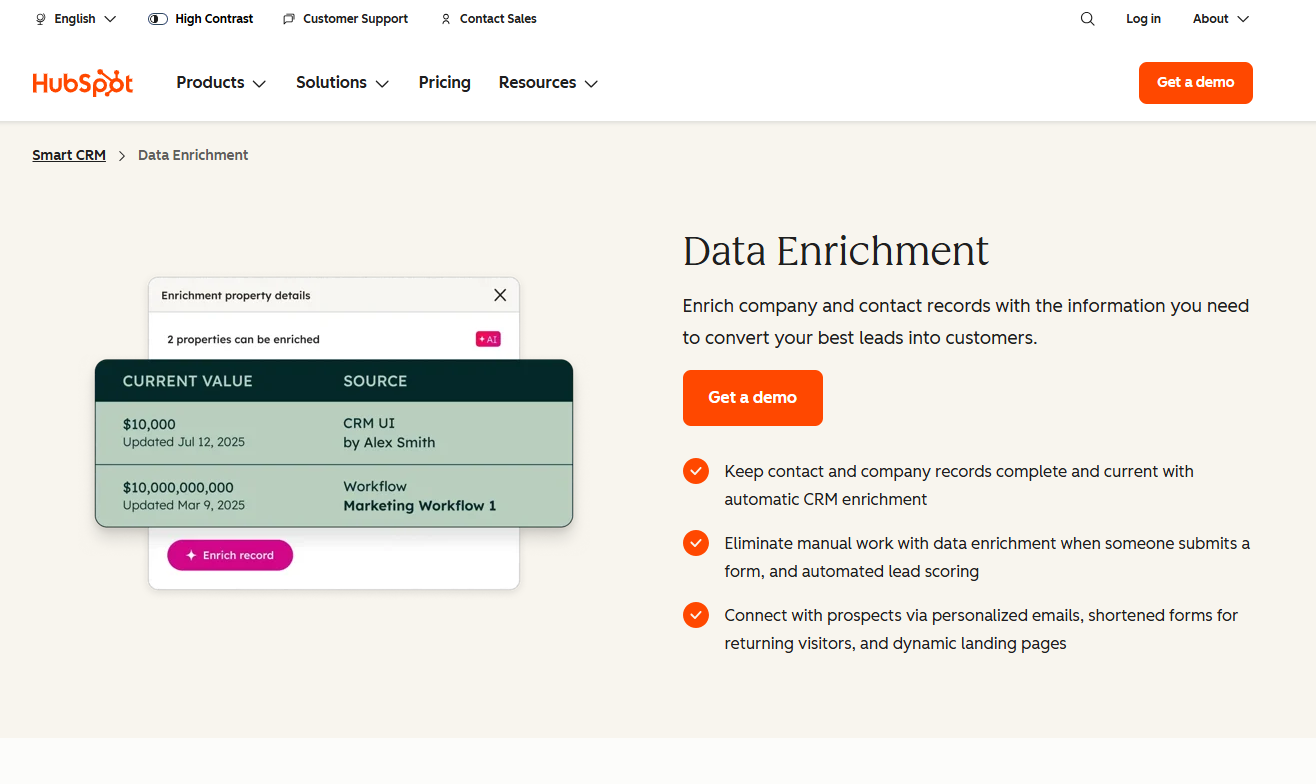
HubSpot's help centre says automatic enrichment fills only blank properties and does not overwrite values set by a user or another system. Manual enrichment can fill blanks or overwrite if configured. Continuous enrichment stops on a property once a user edits it.
HubSpot's built-in enrichment is the lowest-risk option on this list for teams already living in HubSpot. There is no second tool to connect, no mapping to build and no write rule to invent, because the default behaviour already protects rep entries.
Manual bulk runs go in batches of 100 records, which keeps a first test small by design.
The pricing table below shows what HubSpot's pricing page lists for Marketing Hub. The page does not price enrichment by name.
| Plan | Price | Billing Basis | Includes |
|---|---|---|---|
| Marketing Hub Starter | From $7 per month per seat (the page also shows $20) | Per seat per month | 500 HubSpot Credits |
| Marketing Hub Professional | $800 or $890 per month base | Per month base | 3 core seats and 3,000 credits, extra credits $0.010 each |
| Marketing Hub Enterprise | $3,600 per month base | Per month base | 5 core seats and 5,000 credits |
HubSpot's pricing page lists those figures. It does not price enrichment by name and does not say which plan includes native enrichment, so confirm that with HubSpot before you budget.
Strengths:
- Blank-only automatic mode: Automatic enrichment never overwrites a value set by a user or another system.
- Edits stick: Continuous enrichment stops on a property once a user edits it.
- No extra vendor: The feature sits inside the CRM you already pay for.
Trade-offs:
- Manual mode can overwrite: Manual enrichment can overwrite if configured, so the setting needs a named owner.
- Small manual batches: Bulk runs go in batches of 100 records.
- Unclear plan and price: The pricing page names credits but does not price enrichment or say which plan includes it.
Key capabilities:
- Automatic enrichment: Fills blank properties only.
- Manual enrichment: Fills blanks or overwrites if configured.
- Continuous enrichment: Stops updating a property after a user edits it.
- Bulk manual runs: Batches of 100 records.
Good fit:
- HubSpot teams that want the lowest overwrite risk.
- Teams that would rather not build and maintain field mappings.
- Anyone running a small first test on a few hundred records.
Not a fit:
- Salesforce teams, because this is HubSpot only.
- Teams that need a published price for enrichment before choosing.
- Teams that want custom overwrite rules per field.
The limitation that matters most is that it only works inside HubSpot, so it does not serve a Salesforce team.
5. FullEnrich: Best For HubSpot Match Review Before Writing
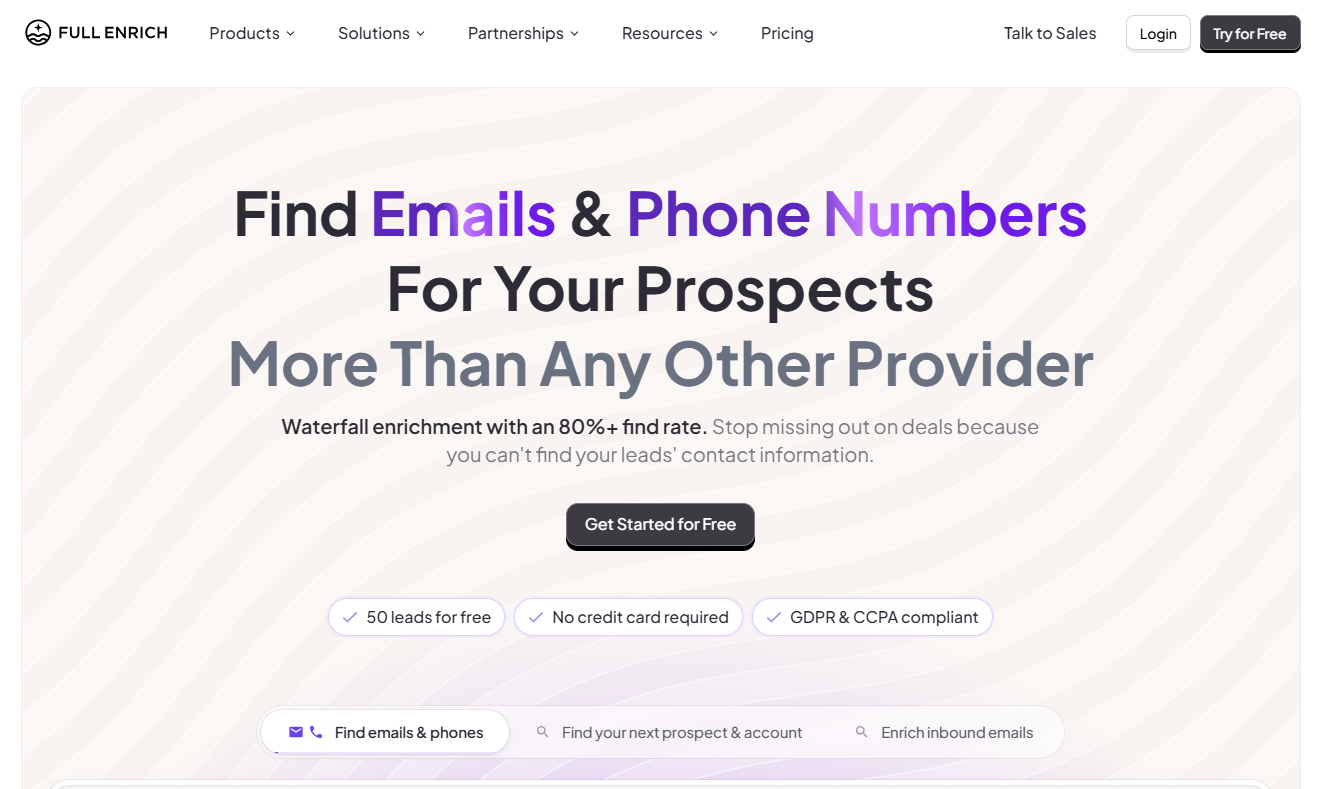
FullEnrich's HubSpot help article says each mapped HubSpot field is set to fill only when empty or to always replace, and that uncertain matches go to manual review. Enriched contacts are pushed from FullEnrich lists to HubSpot, and the user starts each push.
The vendor's help centre carries conflicting statements about the HubSpot app's availability. One getting-started article describes a working integration, while the beta setup article says the app is under development and not yet available. Confirm availability with FullEnrich before you rely on it.
FullEnrich is documented for HubSpot only. No Salesforce write-back is documented, so a Salesforce team has nothing to evaluate here.
It suits a HubSpot team that wants to look at borderline matches before any data lands in the CRM.
FullEnrich's pricing page lists these figures.
| Plan | Price | Billing Basis | Includes |
|---|---|---|---|
| Free trial | $0 | One time | 50 credits |
| Pro | $55 per month | Monthly billing | 1,000 credits at $0.055 per credit, unlimited users and CRM integrations |
| Enterprise | Contact sales | Custom | Not listed |
FullEnrich's pricing page lists a free trial with 50 credits, one time, and Pro at $55 per month for 1,000 credits. A 15,000-credit Pro tier at $720 per month appears in the page's calculator. The page does not name a currency, and its annual Pro price is not legible.
Strengths:
- Per-field choice: Each mapped field is Complete if missing or Override field.
- Match review: Uncertain cases, including partial names and existing duplicates, are flagged for manual review.
- Broad matching inputs: Contacts are checked against first name, last name, company, LinkedIn URL and ID, phone and email, and companies against domain, name, LinkedIn URL and ID.
Trade-offs:
- HubSpot only: No Salesforce write-back is documented.
- Availability is unclear: The help centre contradicts itself on whether the HubSpot app is available.
- Admin access needed: Admin access to both accounts is required.
- Sync detail missing: Ongoing sync cadence is not stated, and whether new contacts are created is not stated.
Key capabilities:
- Complete if missing: Updates only empty fields in HubSpot.
- Override field: Always overwrites with FullEnrich data.
- Initial import: An initial sync of existing HubSpot data takes 20 to 50 minutes before pushing starts.
- User-started pushes: Enriched contacts move from FullEnrich lists to HubSpot when the user starts the push.
Good fit:
- HubSpot teams that want to review uncertain matches before writing.
- Teams that want a low monthly entry point.
- Admins who hold access to both accounts.
Not a fit:
- Salesforce teams.
- Teams that need a documented ongoing sync schedule.
- Anyone who cannot confirm the HubSpot app's availability with the vendor first.
The limitation that matters most is that the HubSpot app's availability is documented inconsistently, so the integration has to be confirmed before it can be trusted.
📋 Get Listed / Advertise
We update this guide monthly. Want your tool featured? Contact: [email protected].
What CRM Data Enrichment Is And How It Works
CRM data enrichment fills and updates fields on records already held in the CRM, and writes the returned data back under overwrite rules that protect manually entered values. CRM data enrichment is ongoing rather than a one-off list enrichment, which is why the write rules matter more than the size of any database.
The process runs in six steps.
- Identify the record in the CRM.
- Query an external data source.
- Verify what comes back.
- Map the result to CRM fields.
- Apply the overwrite and duplicate rules.
- Write the approved data back to the CRM.
Cleansing fixes what is wrong in a record, such as duplicates and bad formats. Enrichment adds what is missing and updates what has gone out of date.
If you want the general job-to-tool table, read our guide to the Best B2B Data Enrichment Tools. If the tool you are weighing leads with AI, the Best AI Lead Enrichment Tools guide separates that job from CRM write-back. Finding net-new contacts is a different job again, covered in our guide to tools for finding B2B contact information.
Why CRM Records Go Stale
The Salesforce State of Sales report, 6th edition, surveyed 5,500 sales professionals between 8 March and 18 April 2024, and about 9 percent of an average workweek went to researching prospects, with another 9 percent on manually entering data. Nine percent is a small number, and it is worth keeping small. It still comes out of selling time every week.
The newer picture is less flattering. The 7th edition in 2026, a survey of 4,050 sales professionals in 22 countries, found that reps spend more than half their time on nonselling work such as data entry and prospecting.
HubSpot's database-decay page says B2B email marketing databases degrade about 22.5 percent a year. Its footnote credits Marketing Sherpas research and gives no method, sample or date, so read the figure as a rough order of magnitude and not a measurement of your own data.
The practical causes are plainer than any statistic. People change jobs. Companies change. Several systems hold conflicting values for the same contact, and nobody owns the tiebreak. If you want the outbound consequence, see how clean contact data improves outbound performance.
How We Judged These Tools
Five criteria decide this shortlist, each phrased as a question about the CRM record.
- Write behaviour: The question is how the tool writes to a field that already holds a value, and whether that rule can be set per field.
- Rep-entered values: The question is whether a value a rep typed by hand survives an enrichment run.
- Duplicates and conflicts: The question is how the tool handles duplicate and conflicting records.
- Sync direction and frequency: The question is which way data moves, how often, and with what limits.
- Price basis: The question is how the tool is priced and whether the vendor publishes it.
Nothing here comes from hands-on testing. The judgements rest on each vendor's own pricing and help pages. Vendor-reported accuracy figures are self-reported and not independently audited, so none are used. Where a vendor is silent, this article says so instead of guessing.
The Rank Masters writes decision-stage comparison content for SaaS companies, which is why this guide is built the way a buyer would check it.
Which Tools Overwrite Rep-Entered Data By Default
The table below answers the core worry directly. For each tool it shows what the vendor documents for a field that already holds a value, whether a manual run changes that, and what the documentation leaves out.
| Tool | CRM | Fill-Only Mode | Overwrite Mode | Manual Run | Not Documented |
|---|---|---|---|---|---|
| Apollo | Salesforce and HubSpot | Auto-fill, set per field | Overwrite, set per field | Manual enrichment overrides both settings | Default setting |
| ZoomInfo | Salesforce | Complete if missing, the default for standard fields | Overwrite, recommended only for ZoomInfo custom fields | Not documented | HubSpot behaviour |
| Clay | HubSpot and Salesforce | Ignore blank values stops blanks overwriting | Non-blank values can replace existing ones | Not documented | Default for Ignore blank values |
| HubSpot Native Enrichment | HubSpot | Automatic enrichment fills blank properties only | Manual enrichment can overwrite if configured | Can overwrite if configured | Which plan includes it |
| FullEnrich | HubSpot | Complete if missing, set per field | Override field, set per field | Pushes start when the user starts them | Default setting, and Salesforce |
Four of the five tools document a fill-only mode by name. HubSpot automatic enrichment fills blank properties only. Apollo's Auto-fill setting, ZoomInfo's Complete if missing option and FullEnrich's Complete if missing option update empty fields only. Clay documents Ignore blank values instead. Overwrite is a per-field choice in Apollo, ZoomInfo and FullEnrich.
The rule of thumb is simple. Grant overwrite one field at a time, and never for a field a rep confirmed by hand. A job title a rep checked on a call should outrank any database.
Where the tool allows it, keep the original value beside the new one, so a disputed value can be traced. Clay's Salesforce guide recommends exactly that, keeping the original Salesforce value beside each enriched value.
Sync Direction, Frequency And Limits
Apollo pulls from the CRM and pushes updates back, so data moves both ways. ZoomInfo writes into Salesforce only. Clay pushes Create and Update to HubSpot while its lookups are read-only, and re-syncs Salesforce on a schedule. HubSpot native enrichment runs automatically and in manual batches. FullEnrich pushes only when the user starts a push.
| Tool | Direction | Trigger Or Cadence | Limit |
|---|---|---|---|
| Apollo | Pulls from the CRM, pushes back in real time | Pull every 15 to 30 minutes, and every 30 minutes for Salesforce after the first sync | Manual enrichment up to 1,000 records at a time |
| ZoomInfo | Into Salesforce only | Scheduled jobs from midnight ET, plus Instant Enrich on record creation | Frequency values not listed |
| Clay | Create and Update push to HubSpot, lookups are read-only | Salesforce re-sync every 24 hours by default | SOQL import up to 50,000 records |
| HubSpot Native Enrichment | Inside HubSpot | Automatic enrichment, and manual runs | Manual bulk batches of 100 records |
| FullEnrich | Pushes from FullEnrich lists to HubSpot | Started by the user, after a one-time import of 20 to 50 minutes | Ongoing cadence not stated |
For most teams the useful split is between pull-and-push tools, which keep records moving on their own, and push-on-demand tools, which only write when a person says so. The first group needs tighter overwrite rules. The second needs a person who remembers to run it. Apollo's help article puts its pull at every 15 to 30 minutes depending on the CRM.
How Each Tool Handles Duplicates
None of the five tools is documented to resolve duplicates fully on its own. Apollo does not merge or delete duplicates, ZoomInfo offers Duplicates tabs for manual review and FullEnrich flags uncertain matches for manual review. Clay avoids creating them only when Update, not Create, is used on existing records.
Duplicates have a cost reason on top of the data-quality one. Enrichment is billed per record, so duplicates add spend and can write to records that later get merged.
- Apollo: Duplicates created in Apollo and pushed to Salesforce are created in Salesforce too, and the vendor advises cleaning and deduplicating Salesforce before connecting. The matching keys are not documented, and HubSpot duplicate handling is not documented.
- ZoomInfo: Matching runs on default inputs that cannot be removed, with extra inputs allowed. Duplicates tabs for contacts and companies support review, and the guide does not explain automatic resolution.
- Clay: Update keyed on the record ID avoids duplicates, and Create over existing records makes them, per Clay's HubSpot guide. In Salesforce, Create is configured to prevent duplicates by default.
- FullEnrich: Uncertain cases, including partial names and existing duplicates, go to manual review.
Whatever tool you pick, take one step before any run. Count and tag the known duplicates in the sample.
What CRM Data Enrichment Costs Per Record
Two of the five tools publish a price you can build a budget on. Clay's plans page lists Starter at $149 per month for 2,000 credits, and FullEnrich's pricing page lists Pro at $55 per month for 1,000 credits. Apollo's pricing page and ZoomInfo's pricing page show no prices, and HubSpot's pricing page does not price enrichment.
| Tool | Pricing Model | Published Figure |
|---|---|---|
| Apollo | Plans with pooled team credits | Pricing on request |
| ZoomInfo | Licences plus monthly credits, one credit per profile export | Pricing on request |
| Clay | Credits on monthly plans | Starter $149 per month for 2,000 credits |
| HubSpot Native Enrichment | HubSpot Credits inside Marketing Hub plans | Enrichment is not priced on its own |
| FullEnrich | Credits on monthly plans | Pro $55 per month for 1,000 credits, or $0.055 per credit |
Per-record cost is not a number any vendor here publishes for every tool, so do not invent one. Use your own figures and this formula to see what duplicates cost you.
- Records to enrich: Your number.
- Share that are duplicates: Your number, as a percentage.
- Credits per record: The figure the vendor confirms for your plan.
- Cost per credit: The vendor's published figure, such as the $0.055 per credit on FullEnrich's Pro plan.
- Wasted spend: Records to enrich, times the duplicate share, times credits per record, times cost per credit.
If your real gap is missing contacts rather than missing fields, the guide to email finder tools for sales teams is the better place to spend.
How To Choose By CRM And Write-Back Behaviour
These pairings are the editor's reading of vendor documentation and not a ranking of data quality.
- If you run HubSpot and want zero overwrite risk, choose HubSpot native enrichment because automatic enrichment fills only blank properties.
- If you run Salesforce and want scheduled jobs under per-field rules, choose ZoomInfo Enrich because standard fields default to Complete if missing.
- If you need to test cheaply on either CRM, choose Apollo's free plan because it allows 100 CRM records per 30 days.
- If you want to build your own update rules, choose Clay because Update targets the record by ID and Ignore blank values protects populated fields.
- If you run HubSpot only and want match review, choose FullEnrich because uncertain matches are flagged for manual review.
Confirm FullEnrich's HubSpot app availability with the vendor before rule 5 becomes a plan.
This article cites vendor documentation throughout because documentation is the one source a buyer can check. If you want your own comparison pages built the same way for AI search visibility, that is work we do.
If your gap is missing contacts rather than missing fields, read the guide to tools for finding company contacts.
How To Run A CRM Write-Back Trial
Run the trial in one line. Enrich the same sample of your own CRM records with two tools, then compare overwritten fields, blank writes and new duplicates before you pay for either. The trial costs a few days and settles the question no vendor page can answer for you.
- Export a sample of your own CRM records, including records with rep-entered values and a small set of known duplicates, tagged so you can find them.
- Back up the sample, because some tools write permanently.
- Record how many known duplicates the sample holds, so any new duplicates a tool creates can be told apart.
- Enrich the same sample with two shortlisted tools, using the same field mapping.
- Set overwrite to fill-empty first.
- Compare field by field for overwritten values, blanks written over values and new duplicates.
- Verify returned emails before any outreach, using the email verification tools guide.
- Score each tool, decide, then widen the test.
A few hundred records is the editor's suggestion for sample size, as practice and not a research finding. Apollo's free plan allows 100 CRM records per 30 days, so start there if Apollo is one of your two. Clay describes its writes as permanent, which is why step 2 comes before step 4.
Use the scoring template below with your own numbers.
| Measure | Tool A | Tool B |
|---|---|---|
| Fields changed that should not have changed | ||
| Blank results written over populated values | ||
| Fields filled that were empty | ||
| New duplicates created | ||
| Cost for the sample |
Once your CRM records are in order, the next question is whether buyers find you. The GEO + SEO Growth Programme covers ongoing SEO and AI-visibility work with reporting you can read. See what it includes.
FAQs
Will An Enrichment Tool Overwrite Data My Reps Already Entered?
Does CRM Sync Get Gated Behind A Pricing Tier?
How Often Should CRM Data Be Refreshed?
How Is CRM Enrichment Different From A One-Time Data Cleanup?
Is CRM Data Enrichment GDPR Compliant?
How Accurate Is CRM Enrichment Data?
What Is The Difference Between Enrichment And Sales Intelligence?
Can FullEnrich Enrich HubSpot Contacts?
How Many Records Should I Test Before Committing To A Tool?
If you want a second opinion on your shortlist or your content plan, book a free 30-minute call. One of the founders takes it, and you leave knowing what we would fix first.