

TL;DR
If your team juggles support@, sales@, billing@, and a handful of personal inboxes, you already know the pain. Emails get missed, replies get duplicated, and nobody knows who is handling what. The five tools in this guide solve that problem in different ways — some sit inside Gmail, some replace your email client entirely, and some bolt a full help desk onto your inbox. We spent time digging into pricing, features, and team fit for each one so you can skip the trial-and-error and pick the right tool faster.
Front is the strongest choice for teams that need multi-channel collaboration beyond email. Hiver is the most natural fit if your team lives in Gmail and wants zero learning curve. Missive gives you the best balance of price and features for small to mid-size teams. Help Scout works best when your shared inbox doubles as a customer support hub. Gmelius is the pick for Gmail-native teams that also want Kanban-style project views built into their inbox.
This guide covers what each tool does, who it is built for, how much it costs, and where it falls short — plus answers to the most common questions about managing multiple email accounts in 2026.
Best Tools For Managing Multiple Emails (Quick Comparison)
| Tool | Best For | Starting Price | Standout Feature |
|---|---|---|---|
| Front | Gmail-native teams | $25/seat/mo | Omnichannel inbox with rules engine |
| Hiver | Gmail-native teams | $25/user/mo | Works inside Gmail — no new interface |
| Missive | Small-to-mid teams wanting value | $14/user/mo | Real-time collaborative email drafting |
| Help Scout | Customer support teams | $25/user/mo | AI-powered knowledge base + Beacon widget |
| Gmelius | Gmail teams needing project views | $19/user/mo | Kanban boards built into Gmail |
1. Front
What It Does
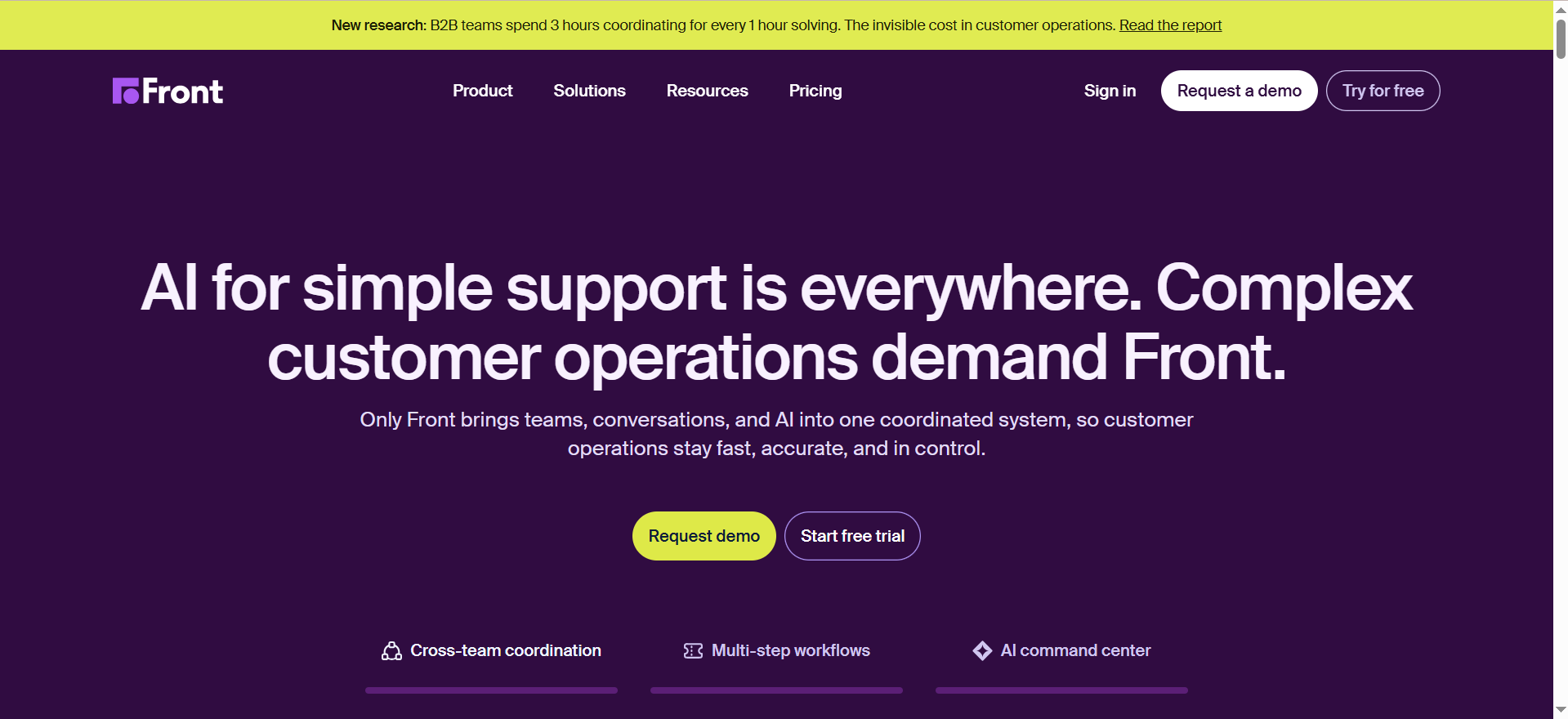
Front is a shared inbox platform that pulls email, SMS, social media, live chat, and other communication channels into a single collaborative workspace. Instead of forwarding emails or CCing teammates, your whole team sees, assigns, and responds to messages from one place. It replaces the chaos of multiple inboxes with a structured workflow powered by automation rules and internal commenting.
Why Teams Use It
Teams choose Front because it eliminates the guesswork around who is handling which message. The assignment system, collision detection, and shared drafts mean two people never accidentally reply to the same email. For operations and support teams managing high-volume inboxes — think support@, billing@, partnerships@ — Front keeps everything visible without requiring anyone to leave the platform. The rules engine can auto-route messages based on keywords, sender, time of day, or custom conditions, which saves hours of manual triage.
What It Is Good For
Front excels when your communication spans more than just email. If your team fields messages from SMS, Twitter, Facebook, WhatsApp, and live chat alongside email, Front unifies all of those channels into one queue. The analytics dashboard gives managers real-time visibility into response times, team workload, and SLA compliance. For teams that need to collaborate before sending a reply — like drafting a response together or leaving an internal comment for context — Front handles that natively.
When It Is a Good Fit
Front is a good fit for mid-size to large teams (10+ people) that handle customer-facing communication across multiple channels and need structured workflows. If your team already uses a ticketing system but finds it too rigid, Front offers a more flexible, email-like experience with the power of a help desk underneath. It is also a strong choice for companies that need detailed analytics and SLA tracking without moving to a full-blown enterprise support suite.
When It Is Not a Good Fit
Front is not ideal for solo users or very small teams (under 5) where the cost per seat adds up quickly without enough volume to justify it. If your team only uses Gmail and does not need multi-channel support, a Gmail-native tool like Hiver or Gmelius will be simpler and cheaper. The learning curve is also steeper than Gmail-native options since Front is a standalone application — your team needs to adopt a new interface rather than working inside what they already know.
How to Use It
After signing up, you connect your shared email addresses (support@, sales@, etc.) and any other channels you want to manage. From there, you set up assignment rules to automatically route incoming messages to the right person or team. You can create tags, SLA policies, and canned responses to speed up workflows. Team members use @mentions and internal comments to collaborate on messages without the customer seeing any of it. Front also integrates with CRMs, project management tools, and over 100 other apps through native integrations and its API.
Key Capabilities
Front provides a shared inbox with collision detection, automated assignment and routing rules, multi-channel support covering email, SMS, social media, and live chat, shared drafts and internal comments, SLA tracking and analytics dashboards, a knowledge base builder with no-code setup, and integrations with over 100 tools including Salesforce, HubSpot, Asana, and Jira. Higher-tier plans add AI features like Copilot for suggested replies, automated QA scoring, and smart CSAT surveys.
Pricing
Front starts at $25 per seat per month on the Starter plan (billed annually). The Professional plan costs $65 per seat per month and adds omnichannel support, advanced analytics, and up to 20 automation rules. The Enterprise plan is $105 per seat per month and includes unlimited automation rules, built-in AI tools, custom roles, and a multi-language knowledge base. All pricing is per seat, billed annually, with no free plan available.
Free Tier?
No. Front does not offer a free plan. There is a 14-day free trial on paid plans so you can test the platform before committing.
Downsides and Limitations
The Starter plan is limited to a single channel type, which may feel restrictive for growing teams. There is no free tier, so it is harder to test long-term before paying. The per-seat pricing at higher tiers ($65–$105/seat/month) gets expensive fast for larger teams. Front is a standalone app, so Gmail-only teams face a steeper adoption curve compared to tools that work natively inside Google Workspace. Some advanced features like AI Copilot and smart CSAT are only available as add-ons or on the Enterprise plan.
2. Hiver
What It Does
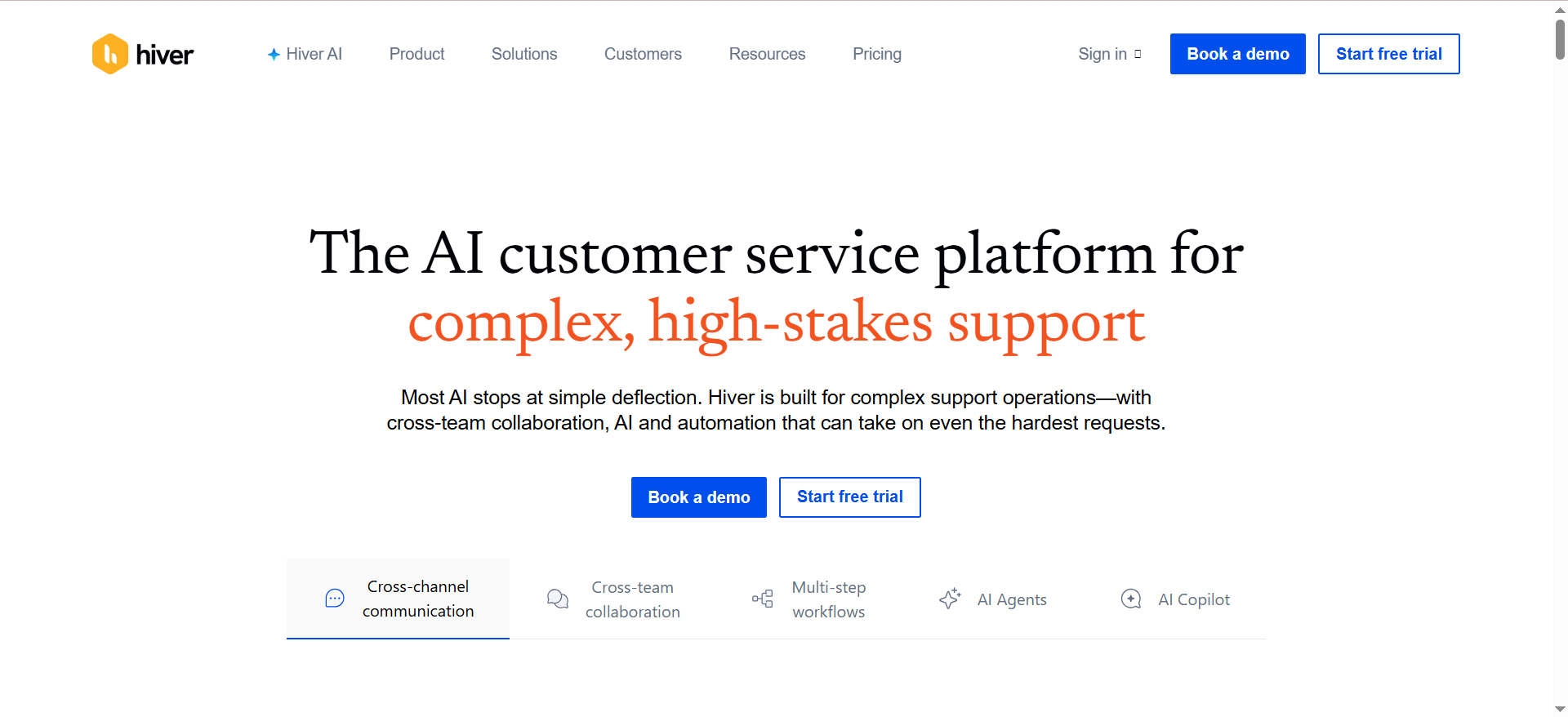
Hiver turns your Gmail inbox into a shared inbox without making you leave Gmail. It layers team collaboration features — assignment, status tracking, internal notes, and analytics — directly on top of the Gmail interface your team already uses every day. Instead of learning a new tool, your team keeps working in Gmail while Hiver adds the structure needed to manage shared email addresses like support@, info@, or sales@.
Why Teams Use It
Teams pick Hiver because it has the shortest learning curve of any shared inbox tool. There is no new interface to learn, no app to switch to, and no migration needed. Everything happens inside Gmail. For small to mid-size teams that already live in Google Workspace, Hiver adds the ability to assign emails as tasks, track their status (open, pending, closed), and leave internal notes that customers never see — all without leaving the inbox.
What It Is Good For
Hiver is best for teams that want lightweight help desk functionality without the complexity of a full ticketing system. It handles email assignment, collision detection (so two people do not reply to the same email), SLA tracking, and customer satisfaction surveys. The analytics give managers visibility into response times, resolution rates, and individual workload. Hiver also supports live chat directly from Gmail, which is useful for teams that want to offer real-time support without adding another tool.
When It Is a Good Fit
Hiver is ideal for teams of 3 to 30 people that run their operations through Gmail and need a structured way to manage shared inboxes. If your team handles customer support, internal IT requests, or partner communications through Gmail, Hiver adds just enough structure to keep things organized without overcomplicating the workflow. It is especially strong for companies that want to avoid the disruption of switching to a standalone platform.
When It Is Not a Good Fit
Hiver is not the right choice if your team uses Outlook or any non-Gmail email client as its primary platform — the product is built exclusively for Google Workspace. It also falls short for teams that need multi-channel support beyond email and chat. If you manage SMS, social media, or WhatsApp alongside email, a tool like Front or Missive will serve you better. Larger teams with complex routing needs may outgrow Hiver's automation capabilities compared to what Front or Help Scout offer.
How to Use It
You install Hiver as a Chrome extension and connect it to your Google Workspace account. Once set up, shared inboxes appear as labels in the Gmail sidebar. Incoming emails can be assigned to team members manually or through automation rules. Team members update the status of each email (open, pending, closed) and add internal notes for context. Managers use the analytics dashboard to track performance and identify bottlenecks.
Key Capabilities
Hiver provides shared inbox management inside Gmail, email assignment and status tracking, collision detection alerts, internal notes and @mentions, SLA management and tracking, customer satisfaction (CSAT) surveys, live chat integration within Gmail, automation rules for assignment and tagging, and analytics dashboards for team performance. Higher-tier plans include AI-powered email summarization and suggested responses.
Pricing
Hiver offers a Free plan with unlimited users for basic triage. The Growth plan starts at $25 per user per month (billed annually) and includes shared inboxes, live chat, basic automation, and analytics. The Pro plan is $45 per user per month and adds advanced automation, SLA tracking, and deeper analytics. The Elite plan costs $75 per user per month and includes custom reporting, dedicated support, and advanced security features. All paid plans require a minimum of 2 seats.
Free Tier?
Yes. Hiver has a Free plan with unlimited users, ideal for teams that want basic triage capabilities across email, chat, WhatsApp, and voice before upgrading to a paid tier.
Downsides and Limitations
Hiver only works with Gmail and Google Workspace, so Outlook and other email client users are excluded. The automation capabilities on lower-tier plans are more limited compared to Front or Help Scout. Teams that outgrow Hiver's feature set may face a migration to a more robust platform down the road. Pricing can feel steep for the feature set compared to Missive, which offers more channels at a lower per-user cost.
3. Missive
What It Does
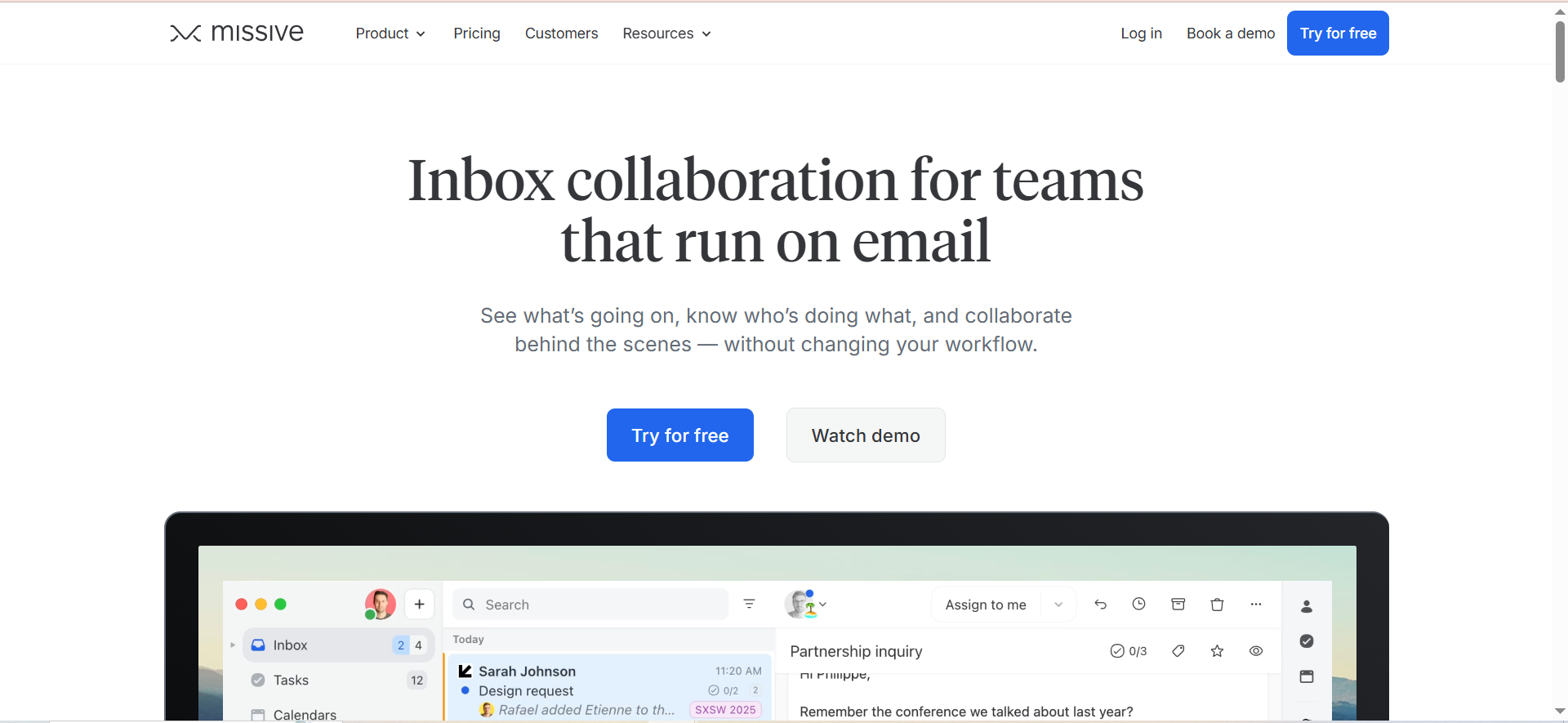
Missive is a team inbox and chat platform that combines email, SMS, WhatsApp, social media, and live chat into a single collaborative workspace. Unlike Gmail-native tools, Missive supports multiple email providers including Gmail, Outlook, and any IMAP account. The standout feature is real-time collaborative drafting — multiple team members can write and edit the same email reply simultaneously, similar to how Google Docs works for documents.
Why Teams Use It
Teams choose Missive because it gives them shared inbox functionality across every channel without locking them into a single email provider. The collaborative drafting feature is unique — instead of assigning an email to one person and waiting for their reply, multiple team members can jump into the same draft, add context, edit the response, and send it together. This is particularly useful for complex replies that need input from multiple departments. The built-in team chat is threaded directly to email conversations, so internal discussions stay attached to the relevant message rather than getting lost in a separate chat app.
What It Is Good For
Missive excels at multi-channel communication for small to mid-size teams that need more than just email management. If your team handles customer messages across email, SMS, WhatsApp, Instagram, Facebook Messenger, and live chat, Missive brings all of those into one queue. The automation rules let you assign, tag, and route messages based on sender, subject, channel, or custom conditions. Missive also includes task management features — you can turn any email into a task and assign it to a team member with a due date.
When It Is a Good Fit
Missive is a good fit for teams of 3 to 25 people that need multi-channel support at a price that does not break the budget, making it a strong pick for small business marketing teams. If your team uses a mix of email providers (some on Gmail, some on Outlook, some on custom IMAP) and needs everyone in the same shared workspace, Missive handles that seamlessly. It is also a strong choice for teams that value real-time collaboration on email drafts rather than the traditional assign-and-reply workflow.
When It Is Not a Good Fit
Missive is not ideal for large enterprise teams that need advanced SLA tracking, compliance features, or deep CRM integrations. While it has a good set of integrations, it does not match Front's ecosystem of 100+ native connectors. Teams that need enterprise-grade analytics and custom reporting may find Missive's reporting lightweight compared to Front or Help Scout. If your team is fully committed to Gmail and does not want to leave the Gmail interface, a Gmail-native tool like Hiver or Gmelius will feel more natural.
How to Use It
After signing up, you connect your email accounts (Gmail, Outlook, or IMAP), phone numbers for SMS, and social media accounts. Missive provides a standalone desktop and mobile app where all channels appear in a unified inbox. You create shared inboxes (called "organizations") and set up rules to automatically assign and categorize incoming messages. Team members collaborate on replies using shared drafts, leave internal comments, and use the built-in chat for quick discussions tied to specific conversations.
Key Capabilities
Missive provides a unified inbox for email, SMS, WhatsApp, Instagram, Facebook, and live chat, real-time collaborative email drafting, internal team chat linked to email threads, automation rules for assignment, tagging, and routing, task management with due dates and assignments, support for Gmail, Outlook, and IMAP email providers, integrations with over 25 apps including Asana, Trello, Salesforce, and HubSpot, and shared canned responses and templates.
Pricing
Missive offers a Free plan for individuals or very small teams. The Starter plan is $14 per user per month (billed annually), the Productive plan is $18 per user per month, and the Business plan is $26 per user per month. All plans include core shared inbox features — higher tiers add more automation rules, integrations, and priority support. There are no add-on fees for extra channels.
Free Tier?
Yes. Missive is free for up to 3 users with basic features. There is also a 30-day free trial that gives access to all features across all plans.
Downsides and Limitations
Missive's reporting and analytics are less detailed than Front or Help Scout, which may be a gap for managers who need deep performance insights. The integration ecosystem is smaller than Front's — with around 25 native integrations versus Front's 100+. Enterprise features like custom roles, advanced compliance, and dedicated support are limited. The free plan is quite restricted, and once the trial ends, you need to subscribe or lose access entirely.
4. Help Scout
What It Does
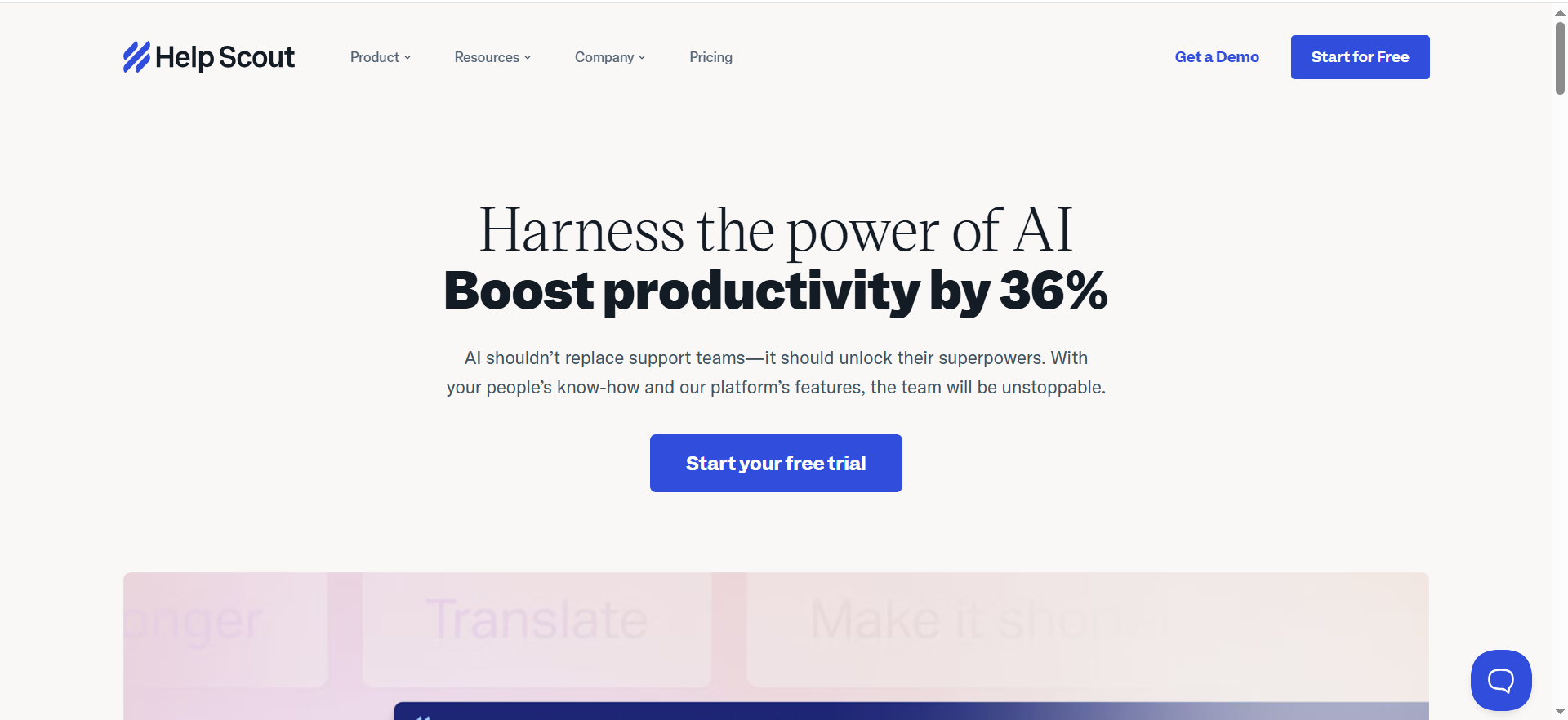
Help Scout is a customer support platform built around a shared inbox that feels like regular email rather than a complicated ticketing system. It combines a shared inbox, a knowledge base (called Docs), and an embeddable help widget (called Beacon) into one platform. The goal is to give support teams a professional, organized way to manage customer conversations without making the experience feel like a ticket queue — both for the team and for the customer.
Why Teams Use It
Teams choose Help Scout because it strikes a balance between simplicity and capability. The interface looks and feels like a normal email inbox, which means less training time and faster adoption. But underneath that simple surface, Help Scout offers automation workflows, saved replies, collision detection, customer profiles, and detailed reporting. The knowledge base builder is one of the strongest in this category — it lets you create a searchable, branded help center that integrates directly with the Beacon widget, so customers can find answers before they even send an email.
What It Is Good For
Help Scout is best for customer-facing teams that want to deliver personal, human support at scale. The Beacon widget can be embedded on your website or in your app, offering customers instant access to your knowledge base, live chat, and email support from a single interface. The AI Answers feature uses your knowledge base content to automatically resolve common questions, reducing ticket volume without losing the personal touch. For teams that track customer satisfaction, Help Scout includes built-in CSAT surveys and happiness reports.
When It Is a Good Fit
Help Scout is ideal for support teams of 5 to 50 people at SaaS companies, ecommerce brands, or service businesses that want a clean, customer-friendly support experience. If your team values simplicity and does not want to manage a complex ticketing system, Help Scout delivers the right balance. It is also a strong choice for teams that want to build and maintain a knowledge base as a core part of their support strategy — the Docs feature and Beacon integration make self-service a natural extension of your inbox.
When It Is Not a Good Fit
Help Scout is not designed for teams that need to manage non-support communication like sales outreach, partnerships, or internal team emails. If your primary need is managing multiple personal inboxes rather than shared customer-facing inboxes, a tool like Missive or Gmelius will be a better fit. Help Scout also lacks native SMS and social media inbox management — if you need to handle WhatsApp, Instagram, or Twitter DMs alongside email, Front or Missive are stronger options. The per-resolution pricing on AI Answers can get unpredictable for teams with high ticket volumes.
How to Use It
After signing up, you connect your shared email addresses and set up your Docs knowledge base. The Beacon widget can be embedded on your website with a small code snippet. Incoming emails appear in the shared inbox where team members can assign, tag, and respond. Saved replies and automation workflows handle repetitive tasks, and customer profiles show you the full conversation history with each person. Managers use the reporting dashboard to monitor response times, resolution rates, team workload, and customer satisfaction scores.
Key Capabilities
Help Scout provides a shared inbox with collision detection and assignment, a knowledge base builder (Docs) with a branded, searchable help center, an embeddable Beacon widget for in-app and on-site support, AI Answers for automatic resolution of common questions, live chat through the Beacon widget, customer profiles with full conversation history, automation workflows and saved replies, CSAT surveys and happiness reporting, and integrations with tools like Salesforce, HubSpot, Slack, and Shopify.
Pricing
Help Scout offers a Free plan for up to 5 users with 1 shared inbox and 1 Docs site. The Standard plan starts at $25 per user per month (billed annually) and includes 2 shared inboxes, automation workflows, and reporting. The Plus plan is $45 per user per month and adds AI Drafts, CRM integrations, advanced routing, and more inboxes. The Pro plan costs $75 per user per month and includes advanced security, compliance features, and dedicated support. AI Answers is priced separately on a per-resolution billing model starting at $0.75 per resolution.
Free Tier?
Yes. Help Scout offers a Free plan that includes up to 5 users, 1 shared inbox, and 1 Docs knowledge base site. Paid plans come with a 15-day free trial so you can test all features before committing.
Downsides and Limitations
Help Scout is focused on customer support, so it is not a general-purpose email management tool. There is no native SMS, WhatsApp, or social media inbox support, which limits multi-channel use. The AI Answers per-resolution pricing can become expensive for teams handling high volumes of tickets. Additional inboxes and Docs sites beyond the included count require paid add-ons ($10–$20/month each). The Free plan is very restrictive at 5 users and 1 inbox, which means most growing teams will need to upgrade quickly.
5. Gmelius
What It Does
Gmelius transforms Gmail into a collaborative workspace by adding shared inboxes, automation, and project management features directly inside the Gmail interface. It is similar to Hiver in that it works natively inside Gmail, but Gmelius differentiates itself with Kanban-style project boards that turn emails into draggable task cards. This combination of shared inbox and visual project management is unique among Gmail-native tools.
Why Teams Use It
Teams pick Gmelius because it combines email management and project tracking into a single tool without leaving Gmail. The Kanban boards let you drag emails across stages — like "New," "In Progress," and "Done" — which is useful for teams that manage client projects, sales pipelines, or support tickets through email. Each card shows the email thread, internal notes, tags, and assignee, so you get project context and email context in one place. The AI assistants can auto-sort, auto-reply, and auto-dispatch emails to reduce manual triage.
What It Is Good For
Gmelius is best for teams that use Gmail and want both shared inbox functionality and lightweight project management. The Kanban view is what sets it apart — emails become draggable cards across boards, with automatic label, status, and note updates when you move them. For teams where customer emails regularly turn into internal tasks (like fulfillment teams, client services, or operations teams), this is cleaner than tagging or forwarding. The shared labels feature lets you organize conversations by client or project name and easily see what everyone is working on.
When It Is a Good Fit
Gmelius is a good fit for teams of 3 to 20 people that operate in Gmail and want to combine email management with visual task tracking. If your team currently uses a separate project management tool alongside Gmail and wants to consolidate, Gmelius brings those workflows together. It is also a strong choice for sales teams that manage deals through email and want a Kanban pipeline view inside their inbox.
When It Is Not a Good Fit
Gmelius only works with Gmail, so teams on Outlook or other email clients cannot use it. The automation capabilities on the lowest tier (Meli plan) do not include rule executions, which means you need the Growth plan or higher for any workflow automation. All team members must be on the same plan — you cannot mix and match tiers, which can push costs up. For teams that need multi-channel support (SMS, social, WhatsApp), Gmelius is limited to email only. If you need deep analytics and reporting comparable to Front or Help Scout, Gmelius falls short.
How to Use It
You install Gmelius from the Google Workspace Marketplace and connect it to your Gmail account. Shared inboxes appear in your Gmail sidebar, and the Kanban boards are accessible through a dedicated tab. Incoming emails to shared addresses are visible to the whole team with clear assignment, status tracking (open, pending, closed), and internal notes. You set up automation rules to auto-assign, auto-tag, and auto-respond based on triggers like sender, subject, or keywords. The AI assistants handle routine sorting and dispatching.
Key Capabilities
Gmelius provides shared inbox management inside Gmail, Kanban-style project boards for email-as-task workflows, email assignment with status tracking (open, pending, closed), shared labels for organizing conversations by client or project, internal notes and @mentions, automation rules with trigger-based actions, AI assistants for email sorting, replying, and dispatching, SLA tracking and activity reports, and integrations with Slack, Trello, and other tools through Zapier.
Pricing
Gmelius offers three paid plans. The Meli plan is $19 per user per month (billed annually) and includes AI email triage but no automation rule executions — capped at 5 users. The Growth plan is $25 per user per month and is the recommended tier — it includes shared inboxes, automation rules, AI assistance, and 12-month reporting. The Pro plan costs $40 per user per month and includes 100,000 rule executions and advanced features. Monthly billing is significantly more expensive — around 80% higher than annual billing. All team members must be on the same plan.
Free Tier?
No. Gmelius does not offer a free plan. There is a 7-day free trial available so you can test the platform before committing.
Downsides and Limitations
Gmelius is Gmail-only, which excludes Outlook and other email client users. The Meli plan does not include any automation rule executions, so most teams will need the Growth plan or higher. All members must be on the same plan — no mixing tiers within a team. Monthly billing is roughly 80% more expensive than annual billing, which is a steeper markup than most competitors. Multi-channel support is limited to email — there is no native SMS, social media, or WhatsApp support. Reporting and analytics are less detailed than Front or Help Scout.
What Is a Shared Inbox and How Does It Work?
A shared inbox is an email account that multiple team members can access, read, and respond to from their own individual logins. Instead of forwarding emails back and forth or CCing the whole team, everyone works from the same queue. Each incoming message can be assigned to a specific person, tagged by topic or priority, and tracked through statuses like open, pending, and closed.
The mechanics vary by tool. Gmail-native options like Hiver and Gmelius add shared inbox layers directly inside Gmail, so the experience feels like using your regular inbox with extra features bolted on. Standalone platforms like Front and Missive replace your email client entirely with a purpose-built interface that supports multiple channels. Help Scout takes a support-first approach, combining the shared inbox with a knowledge base and customer-facing widget.
What all shared inbox tools have in common is visibility. Every team member can see who is handling which email, what the current status is, and whether someone has already started drafting a reply. This eliminates duplicate responses and dropped balls, which are the two biggest problems teams face when managing shared email addresses through Gmail or Outlook alone.
How to Manage Multiple Email Accounts Without Missing Messages
The most effective approach depends on the kind of accounts you are managing. If you are handling shared team inboxes (support@, sales@, info@), a shared inbox tool is the clear solution. Tools like Front, Hiver, Missive, Help Scout, and Gmelius are built specifically for this — they give every team member visibility into all messages and prevent anything from falling through the cracks.
If you are managing multiple personal inboxes (your work email, a side project email, a personal email), you have two options. The first is to use an email client that supports unified inbox mode, like Mailbird, Canary Mail, or Spark, which pull all your accounts into a single view. The second is to set up forwarding rules so that all accounts route to one primary inbox, though this can get messy as volume grows.
For teams, the biggest risk when managing multiple accounts is the gap between seeing an email and someone actually owning it. The difference between a shared inbox tool and a plain email client is the assignment and accountability layer — someone is always clearly responsible for every message, and the whole team can see it.
Shared Inbox vs Distribution List — What Is the Difference?
A distribution list (or email group, like Google Groups) sends a copy of every incoming email to every member of the group. Each person gets the email in their own inbox and replies independently. There is no shared view, no assignment system, and no way to see if someone else has already responded. The result is duplicated effort, missed messages, and confusion.
A shared inbox is fundamentally different. All emails come into one central place that the whole team can see. Messages are assigned to specific people, tracked through statuses, and managed with internal notes and collaboration tools. When someone starts drafting a reply, the rest of the team sees it — so there is no risk of two people responding to the same customer.
For very small teams (2 to 3 people) with low email volume, a distribution list can work. But as soon as your team grows beyond that or your volume increases, a shared inbox tool prevents the chaos that distribution lists inevitably create. The upgrade is not about adding features for the sake of it — it is about preventing the specific failures that cost teams time and customer trust.
How to Choose the Right Email Management Tool for Your Team
Start with three questions. First, what email client does your team use? If everyone is on Gmail, you can choose from Gmail-native tools (Hiver, Gmelius) or standalone platforms (Front, Missive, Help Scout). If some team members use Outlook or other providers, your options narrow to Missive, Front, or Help Scout. Second, how many channels do you need to manage? If it is just email, any tool on this list works. If you also need SMS, WhatsApp, social media, or live chat, Front and Missive are the strongest multi-channel options. Third, what is your budget per user? Missive starts at $14/user/month, making it the most affordable option. Front's entry point is $25/seat/month but scales to $105/seat/month for enterprise features.
Beyond those three questions, consider your team size and how complex your workflows are. Small teams (under 10 people) with straightforward needs will do well with Missive or Hiver. Mid-size teams that need analytics, SLA tracking, and multi-channel support should look at Front or Help Scout. Teams that want project management built into their inbox should evaluate Gmelius.
Can You Manage Multiple Emails in Gmail?
Yes, but native Gmail has limits. Gmail lets you add multiple accounts and switch between them, and Google Groups can create a basic shared inbox experience. But native Gmail does not offer assignment, status tracking, collision detection, or internal notes — the features that make shared email management actually work for teams.
That is where Gmail-native tools like Hiver and Gmelius come in. Both install as extensions and add shared inbox features directly inside the Gmail interface. Hiver focuses on help desk functionality with assignment, SLA tracking, and analytics. Gmelius adds Kanban boards and visual project management alongside shared inbox features. Both let your team stay in Gmail while gaining the collaboration tools that Google does not provide natively.
Missive and Front also support Gmail accounts, but they use their own standalone interface rather than running inside Gmail. If your team is committed to the Gmail UI and does not want to switch, Hiver or Gmelius are the better fit. If you are open to a new interface and want broader capabilities, Missive or Front offer more flexibility.
What Features Matter Most in a Shared Inbox Tool?
The non-negotiable features for any team managing shared email are assignment (so every email has a clear owner), collision detection (so two people do not reply to the same message), and internal notes (so teammates can discuss an email without the customer seeing it). Every tool in this guide includes these three features.
Beyond the basics, the features that matter most depend on your workflow. If you manage high volumes, look for automation rules that can auto-assign, auto-tag, and auto-route emails based on triggers. If you need to track performance, look for analytics dashboards that show response times, resolution rates, and team workload. If your team handles customer support, a built-in knowledge base and help widget (like Help Scout's Beacon) can significantly reduce ticket volume. If you manage communication across multiple channels, multi-channel support is essential — Front and Missive lead here.
One feature that is often overlooked is the onboarding experience. A tool that works inside an interface your team already uses (like Gmail) will see faster adoption than a standalone app that requires everyone to learn a new workflow. This is where Gmail-native tools like Hiver and Gmelius have a structural advantage.
How Much Do Shared Inbox Tools Cost?
Pricing varies significantly depending on the tool and the tier you choose. Here is a quick breakdown of starting prices (billed annually) for the five tools in this guide. Missive starts at $14 per user per month on the Starter plan. Gmelius starts at $19 per user per month on the Meli plan. Front starts at $25 per seat per month on the Starter plan. Hiver starts at $25 per user per month on the Growth plan. Help Scout starts at $25 per user per month on the Standard plan.
For a team of 10 users, monthly costs range from $140 (Missive) to $250 (Front, Hiver, or Help Scout) at the entry-level paid tier. Enterprise-grade plans with full feature sets can push costs to $750–$1,050 per month for the same team size.
Keep in mind that some tools charge differently for monthly versus annual billing. Gmelius, for example, charges roughly 80% more for monthly billing compared to annual. Most tools offer a free trial (7 to 30 days), and a few (Hiver, Missive, Help Scout) have free plans with limited features.
Do Shared Inbox Tools Work With Outlook?
Some do, some do not. Front, Missive, and Help Scout all support Outlook accounts — you can connect your Outlook shared mailboxes and manage them through these platforms. Missive also supports any IMAP email account, making it the most flexible option for teams with mixed email providers.
Hiver and Gmelius are Gmail-only. They are built as Google Workspace extensions and do not support Outlook or any other email client. If your team uses Outlook as its primary email platform, these two tools are off the table.
For teams that use a mix of Gmail and Outlook accounts, Missive is the strongest choice because it supports both providers natively within the same workspace. Front also handles mixed environments well but at a higher price point. Help Scout works with Outlook for customer support use cases but is not designed for general email management beyond support.
What Is the Best Free Tool for Managing Multiple Emails?
Among the tools in this guide, Help Scout offers the most functional free plan — 5 users, 1 shared inbox, and 1 Docs knowledge base site. For small support teams just getting started, this is enough to test whether a shared inbox tool fits your workflow before committing to a paid plan.
Hiver and Missive also offer free plans, but they are more limited in scope. Hiver's free tier includes basic shared inbox features inside Gmail, while Missive's free plan supports up to 3 users with limited functionality.
If you are looking for a free tool beyond shared inbox platforms, native Gmail with Google Groups can work for very small teams (2 to 3 people) with low volume, though you will miss assignment tracking, collision detection, and internal notes. Outlook shared mailboxes offer a similar basic experience.
The honest answer is that free plans are designed to get your team started, not to support it long-term. Once you have more than 5 users or need automation, analytics, or multi-channel support, a paid plan is where the real value lives.
How to Set Up a Shared Inbox for Your Team
The setup process depends on the tool, but the general steps are the same across platforms. First, choose your shared email addresses — these are usually functional addresses like support@, sales@, info@, or billing@. Second, sign up for your chosen tool and connect those email addresses. With Gmail-native tools (Hiver, Gmelius), you install a browser extension. With standalone tools (Front, Missive, Help Scout), you sign into the platform and connect your email accounts through OAuth or IMAP settings.
Once connected, the next step is to set up your team. Invite team members, define roles (agent, manager, admin), and create assignment rules. Most tools let you set up auto-assignment based on round-robin distribution, workload balancing, or keyword triggers. After that, create your tag structure (categories like "billing," "technical," "sales inquiry") and set up any automation rules for routing and prioritization.
Finally, create canned responses or saved replies for your most common message types. This step alone can save your team hours per week. If your tool supports it (Help Scout, Front), build out a knowledge base so customers can self-serve before reaching your inbox.