

TL;DR
If you are looking for AI tools that work inside Outlook, the short answer is this: Microsoft Copilot is the strongest pick for teams already paying for Microsoft 365 who want native drafting, summarization, and calendar awareness without installing anything extra. For sales teams focused on reply rates, Lavender scores every outgoing email and coaches reps on what to fix before hitting send. And if raw inbox speed is the priority, Superhuman rebuilds the entire email experience around keyboard shortcuts and auto-drafts that write in your voice.
Below, we break down five tools — Microsoft Copilot for Outlook, Lavender, Superhuman, HubSpot Sales Hub, and Mailbutler — across pricing, core features, Outlook integration depth, and the specific team profiles each one fits best. A quick-comparison table comes first, followed by deep sections on each tool, then answers to the most common follow-up questions teams ask when evaluating this category.
Best AI Tools For Outlook Email (Quick Comparison)
| Tool | Best For | Starting Price | Free Tier |
|---|---|---|---|
| Microsoft Copilot for Outlook | Teams deep in the Microsoft 365 ecosystem | $18/user/mo (Business) / $30/user/mo (Enterprise) | Copilot Chat included with eligible M365 plans |
| Lavender | Sales reps who need email coaching and higher reply rates | $29/mo (Starter) | Yes — 5 emails/month |
| Superhuman | Power users who prioritize inbox speed | $30/mo (Starter) | No |
| HubSpot Sales Hub | Sales teams that need CRM-connected email workflows | $15/seat/mo (annual) / $20/seat/mo (monthly) | Yes — free CRM with basic email tools |
| Mailbutler | Individual professionals and small teams on a budget | $14.95/user/mo (Smart plan) | Yes — free Starter plan with basic features |
1. Microsoft Copilot for Outlook
What It Does
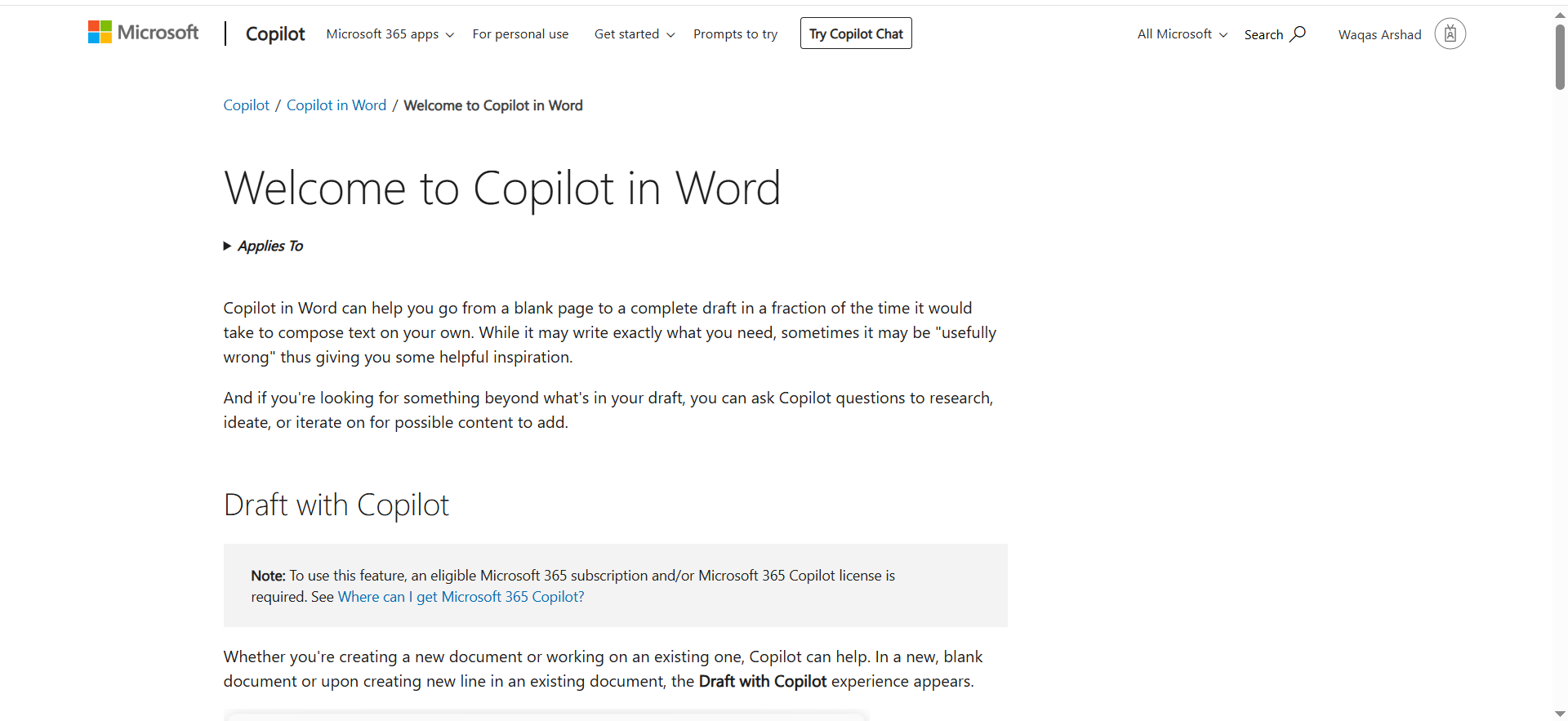
Microsoft Copilot for Outlook is the native AI layer built directly into the Microsoft 365 suite. It responds to natural-language prompts inside the Outlook interface, helping users draft emails, summarize long threads, suggest replies, and surface relevant information from connected documents, calendar events, and Teams messages. Because it sits inside the same ecosystem, Copilot can pull context from a Word document or an Excel sheet and weave it into an email draft without leaving the inbox.
Why Teams Use It
The main draw is zero-friction integration. There is no separate app to install, no browser extension to manage, and no new login to remember. If your organization is already running Microsoft 365 Business or Enterprise, Copilot plugs in as an add-on and immediately has access to the full context of your work: documents, calendar, chat history, and email threads. That cross-application awareness is something standalone tools cannot replicate.
What It Is Good For
Copilot excels at tasks that require pulling context from multiple Microsoft 365 surfaces. Summarizing a 40-email thread before a meeting, drafting a reply that references a shared SharePoint document, or rescheduling a calendar block based on a natural-language prompt — these are the workflows where Copilot saves the most time. The new Frontier program also lets users automate recurring email and calendar tasks with plain-English instructions, such as setting up automatic follow-ups or rescheduling meetings when conflicts arise.
When It Is a Good Fit
Copilot is the right choice for organizations that have standardized on Microsoft 365 and want AI capabilities without adding another vendor to the stack. It works particularly well for knowledge workers who spend their day moving between Outlook, Teams, Word, and Excel. If your team already has eligible M365 licenses, the marginal cost of adding Copilot is lower than adopting a standalone tool, and the onboarding friction is close to zero because the interface is already familiar.
When It Is Not a Good Fit
Copilot is not purpose-built for inbox management. It does not autonomously triage email by urgency, does not extract tasks from messages, does not deliver a daily briefing, and does not track follow-ups unless you manually prompt it each time. Sales teams that need email scoring, send-time optimization, or coaching on reply rates will find Copilot too general. It is a broad-purpose AI assistant, not a specialized email productivity tool.
How to Use It
Copilot is available as an add-on to eligible Microsoft 365 plans. Once activated by your IT admin, it appears as a sidebar inside Outlook (desktop, web, and mobile). You interact with it through a prompt bar — type what you need, and Copilot generates a draft, summary, or action. No separate installation or configuration is required beyond license activation.
Key Capabilities
Copilot's core capabilities inside Outlook include email drafting from natural-language prompts, thread summarization, suggested replies, calendar-aware scheduling, meeting prep summaries that pull from recent emails and documents, and the ability to reference files stored in OneDrive or SharePoint directly in email drafts. The Copilot Chat enhancement also adds inbox and calendar awareness to the standalone Copilot app, letting users interact with their email data outside the Outlook window.
Pricing
Microsoft 365 Copilot pricing varies by plan tier. The Business add-on is available at a promotional rate of $18 per user per month through June 2026, after which the standard rate is $21 per user per month. The Enterprise add-on is $30 per user per month and includes additional features such as Microsoft Purview governance, Semantic Index for Microsoft Graph, and custom plug-ins. Copilot Chat, a lighter web-grounded AI assistant, is included at no additional cost with eligible M365 subscriptions and offers basic Outlook and calendar awareness.
Free Tier
There is no standalone free tier for the full Copilot experience. However, Copilot Chat is included with eligible Microsoft 365 plans at no extra cost, providing basic AI-assisted email and calendar features. This is a useful way to test the interaction model before committing to the full paid add-on.
Downsides and Limitations
Every action requires a manual prompt — Copilot does not proactively act on your inbox. It lacks autonomous email triage, task extraction, and follow-up tracking. The add-on cost ($18–30/user/month depending on plan tier) can be steep for teams that only need email AI and do not use the broader M365 Copilot features across Word, Excel, and Teams. Organizations not on Microsoft 365 cannot use it at all.
2. Lavender
What It Does
Lavender is an AI email coaching tool designed specifically for sales teams. It scores every outgoing email in real time, analyzing dozens of factors — subject line length, reading level, sentence structure, question placement, tone, and personalization depth — and gives a numerical score along with specific suggestions to improve the message before it gets sent. Think of it as a writing coach that sits beside your compose window and tells you exactly what to fix to get more replies.
Why Teams Use It
Sales teams use Lavender because it directly impacts reply rates. Rather than generating emails from scratch (though it can assist with drafting), Lavender's primary value is coaching reps to write better emails themselves. Over time, reps internalize the patterns and improve their baseline email quality. Managers use the team analytics dashboard to identify which reps need coaching, track improvement over time, and benchmark email quality across the team.
What It Is Good For
Lavender is strongest when the goal is improving outbound sales email performance. It shines during prospecting sequences where reply rates are the primary metric. The Pro tier adds recipient-aware personalization, meaning the AI adjusts its suggestions based on who you are writing to — not just generic best practices. It also integrates with CRMs like Salesforce, HubSpot, and Pipedrive, so coaching happens within the existing sales workflow.
When It Is a Good Fit
Lavender fits sales development teams (SDRs, BDRs) and account executives who send high volumes of outbound email and measure success by reply rates. It is especially useful for teams onboarding new reps, since the real-time coaching accelerates skill development. If your organization already has a sequencing tool (Outreach, Salesloft, Apollo) and wants to improve the quality of the emails flowing through it, Lavender adds a coaching layer without replacing any existing tool.
When It Is Not a Good Fit
Lavender is a point solution. It does not find leads, sequence emails, handle phone or LinkedIn outreach, or tell reps who to prioritize. If you need an all-in-one sales engagement platform, Lavender is not it — it is a coaching add-on. Teams focused on inbox management, thread summarization, or general productivity (non-sales) will not get much value here. The free plan at 5 emails per month is too limited for any real evaluation, meaning you need to commit to at least the $29/month Starter plan to meaningfully test it.
How to Use It
Lavender works as a browser extension (Chrome) and Outlook add-in. Once installed, it appears as a sidebar next to your email compose window. As you type, the scoring engine evaluates your email in real time and displays suggestions. You can accept or ignore individual suggestions. The setup takes under five minutes, and CRM connections are configured through the Lavender dashboard.
Key Capabilities
Core capabilities include real-time email scoring across dozens of performance factors, AI-powered subject line suggestions, tone and readability analysis, recipient-aware personalization (Pro tier), team performance dashboards with per-rep analytics, CRM integrations (Salesforce, HubSpot, Pipedrive), and compatibility with major sequencing platforms. Lavender also offers a special free access program for students, job seekers, and bootstrapped entrepreneurs.
Pricing
Lavender's pricing breaks down as follows: the free plan includes 5 email analyses and 5 personalizations per month. The Starter plan at $29/month adds full email scoring, AI coaching, and basic analytics. The Pro plan at $49/month includes advanced personalization and detailed analytics. The Teams plan at $69/user/month adds team-wide analytics, coaching dashboards, and collaboration features. Annual billing saves approximately 20% across all paid tiers.
Free Tier
Yes — the free plan offers 5 email analyses and 5 personalizations per month. It is enough to see how the scoring works but not enough to evaluate whether Lavender materially improves outreach performance. Lavender also provides free full access for students, job seekers, and bootstrapped founders.
Downsides and Limitations
Lavender is narrowly focused on sales email coaching. It does not manage your inbox, summarize threads, schedule meetings, or automate workflows. The free tier is too small to be useful for real evaluation. At $69/user/month for the Teams plan, costs scale quickly for larger sales organizations. It also requires a separate sequencing tool and CRM — Lavender adds a layer but does not replace any core sales infrastructure.
3. Superhuman
What It Does
Superhuman is an email client rebuilt from the ground up for speed. It replaces (or layers on top of) your existing Outlook inbox with a keyboard-driven interface designed to help users get through email significantly faster. AI features include auto-drafts that write replies in your voice, auto-labels that categorize incoming messages, auto-archive that clears noise, and auto-reminders that resurface emails that have not received a reply.
Why Teams Use It
Teams adopt Superhuman because it measurably reduces the time spent in email. The product claims users move through their inbox about two times faster, reply sooner, and save several hours per week. For professionals who handle high email volumes — executives, founders, sales leaders, customer success managers — that time savings compounds quickly. The AI auto-draft feature is particularly valued because it generates reply drafts written in the user's voice, so reviewing and sending takes seconds rather than minutes.
What It Is Good For
Superhuman is built for people who live in their inbox and need to process large volumes of email efficiently. The Split Inbox feature lets users segment messages by VIPs, newsletters, or internal team communications, so the most important emails surface first. The keyboard-shortcut system (hitting "E" archives, "Enter" opens) eliminates mouse dependency and speeds up every interaction. For teams, shared conversations and team comments add a collaboration layer without leaving the email interface.
When It Is a Good Fit
Superhuman fits best with high-volume email users who value speed above all else — founders, executives, sales leaders, and customer-facing roles that process dozens to hundreds of emails daily. It is also a good fit for teams that want AI-generated drafts in each user's voice, reducing the time from inbox-open to inbox-zero. The Business plan adds CRM integrations (HubSpot, Salesforce) and a Recent Opens Feed, making it relevant for sales teams that want speed plus pipeline visibility.
When It Is Not a Good Fit
Superhuman is not a cheap tool — at $30/month per user with no free tier, it is a hard sell for budget-conscious teams or individuals who do not process high email volumes. It is also not an email coaching tool; it does not score your writing or suggest improvements. Teams that need deep CRM workflow automation, lead sequencing, or email template libraries will find Superhuman too focused on speed and not broad enough in sales functionality. There is no dedicated Superhuman mobile app for Outlook users — changes sync to the native Outlook mobile app instead.
How to Use It
For Outlook users, Superhuman Mail works as a background agent that connects directly to your Outlook account. After a one-time setup, it operates in the background: auto-labeling messages, archiving noise, drafting replies, and setting follow-up reminders. Auto-drafts appear in your Outlook drafts folder like any normal draft. There is no separate app to switch to — the AI enhancements show up inside your existing Outlook experience.
Key Capabilities
Key capabilities include auto-drafts that generate replies in the user's writing voice, auto-labels for automatic email categorization, auto-archive that removes low-priority messages from the inbox, auto-reminders that resurface emails lacking replies, Split Inbox for segmenting messages by priority, keyboard-shortcut navigation, shared conversations and team comments, CRM integrations (HubSpot and Salesforce on Business plan), and the Recent Opens Feed for tracking recipient engagement.
Pricing
Superhuman offers three tiers: Starter at $30/month ($25/month billed annually), Business at $40/month ($33/month billed annually), and Enterprise with custom pricing. The Starter plan includes most AI features, calendar integration, and team collaboration tools. The Business plan adds auto-drafts, Ask AI, custom auto-labels, CRM integrations, and the Recent Opens Feed. Enterprise adds SSO, advanced security, and dedicated support.
Free Tier
No. Superhuman does not offer a free plan. There is no trial period publicly listed. The entry point is $30/month (or $25/month annually).
Downsides and Limitations
No free tier or trial makes it hard to test before committing. At $30-40/month per user, it is one of the more expensive options in this category. The Outlook integration works as a background agent rather than a full standalone client, which means the experience differs from the Superhuman Gmail client. No dedicated mobile app for Outlook users. It does not offer email coaching, lead scoring, or sequencing capabilities.
4. HubSpot Sales Hub
What It Does
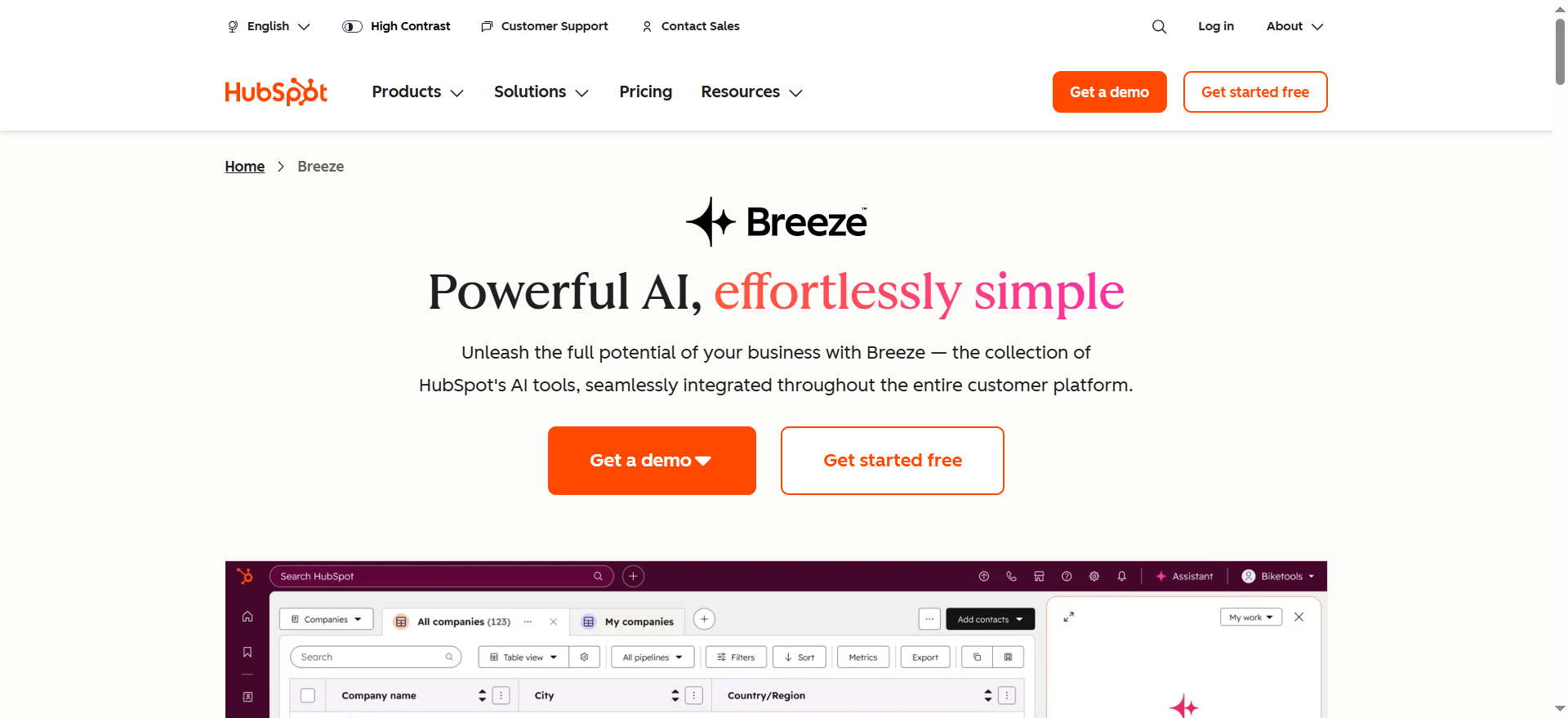
HubSpot Sales Hub is a CRM-connected sales platform that includes AI-powered email tools as part of a broader sales engagement suite. The Outlook integration lets reps draft emails using AI, log conversations to the CRM automatically, track opens and clicks, use email templates, book meetings, and manage contacts and deals — all from within the Outlook interface. The AI email writer can generate introduction emails, cold outreach messages, and follow-up emails based on CRM context.
Why Teams Use It
Teams choose HubSpot Sales Hub because it connects email activity directly to the sales pipeline. Every email sent, opened, or clicked is logged against the contact record in the CRM, giving managers full visibility into rep activity and deal progression. The AI drafting tool (Breeze) reduces the time spent composing emails, while templates and sequences automate repetitive outreach. For organizations already using HubSpot's marketing or service hubs, Sales Hub creates a unified view across the entire customer lifecycle.
What It Is Good For
HubSpot Sales Hub excels when email is one part of a larger sales workflow that includes CRM tracking, pipeline management, meeting scheduling, and reporting. The AI email writer is useful for reps who send high volumes of similar emails (introductions, follow-ups, check-ins) and want to generate a first draft quickly. The Outlook add-in is particularly strong at bridging the gap between inbox and CRM — reps can log emails, access templates, and view contact records without leaving Outlook.
When It Is a Good Fit
HubSpot Sales Hub fits sales teams that want their email tools tightly integrated with CRM data. It is ideal for organizations that already use HubSpot for marketing or customer service and want a unified platform. Growth-stage B2B SaaS companies that need pipeline visibility, email tracking, and AI drafting in a single tool will find good value here, especially at the Starter tier. The free CRM tier lets small teams start without a financial commitment and upgrade as needs grow.
When It Is Not a Good Fit
HubSpot Sales Hub is not primarily an email productivity tool — it is a sales CRM with email features. If your main goal is inbox speed, email coaching, or AI-powered triage, HubSpot is too broad and not deep enough in any single email workflow. The AI features run on a credit system (Breeze Credits), which means heavy users may hit limits or face additional costs. Enterprise pricing at $150/seat/month plus a $3,500 onboarding fee is expensive for teams that only need email AI. The Outlook add-in experience is functional but not as polished as purpose-built email tools.
How to Use It
Install the HubSpot Sales Outlook add-in from the Microsoft AppSource marketplace. Once connected to your HubSpot account, it appears as a sidebar in Outlook. From there, you can log emails to CRM records, access templates, track opens and clicks, generate AI-drafted emails, and book meetings. Setup takes 10-15 minutes, including CRM connection and calendar sync.
Key Capabilities
Key capabilities include AI email drafting (Breeze) for introductions, outreach, and follow-ups, automatic email logging to CRM contact records, email open and click tracking, customizable email template library, meeting scheduling with calendar sync, contact and deal management from within Outlook, sequence automation for multi-touch outreach, and pipeline reporting. Higher tiers add predictive lead scoring, call transcription, sales playbooks, and advanced analytics.
Pricing
HubSpot Sales Hub pricing starts at $15 per seat per month with annual billing, or $20 per seat per month on monthly billing, for the Starter tier. The Professional tier starts at $100/seat/month (annual commitment required, plus a mandatory $1,500 onboarding fee in year one). Enterprise is $150/seat/month with annual commitment and a mandatory $3,500 onboarding fee. AI features (Breeze) run on credits — Professional includes 5,000 credits and Enterprise includes 10,000. The free CRM tier includes basic email tools (templates, tracking) but limited AI features.
Free Tier
Yes — HubSpot offers a free CRM that includes basic email tracking, templates, and contact management. The free tier does not include the full AI email writer (Breeze) or advanced sequence automation. It is a solid starting point for small teams that want CRM-connected email features and plan to upgrade as their sales process matures.
Downsides and Limitations
The AI email writer runs on a credit system, which can limit usage for high-volume teams. The Outlook add-in is functional but can feel slower than native email tools. Enterprise pricing ($150/seat/month plus onboarding fees) is steep for teams that primarily want email AI. The platform's breadth means there is a learning curve — reps who only need email features may find the full CRM interface overwhelming. AI drafts sometimes require significant editing to match the brand voice, especially without extensive training data in the CRM.
5. Mailbutler
What It Does
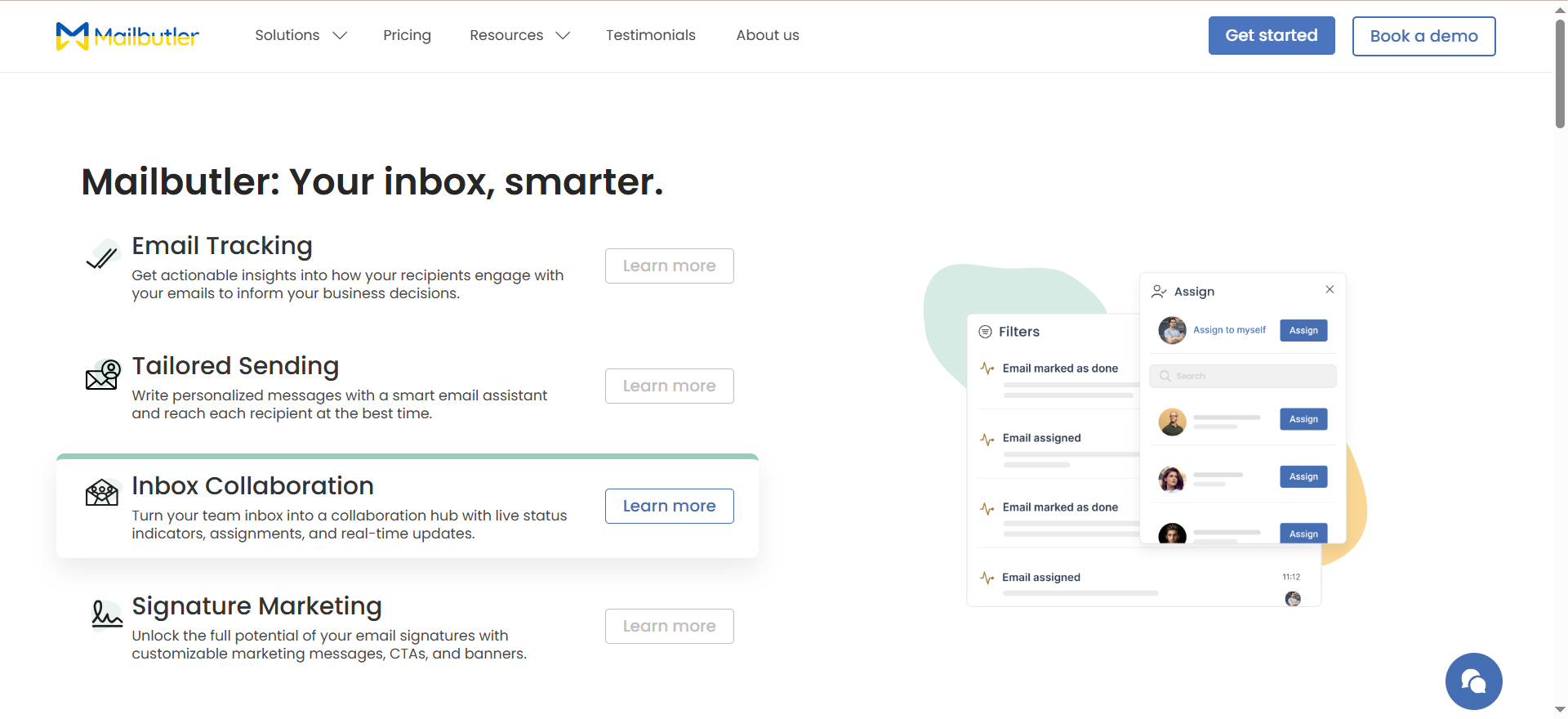
Mailbutler is an email productivity add-in for Outlook (and Apple Mail and Gmail) that combines traditional email management features — tracking, scheduling, templates, signatures — with an AI-powered Smart Assistant. The Smart Assistant can compose emails from short keyword inputs, draft replies (positive, negative, or detail-sharing), summarize long threads, correct grammar and improve phrasing, and extract actionable tasks from messages automatically.
Why Teams Use It
Small teams and individual professionals adopt Mailbutler because it bundles multiple email productivity features into a single, affordable add-in. Instead of installing separate tools for tracking, scheduling, task management, and AI writing, Mailbutler consolidates everything in one place. The price point — starting at $14.95/user/month for the AI-enabled Smart plan — makes it accessible to freelancers, consultants, and small business teams that cannot justify $30-70/user/month for enterprise-grade alternatives.
What It Is Good For
Mailbutler is strongest when teams need a broad set of email productivity features without deep specialization in any one area. The email tracking (open and click notifications) is reliable and easy to set up. The Smart Assistant handles quick drafting tasks well — responding to routine emails, summarizing threads before meetings, and cleaning up grammar in outgoing messages. The task extraction feature is particularly useful for project-oriented teams, as it scans incoming emails and suggests actionable to-dos that can be saved directly from the inbox.
When It Is a Good Fit
Mailbutler fits individual professionals, freelancers, consultants, and small teams (under 20 people) who want a single add-in to handle email tracking, scheduling, templates, and AI assistance. It is also a good fit for teams using Apple Mail alongside Outlook, since Mailbutler supports both clients — a rarity in this category. Organizations that want to test AI email features at a low price point before committing to a more expensive tool will find Mailbutler's Smart plan ($14.95/month) a low-risk entry point.
When It Is Not a Good Fit
Mailbutler is not built for sales teams that need CRM integration, lead scoring, or sequence automation. Its AI capabilities are useful but not as deep as Lavender's email coaching or Copilot's cross-application context awareness. The Smart Assistant works well for routine tasks but may struggle with complex, context-heavy emails that require pulling information from external systems. Larger teams (50+ users) will likely outgrow Mailbutler's feature set and need a more specialized tool or full CRM integration.
How to Use It
Install Mailbutler from the Outlook add-in store or from mailbutler.io. The setup takes under five minutes. Once installed, it appears as a panel inside Outlook. The Smart Assistant is accessible from the compose window — select a drafting mode (compose, reply, summarize, or improve), provide a brief input, and the AI generates the output. Email tracking, scheduling, and templates are configured through the Mailbutler dashboard.
Key Capabilities
Key capabilities include Smart Compose (generate emails from keywords), Smart Respond (draft replies in positive, negative, or detail-sharing modes), Smart Summarize (condense long threads), Smart Improve (grammar, phrasing, and tone corrections), Task Finder (extract actionable to-dos from emails), email open and link click tracking, send-later scheduling with optimal send-time suggestions, email templates and signatures, contact management, automation rules with triggers, conditions, and actions, and team collaboration features including shared task assignments.
Pricing
Mailbutler offers four paid plans: Tracking at $4.95/user/month, Professional at $8.95/user/month, Smart at $14.95/user/month (includes AI Smart Assistant), and Business at $32.95/user/month (adds priority support). All plans include a 14-day free trial with full access, no credit card required. Annual billing saves up to 25%.
Free Tier
Yes — Mailbutler offers a free Starter plan with basic email features. The Smart Assistant (AI) is only available on the Smart plan ($14.95/user/month) and above. The 14-day free trial gives full access to all features, including AI, which provides a meaningful evaluation window before committing.
Downsides and Limitations
The AI Smart Assistant is only available on the Smart plan and above — the lower-tier plans do not include it. The Smart Assistant uses GPT-4o under the hood, which means response quality is good for routine tasks but may not match purpose-built sales coaching tools like Lavender for outbound email optimization. No CRM integration. The automation rules are useful but limited compared to full workflow automation platforms. The Business plan at $32.95/month offers priority support but does not add significant AI capabilities beyond the Smart plan.
How to Choose the Right AI Tool for Outlook Email
Choosing the right AI tool for Outlook depends on three factors: what your primary email workflow looks like, how deep your existing tool stack goes, and what you are willing to spend per seat.
If your organization runs on Microsoft 365 and wants a single vendor for AI across email, documents, and collaboration, Microsoft Copilot is the default choice. The integration is seamless, the learning curve is minimal, and the cross-application context awareness is unmatched. The trade-off is that Copilot is a generalist — it does a lot of things adequately but does not specialize in any single email workflow.
If your team is a sales organization measured on reply rates and pipeline generation, Lavender is the specialist. It does one thing — email coaching — and does it better than any general-purpose AI tool. Pair it with your existing sequencing platform and CRM, and it becomes a force multiplier for outbound performance.
If inbox speed is the bottleneck and your team processes high volumes of email daily, Superhuman is the performance pick. The auto-draft and auto-triage features reduce the time from inbox-open to inbox-zero, and the keyboard-driven interface eliminates friction at every step.
If email is one piece of a broader sales operation that needs CRM tracking, pipeline management, and cross-channel visibility, HubSpot Sales Hub is the platform choice. You trade email-specific depth for operational breadth, but the unified data model across marketing, sales, and service is a significant advantage for growth-stage organizations.
If you are an individual professional or small team looking for the most value at the lowest price, Mailbutler delivers a solid set of email productivity features — including AI — at a fraction of the cost of the other options. It is not the deepest tool in any single category, but the breadth-to-price ratio is hard to beat.
Can AI Tools for Outlook Replace Manual Email Management
AI tools for Outlook can automate significant portions of email management, but they do not fully replace manual oversight. Tools like Superhuman's auto-draft and auto-archive features handle routine triage and response generation, reducing the time spent on repetitive tasks by an estimated 50-70%. Microsoft Copilot can summarize threads and generate first drafts, but every output still requires human review before sending.
The practical reality is that AI handles the mechanical work — categorizing, drafting, scheduling — while humans handle judgment calls: deciding the right tone for a sensitive reply, choosing which emails deserve a personal touch, and managing relationships that require nuance. Teams that try to fully automate their email workflows typically find that AI works best as a first-pass filter and draft generator, with humans providing the final review and strategic decisions.
For sales teams specifically, tools like Lavender add a coaching dimension that goes beyond automation — they teach reps to write better emails over time, which means the human element actually improves rather than being replaced.
What Makes an AI Email Tool Work Well With Outlook Specifically
Outlook compatibility varies significantly across AI email tools, and the type of integration matters more than the fact that a tool claims Outlook support. There are three integration models to understand.
Native integration means the AI is built directly into the Outlook interface by Microsoft. Copilot is the only tool in this category. The advantage is zero additional installation and full access to M365 data. The disadvantage is that you are locked into Microsoft's AI capabilities and pricing.
Add-in integration means the tool installs as an Outlook add-in from the Microsoft AppSource marketplace. HubSpot Sales Hub, Mailbutler, and Lavender use this model. Add-ins appear as sidebars or panels within Outlook and can interact with your email data, but they do not have access to the broader M365 ecosystem (documents, calendar, Teams) unless they build separate integrations.
Background agent integration means the tool connects to your Outlook account and operates behind the scenes. Superhuman Mail for Outlook uses this model — it auto-labels, auto-archives, and auto-drafts without requiring you to open a separate interface. Changes appear in your standard Outlook folders and drafts.
The best integration model depends on your workflow. If you want everything inside the Outlook window, add-ins and native integration are ideal. If you prefer AI that works silently in the background without changing your interface, Superhuman's agent model is more appropriate.
Are Free AI Email Tools for Outlook Worth Using
Free tiers from AI email tools serve a specific purpose: they let you test the interaction model and see if the tool fits your workflow before paying. However, the practical value of free tiers varies widely across tools in this category.
Mailbutler's free Starter plan includes basic email features but not the AI Smart Assistant, which is the main differentiator. You can evaluate tracking and scheduling, but the AI capabilities require the $14.95/month Smart plan. The 14-day trial with full access is a better evaluation path.
Lavender's free tier at 5 emails per month is too limited for any meaningful evaluation of whether the coaching improves reply rates. You need at least a month of consistent usage at normal volume to see measurable results. The exception is Lavender's free access for students, job seekers, and bootstrapped founders, which provides full functionality.
HubSpot's free CRM includes basic email tracking and templates but not the AI email writer (Breeze). It is useful for small teams that want CRM-connected email tracking and plan to upgrade later.
Microsoft Copilot Chat is included with eligible M365 plans and provides basic AI features in Outlook. It is a meaningful free option if you already have M365 licenses.
Superhuman has no free tier or trial, which means you commit to $30/month without testing. This is the most significant barrier to entry in this comparison.
How Much Do AI Tools for Outlook Email Cost Per User
The cost spread across these five tools is significant, and the right comparison depends on what you are actually paying for.
At the low end, Mailbutler's AI-enabled Smart plan costs $14.95/user/month, making it the most affordable option for teams that want AI email capabilities. However, this plan does not include CRM integration or advanced sales features.
Lavender and Superhuman both start at approximately $29-30/month per user, but they serve very different needs. Lavender's $29/month Starter plan buys email coaching and scoring. Superhuman's $30/month Starter plan buys inbox speed and auto-triage. Teams often choose between these two based on whether their bottleneck is email quality (Lavender) or email volume (Superhuman).
HubSpot Sales Hub starts at $15 per seat per month with annual billing ($20/month on monthly billing) for the Starter tier, but the AI email features (Breeze) run on credits that can limit usage. The real cost depends on how many AI-generated emails your team sends per month. Enterprise pricing at $150/seat/month plus onboarding fees places HubSpot at the high end for teams that need advanced features.
Microsoft Copilot ranges from $18 to $30 per user per month depending on plan tier (Business vs. Enterprise), but it covers AI across all M365 applications — not just Outlook. If your team uses Word, Excel, Teams, and PowerPoint alongside Outlook, the per-application cost is actually lower than it appears.
Do AI Email Tools for Outlook Work on Mobile
Mobile support varies across tools and is worth evaluating if your team sends significant email volume from phones or tablets.
Microsoft Copilot is available in the Outlook mobile app for iOS and Android. The experience is more limited than desktop — you can draft and summarize, but the full prompt-based interaction is streamlined for smaller screens.
Superhuman Mail for Outlook syncs changes to the native Outlook mobile app. Auto-drafts, auto-labels, and auto-archive actions show up automatically in your mobile inbox. There is no dedicated Superhuman mobile app for Outlook users, but the background agent ensures your mobile experience benefits from the AI processing.
HubSpot's Outlook add-in has mobile functionality through the HubSpot mobile app, which lets reps access CRM data, track emails, and use templates on the go. AI email drafting on mobile is available but more limited than the desktop experience.
Lavender's browser extension does not work on mobile email clients. If your reps do significant email composition on phones, Lavender's coaching will not be available for those messages.
Mailbutler's mobile support is limited. The core add-in features (tracking, scheduling) work with Outlook mobile, but the AI Smart Assistant is primarily a desktop experience.
Can You Use Multiple AI Email Tools Together With Outlook
Yes, and many teams do. The most common combinations pair a general-purpose AI tool with a specialized one. For example, running Microsoft Copilot for thread summarization and calendar management alongside Lavender for outbound sales email coaching gives you broad AI coverage plus deep sales-specific optimization. Similarly, using HubSpot Sales Hub for CRM-connected email workflows alongside Superhuman for inbox speed creates a stack that handles both pipeline management and daily email processing.
The key consideration is whether the tools conflict at the interface level. Two add-ins that both try to modify the compose window can create friction. In practice, Copilot (native) and one add-in (Lavender, HubSpot, or Mailbutler) coexist well because they occupy different parts of the Outlook interface. Running two add-ins simultaneously is possible but may slow down the Outlook client, especially on older hardware.
Cost is the other factor. Stacking Copilot ($30/user/month) with Lavender ($29/user/month) means $59/user/month in email AI tools alone, which needs to be justified by measurable productivity gains or revenue impact.
What Security and Privacy Considerations Matter for AI Email Tools in Outlook
Security and privacy should be a primary evaluation criterion, especially for organizations handling sensitive communications, client data, or regulated information.
Microsoft Copilot benefits from Microsoft's enterprise security infrastructure. Data stays within your M365 tenant, Copilot inherits your existing permissions and compliance policies, and Microsoft's data processing agreements cover AI interactions. For organizations already compliant with M365 security requirements, Copilot adds minimal incremental risk.
Superhuman offers SOC II compliance across all plans, which is a baseline expectation for enterprise email tools. The Business and Enterprise plans add advanced security controls and SSO.
HubSpot Sales Hub includes SOC II compliance and offers SSO on higher tiers. Because email data flows through HubSpot's servers for CRM logging, organizations should review HubSpot's data processing agreements and ensure they align with internal security policies.
Lavender processes email content through its AI engine to generate scores and suggestions. Sales teams should verify that Lavender's data handling policies are compatible with their organization's requirements, particularly regarding prospect data and email content retention.
Mailbutler's Smart Assistant uses GPT-4o (OpenAI) for AI processing. Organizations should evaluate whether routing email content through OpenAI's API aligns with their data privacy requirements. Mailbutler provides a privacy policy covering data handling, but the use of third-party AI models introduces an additional data processing layer.